
Would you like to transfer or synchronize data?
You can try FREE APPLICATION from online stores:



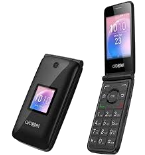
Losing your contacts can be frustrating. This guide shows you how to use PhoneCopy.com to keep a safe backup of all data from your Alcatel Go Flip 2 — it only takes a few minutes.
This guideline also works for similar devices like Alcatel 3088X, Alcatel 4052c, Alcatel 4052r, Alcatel MyFlip A405DL.
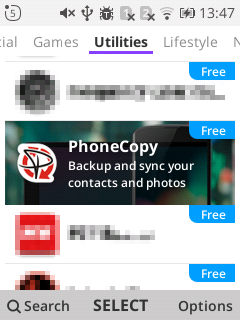
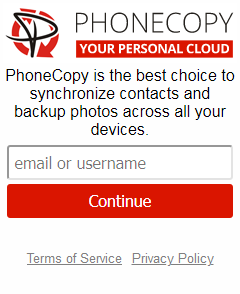
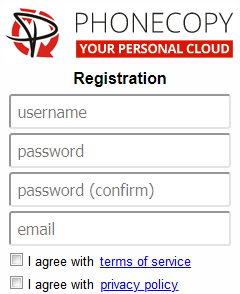
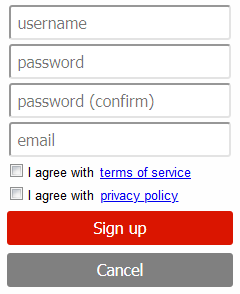
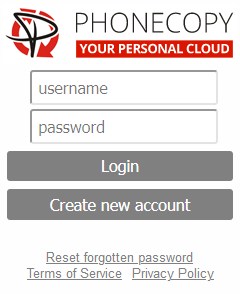
If you already have a PhoneCopy account, fill in your password. To export your contacts, press "Synchronize". Then select synchronization direction between three options: From your DEVICE to server, From SERVER to your device or Combine both. If you are not sure, use Combine both.
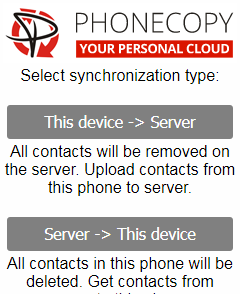
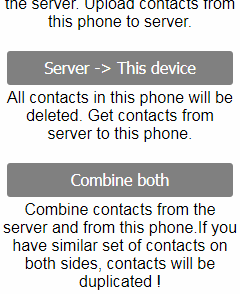
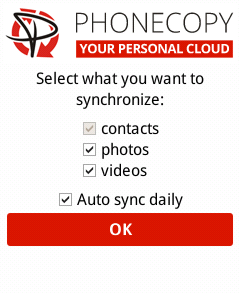
Select "contacts" and/or "photos" and press Synchronize. At the end of synchronization you will see status of synchronized items. In the Settings, you can set "auto sync daily".
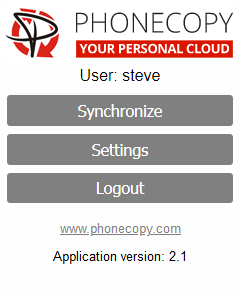
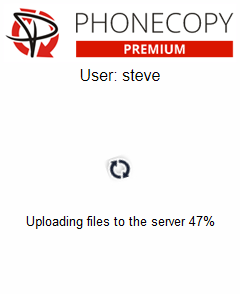
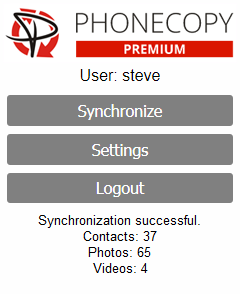
Well done — your contacts are now securely backed up in the cloud. Open your PhoneCopy account in any browser to review your data or make changes at any time.
Just as a reminder, the contacts are transferred via your mobile phone service provider, so you need to have data plan activated for the service to work. If you don't have a special data scheme, your carrier will charge you additional fees.


