
Would you like to transfer or synchronize data?
You can try FREE APPLICATION from online stores:



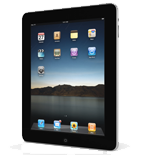

This step-by-step guide will help you back up your contacts from Apple iPad using PhoneCopy.com. The service works in the background and the whole process takes just a few minutes.
This guideline also works for similar devices like Apple iPhone 2G, Apple iPhone 3G, Apple iPhone 3GS, Apple iPhone 4, Apple iPod Touch.
Run the app and create new account.
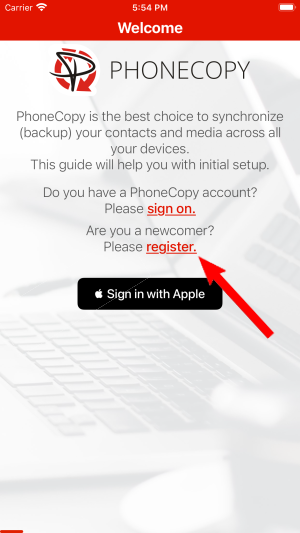
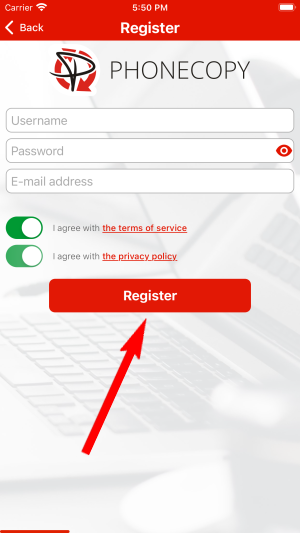
Then you need to allow PhoneCopy access to your contact list and select contacts which will be synchronized

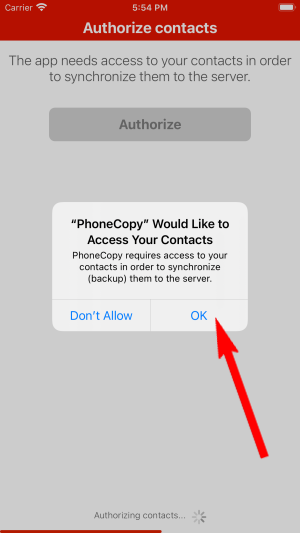
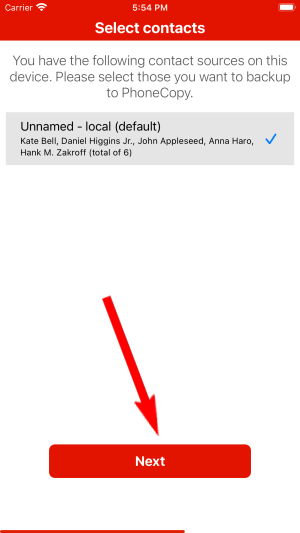
You can synchronize photos and videos too. Please note that the authorization of photos or videos is not required. If you will not grant it, PhoneCopy will only synchronize your contacts.

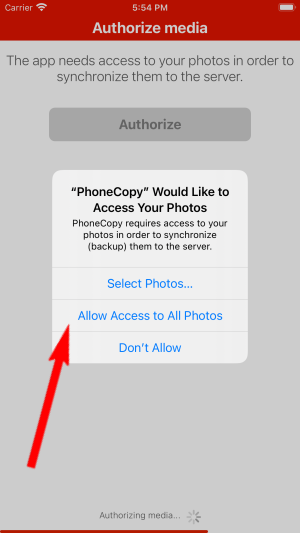

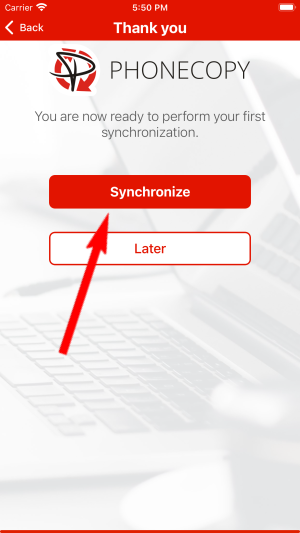
Let's synchronize!
This guideline also works for similar devices like Apple iMac, Apple Mac Mini, Apple Mac OS X, Apple Mac Pro, Apple Mac Studio, Apple MacBook Air, Apple MacBook Neo, Apple MacBook Pro.
Your data is now safe on PhoneCopy. The service stores a full copy of your contacts online, so you can access them from any device or restore them whenever needed.
The free PhoneCopy plan allows you to store up to 500 contacts, which is more than enough for most users. A premium plan is available if you need to sync more data or use advanced features.


