
Would you like to transfer or synchronize data?
You can try FREE APPLICATION from online stores:



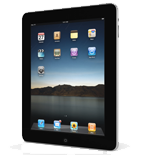
Losing your contacts can be frustrating. This guide shows you how to use PhoneCopy.com to keep a safe backup of all data from your Apple iPad — it only takes a few minutes.
This guideline also works for similar devices like Apple iPhone 2G, Apple iPhone 3G, Apple iPhone 3GS, Apple iPhone 4, Apple iPod Touch.
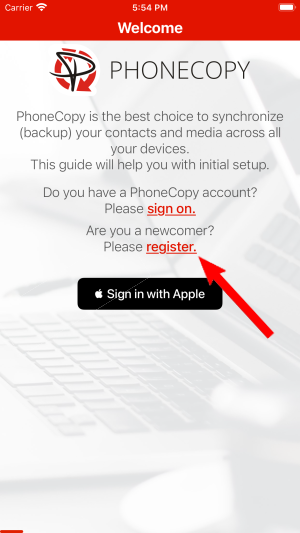
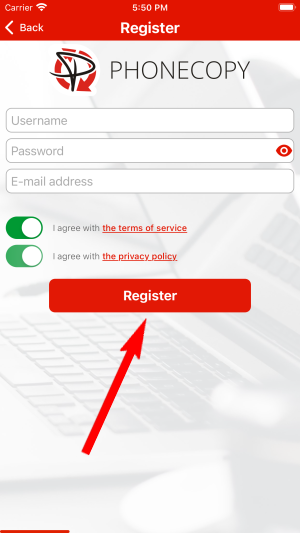
Run the app and create new account.
Then you need to allow PhoneCopy access to your contact list and select contacts which will be synchronized
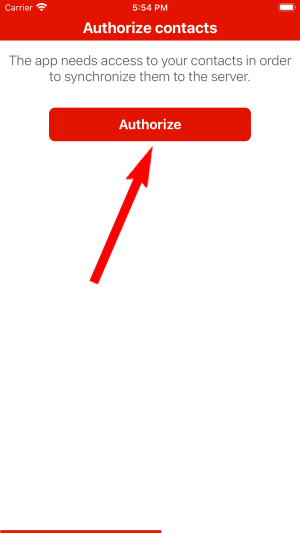
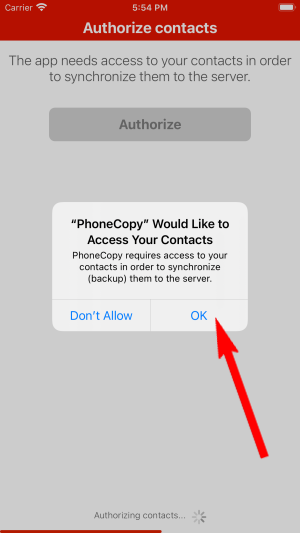
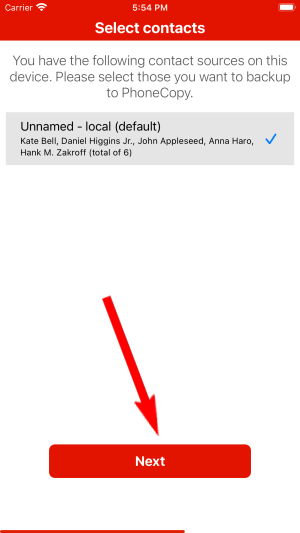
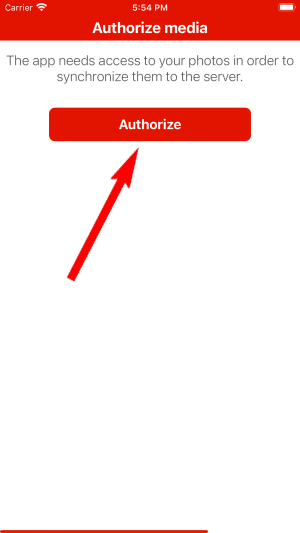
You can synchronize photos and videos too. Please note that the authorization of photos or videos is not required. If you will not grant it, PhoneCopy will only synchronize your contacts.
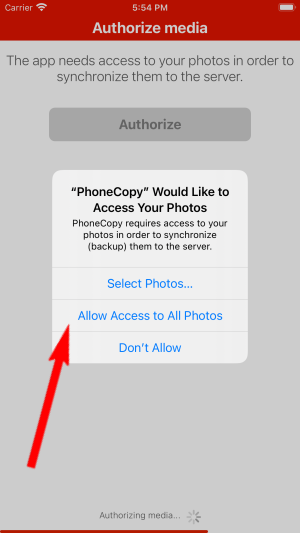
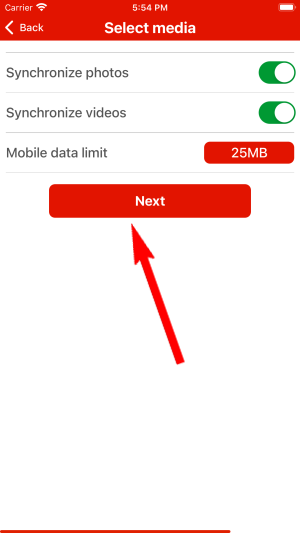
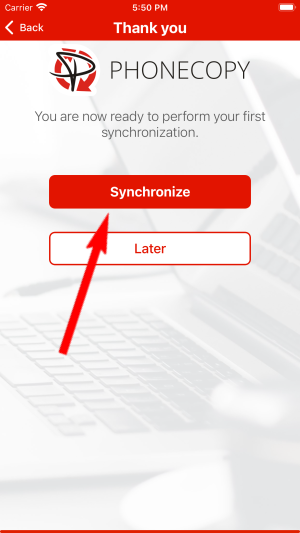
Let's synchronize!
Download PhoneCopy for Huawei from Huawei AppGallery to your phone free of charge. After downloading and installation, go through the following steps.
Run the app, fill in your username and password. Here you can check where will be stored contacts from PhoneCopy. In case you are Premium user, you can upload SMS, photos and videos as well.
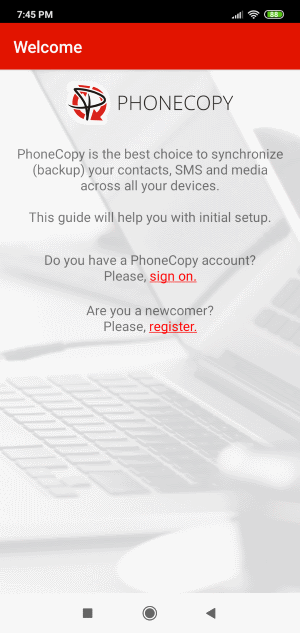
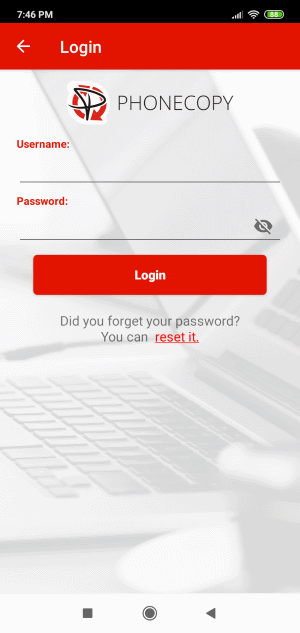
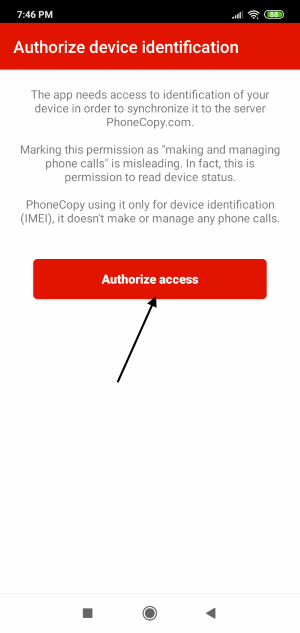
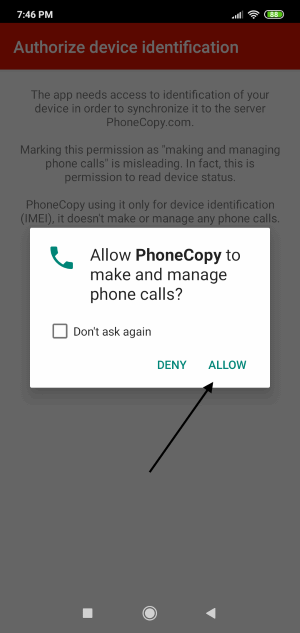
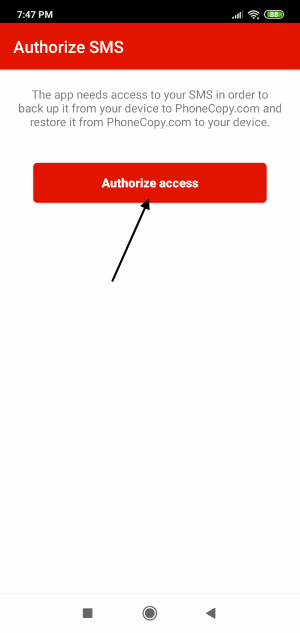
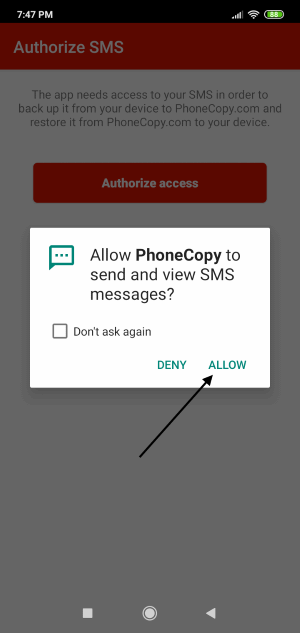
Log in to your existing account where you stored your data from the old phone. To allow correct functionality of PhoneCopy application we will kindly ask you to confirm access permissions for it.
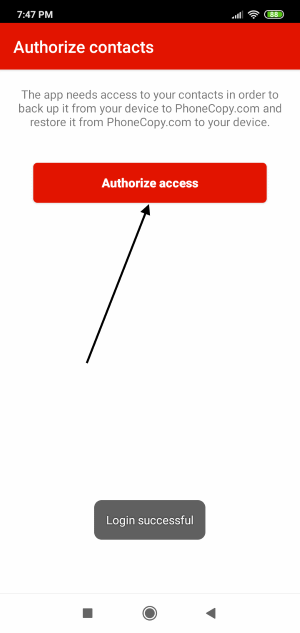
When you confirm access to contacts you can set which "contacts databases" you want to backup.
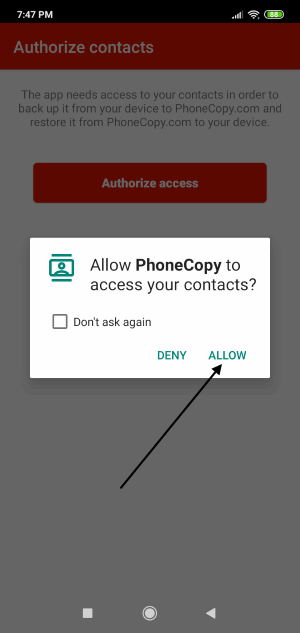
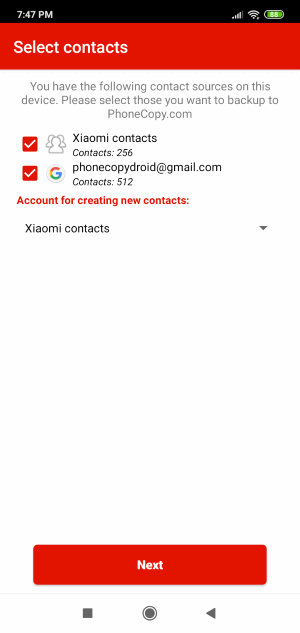
PhoneCopy allows to back up SMS too.
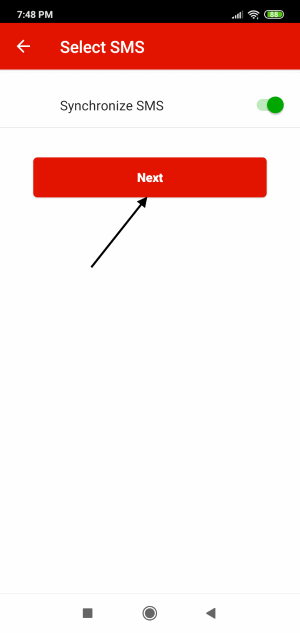
Then you can set up backup for media (photos and videos).
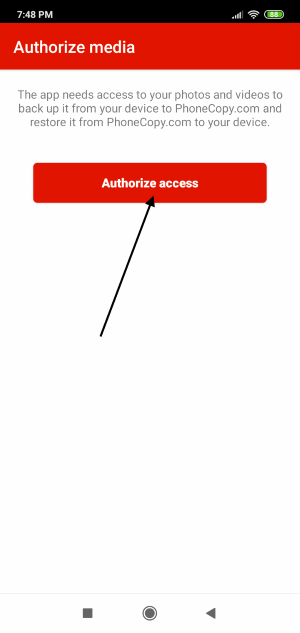
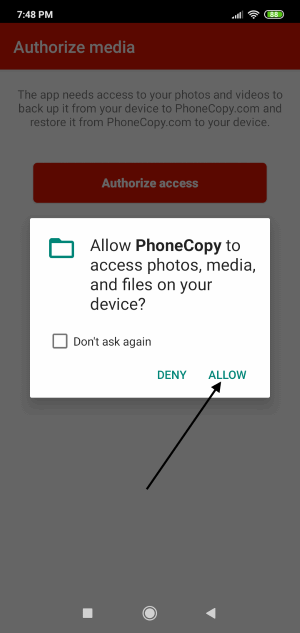
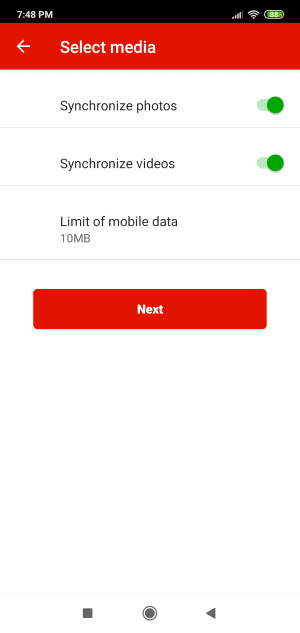
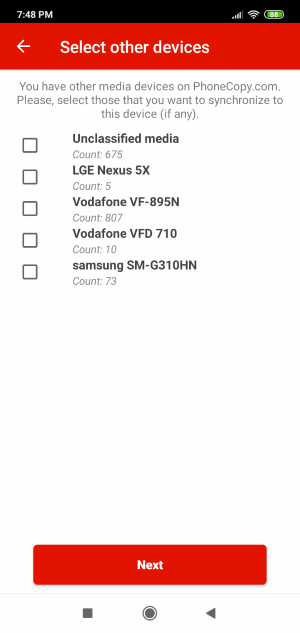
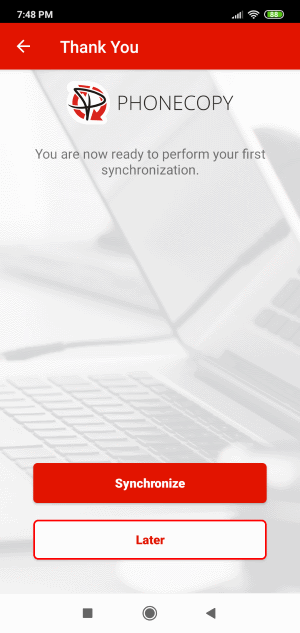
You can download photos and videos from old phone (which was synchronized to PhoneCopy.com before) you can choose it in the next step. Then you can synchronize.
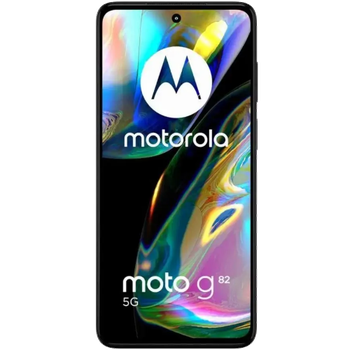
This guideline also works for similar devices like Motorola Edge 30 Neo, Motorola Moto E30, Motorola Moto E32, Motorola Moto G Stylus 5G (2022), Motorola Moto G31, Motorola Moto G32, Motorola Moto G41, Motorola Moto G52, Motorola Moto G62 5G, Motorola Moto G71 5G.
Your backup is now complete. Visit the PhoneCopy website to confirm that all your contacts were transferred correctly and to explore the other features your account offers.
Just as a reminder, the contacts are transferred via your mobile phone service provider, so you need to have data plan activated for the service to work. If you don't have a special data scheme, your carrier will charge you additional fees.


