
Would you like to transfer or synchronize data?
You can try FREE APPLICATION from online stores:




PhoneCopy.com makes it simple to back up your contacts from Apple iPhone 13 to the cloud. In this guide, we will walk you through the entire process step by step.
This guideline also works for similar devices like Apple iPhone 12 mini, Apple iPhone 12 Pro, Apple iPhone 12 Pro Max, Apple iPhone 13 mini, Apple iPhone 13 Pro, Apple iPhone 13 Pro Max 5G, Apple iPhone 14.
Run the app and create new account.
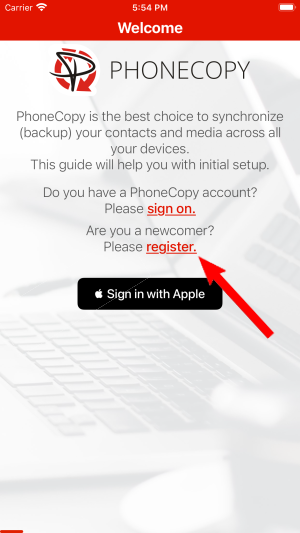
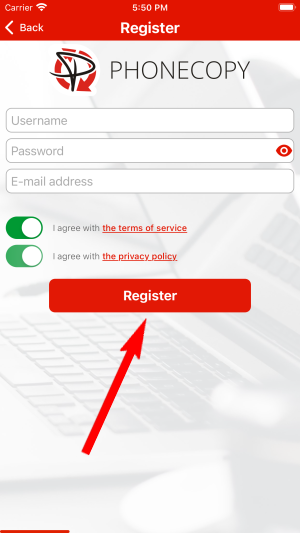
Then you need to allow PhoneCopy access to your contact list and select contacts which will be synchronized

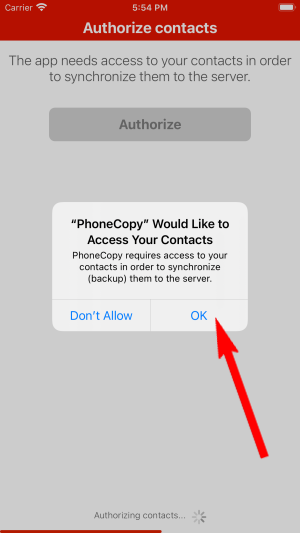
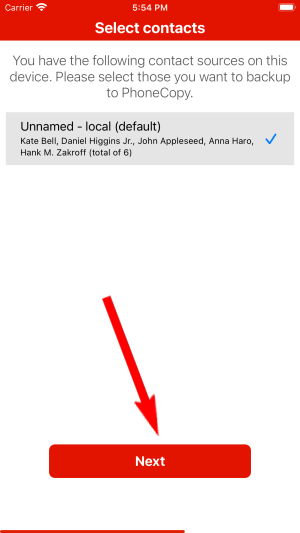
You can synchronize photos and videos too. Please note that the authorization of photos or videos is not required. If you will not grant it, PhoneCopy will only synchronize your contacts.

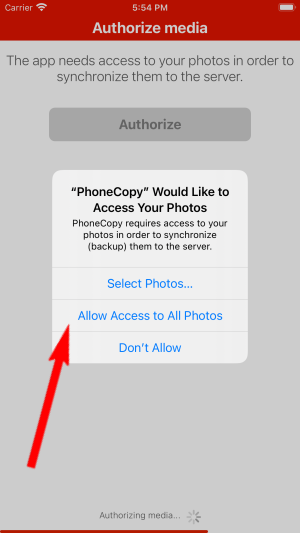
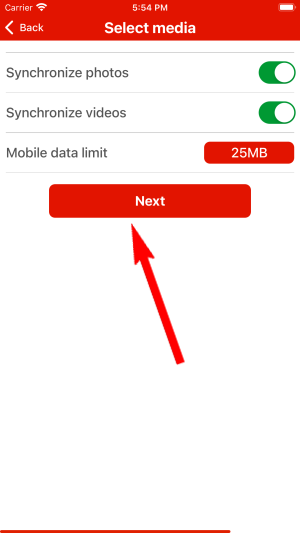
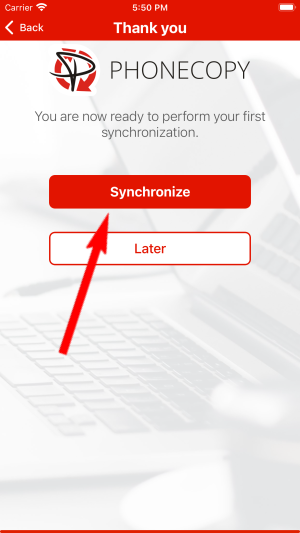
Let's synchronize!
This guideline also works for similar devices like Apple iMac, Apple Mac OS X, Apple Mac Pro, Apple Mac Studio, Apple MacBook, Apple MacBook Air, Apple MacBook Neo, Apple MacBook Pro.
Now you can easily edit your contacts and other resources online in your PhoneCopy profile. You have access to your contact even if you forget your phone at home.
On your online account, you will see full history of your contacts, as well as the data that you've deleted in between the synchronizations. You can find them in an archive from where you can restore them. And if this is still not enough of a backup for you, you can download a CSV file, that you can store in your computer.