
Would you like to transfer or synchronize data?
You can try FREE APPLICATION from online stores:



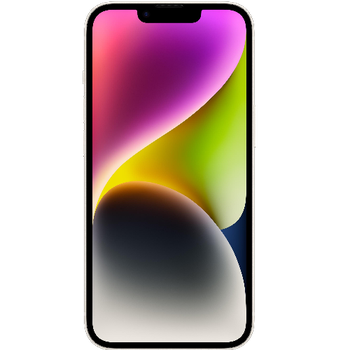

We used PhoneCopy.com service for this guideline. Using it, your can backup your contacts from your Apple iPhone 14 Plus easily. The whole backup, including the settings, can be done in several minutes.
This guideline also works for similar devices like Apple iPhone 14 Pro, Apple iPhone 14 Pro Max, Apple iPhone 15, Apple iPhone 15 Plus, Apple iPhone 15 Pro, Apple iPhone 15 Pro Max, Apple SE 3rd generation.
Run the app and create new account.
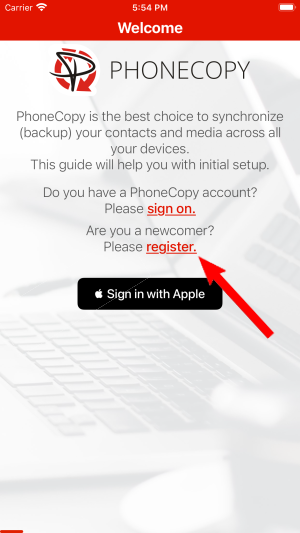
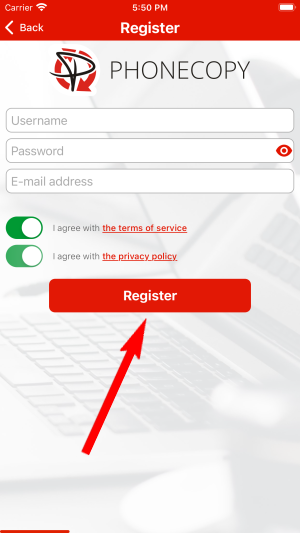
Then you need to allow PhoneCopy access to your contact list and select contacts which will be synchronized

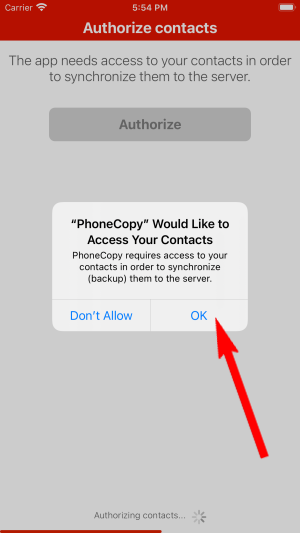
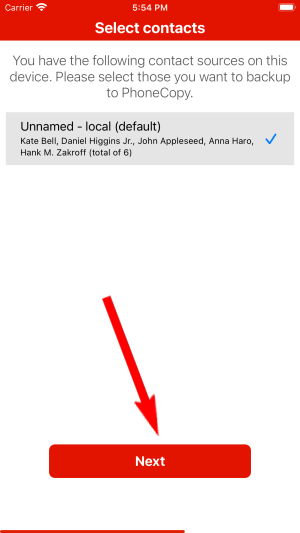
You can synchronize photos and videos too. Please note that the authorization of photos or videos is not required. If you will not grant it, PhoneCopy will only synchronize your contacts.

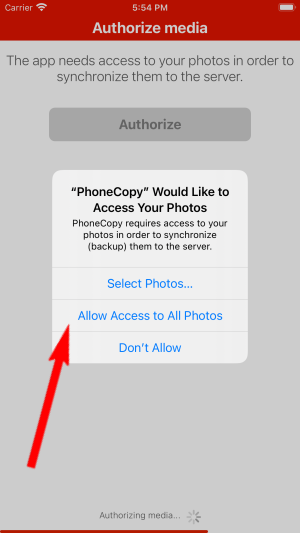

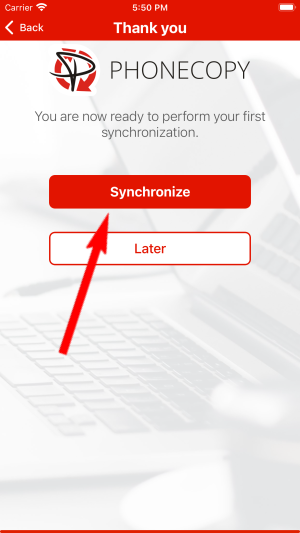
Let's synchronize!
Certain Outlook version do not offer similar functionality directly from the app so our guide will use Windows Control Panel widget. Depending on the Outlook version, the texts on the following screens may differ. Always aim towards setting up an email account via Exchange ActiveSync using custom settings.
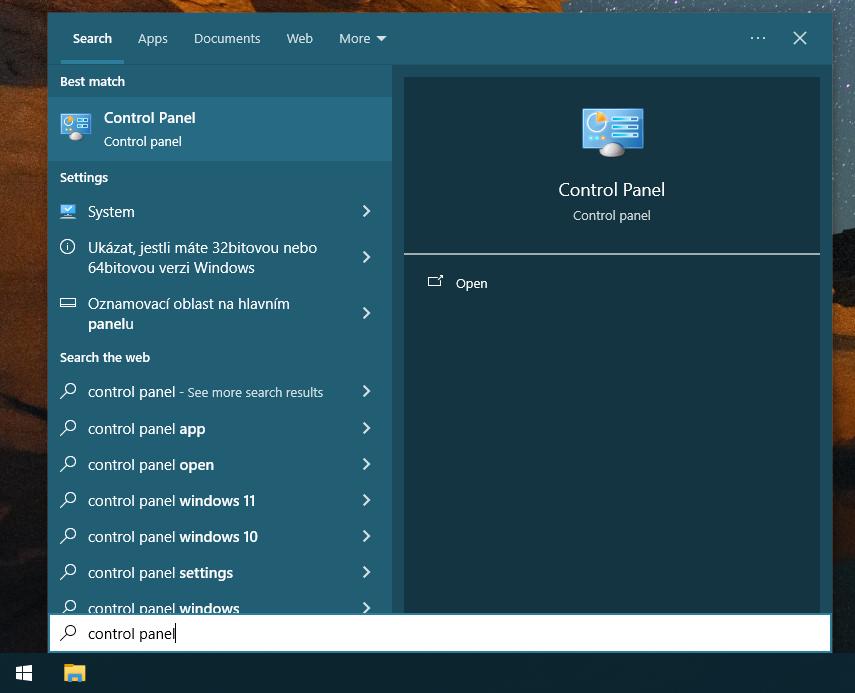
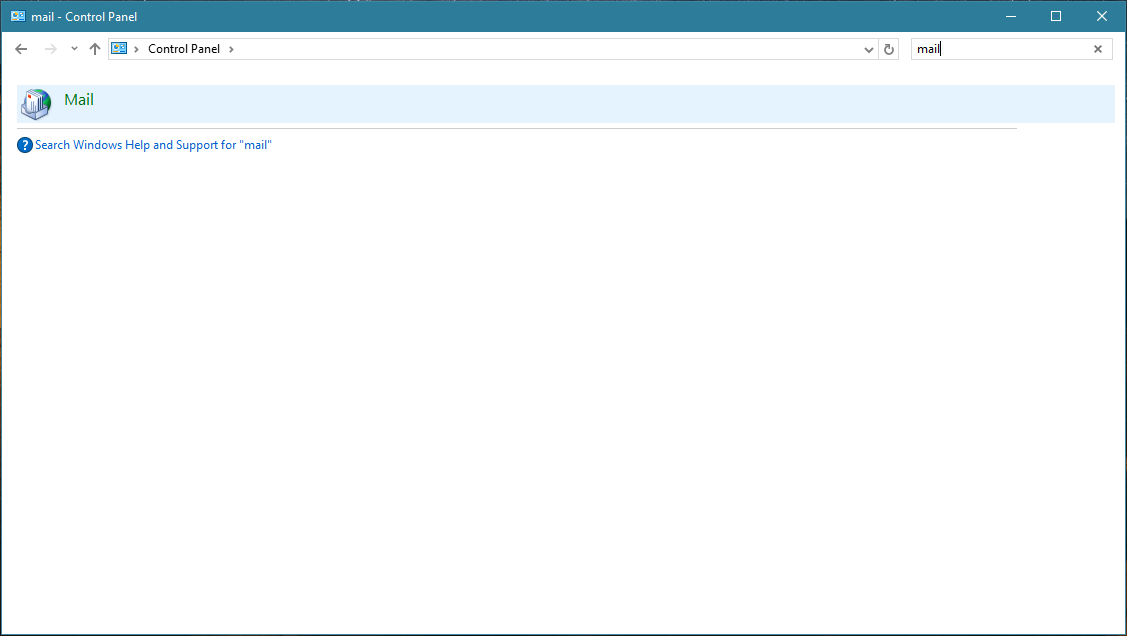
Press Windows Start button, search for Control panel, find and open Mail.
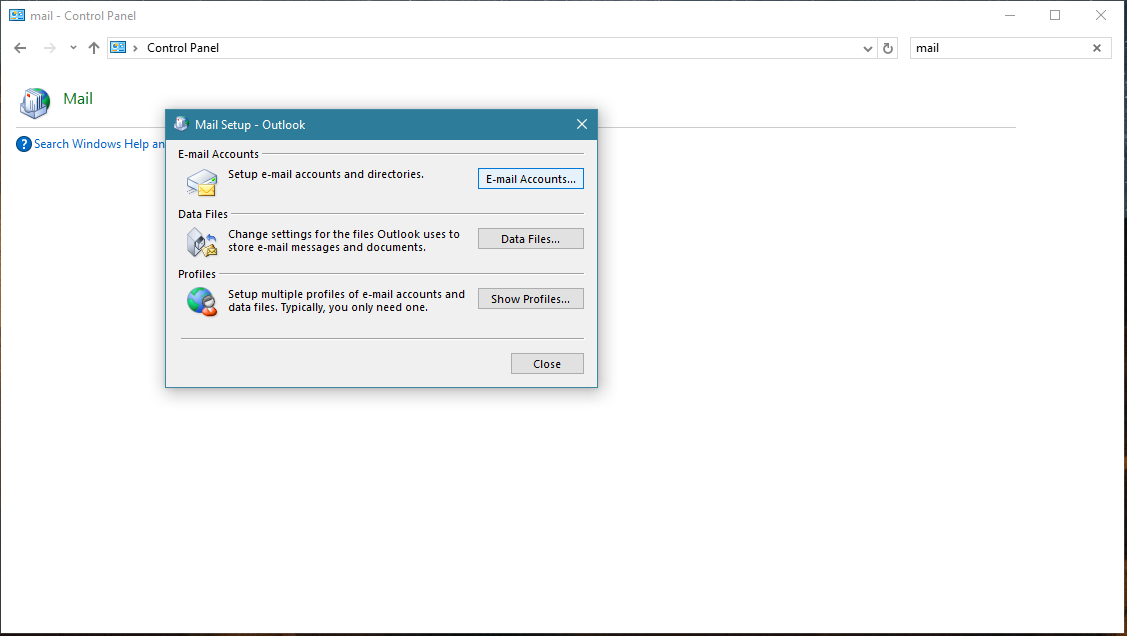
Press E-mail Accounts button.
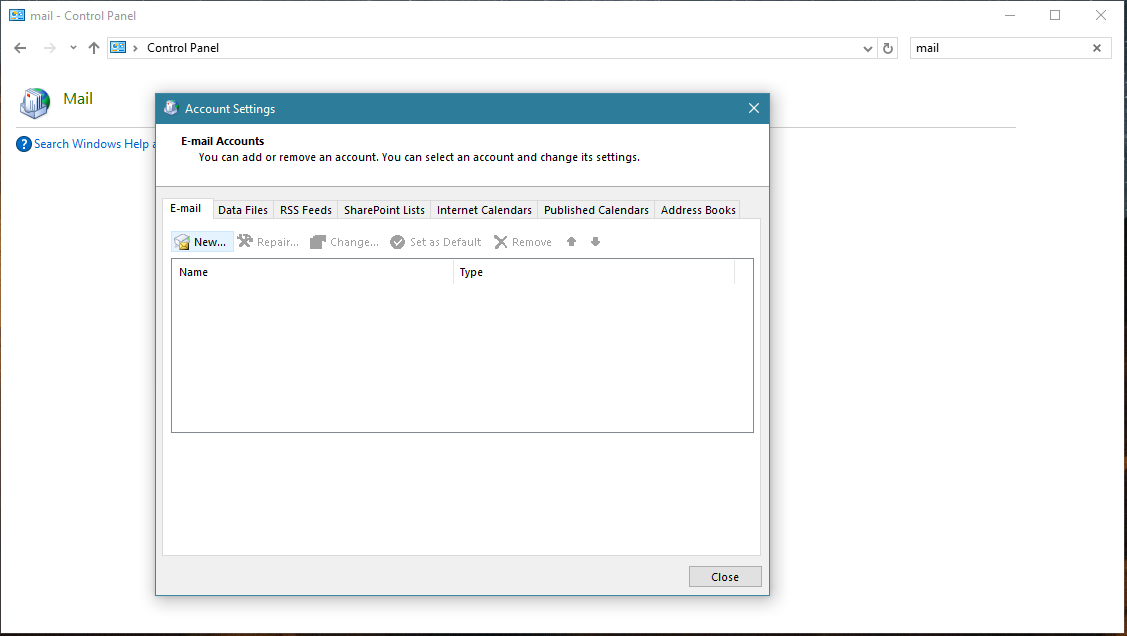
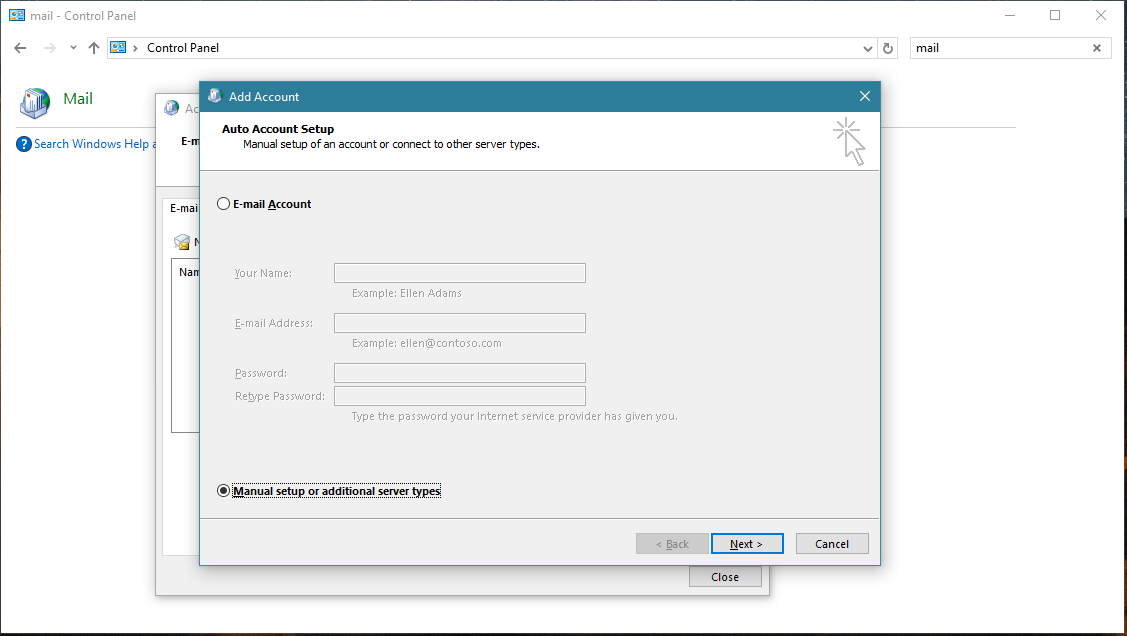
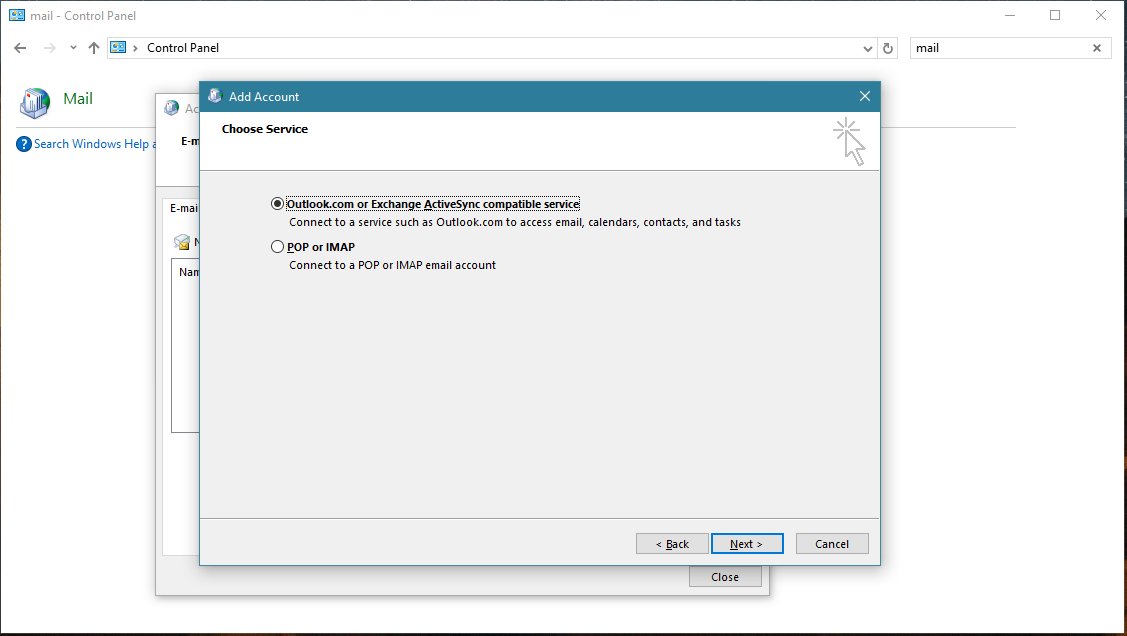
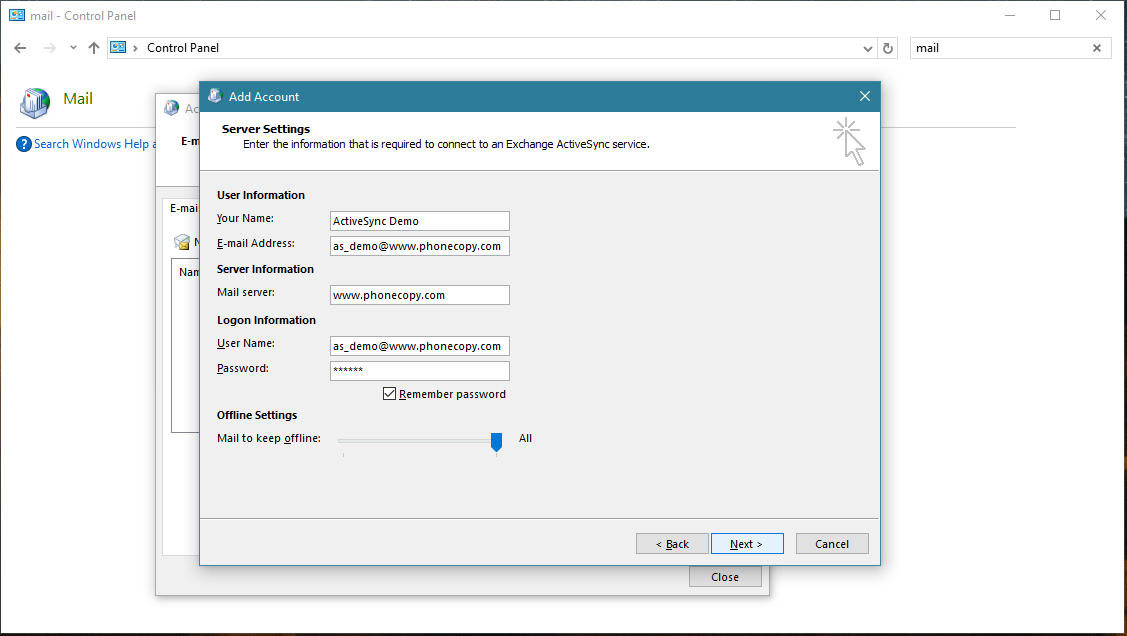
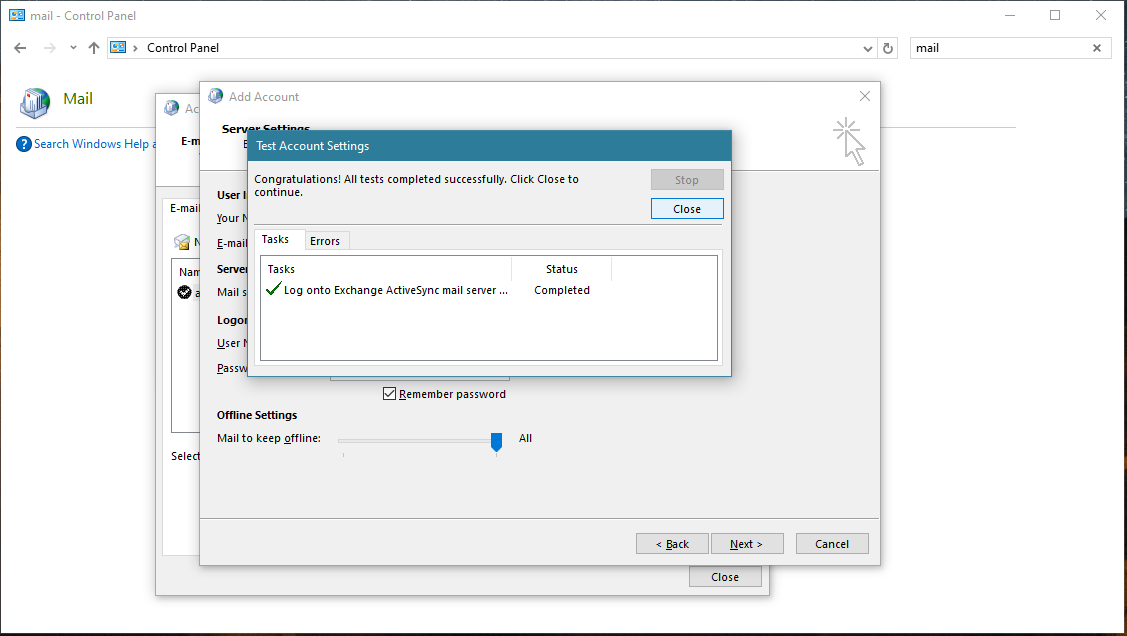
Account test should be performed. Press Close.
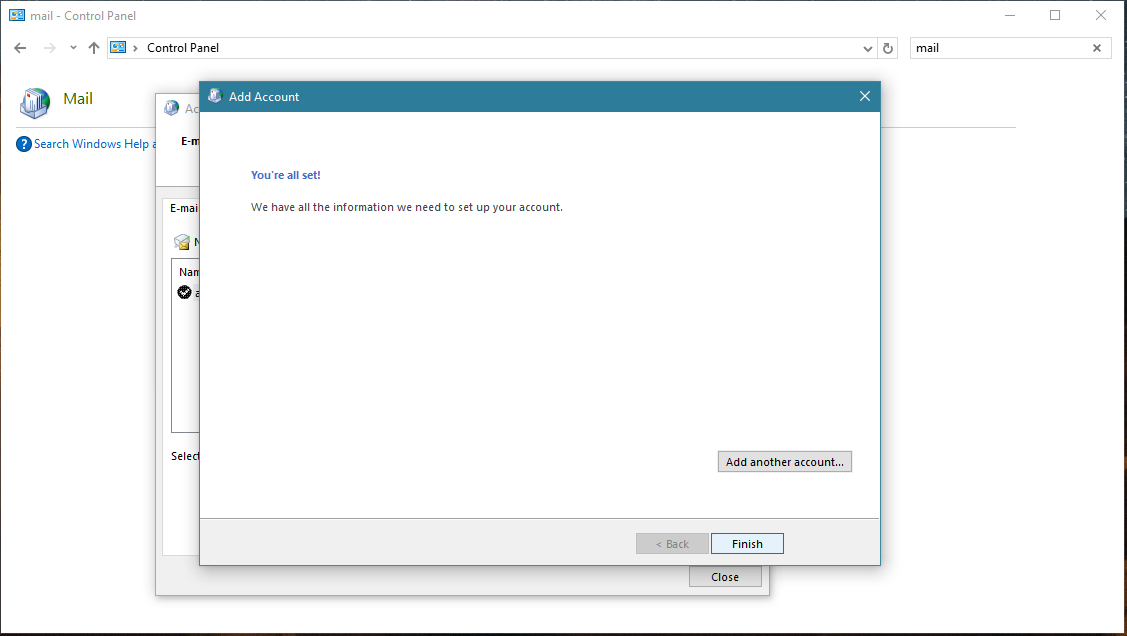
Press Finish. Now you can close all Control panel windows. Setup is complete.
Now you can run Outlook app. Your contacts, calendar and tasks should be synchronized automatically. Note that PhoneCopy items have their separate folder and calendar in Outlook app. Only these contact/task folders and calendar are synchronized with PhoneCopy.
This guideline also works for similar devices like Microsoft Outlook 2016, Microsoft Outlook 2019.
With your contacts safely backed up, you can rest easy knowing your data is secure. Log into your PhoneCopy account at any time to view, edit, or restore your contacts.
PhoneCopy keeps a detailed sync history for your account. If you accidentally delete a contact, you can recover it from an earlier backup without losing any other data.