

Would you like to transfer or synchronize data?
You can try FREE APPLICATION from online stores:



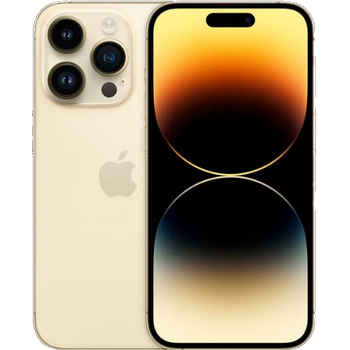
PhoneCopy.com is a web service which is free for personal purposes (with few limitations). This tutorial will show you how to backup your data from Apple iPhone 14 Pro Max. The whole process can be completed in few minutes.
This guideline also works for similar devices like Apple iPhone 13 Pro Max 5G, Apple iPhone 14, Apple iPhone 14 Plus, Apple iPhone 14 Pro, Apple iPhone 15, Apple iPhone 15 Plus, Apple SE 3rd generation.
Run the app and create new account.
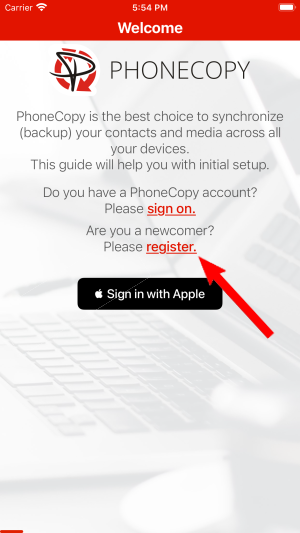
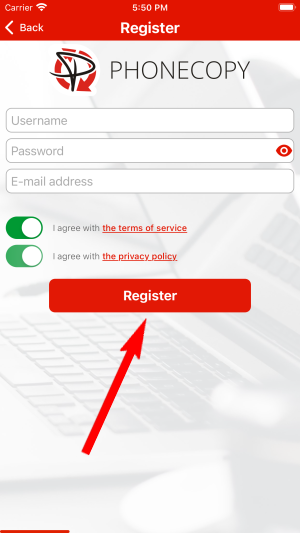
Then you need to allow PhoneCopy access to your contact list and select contacts which will be synchronized

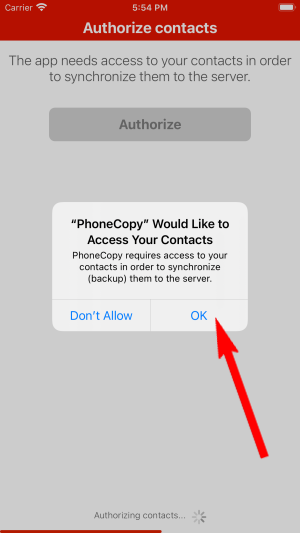
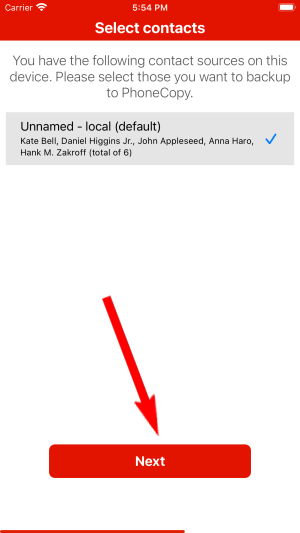
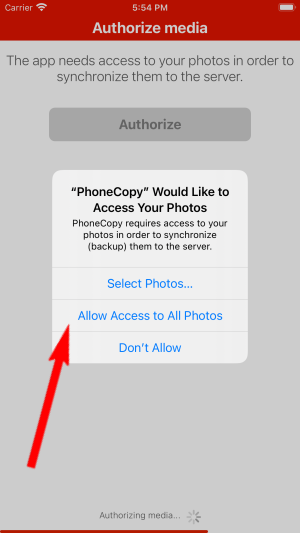
You can synchronize photos and videos too. Please note that the authorization of photos or videos is not required. If you will not grant it, PhoneCopy will only synchronize your contacts.


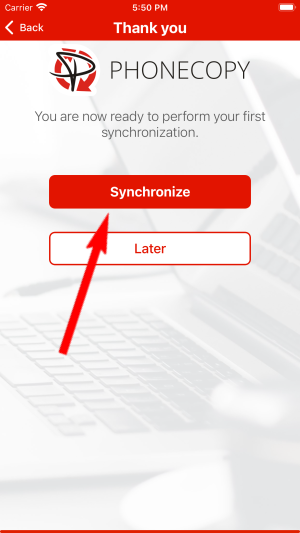
Let's synchronize!
Download PhoneCopy for Windows to your Windows PC, which you can download free of charge. After downloading and installation PhoneCopy icon will appear on your desktop.

Start the application and small PhoneCopy icon will appear on right bottom corner of your screen on status bar. When you will press this icon at first time you will be asked to fill your username and password. Any next icon click will start synchronization.

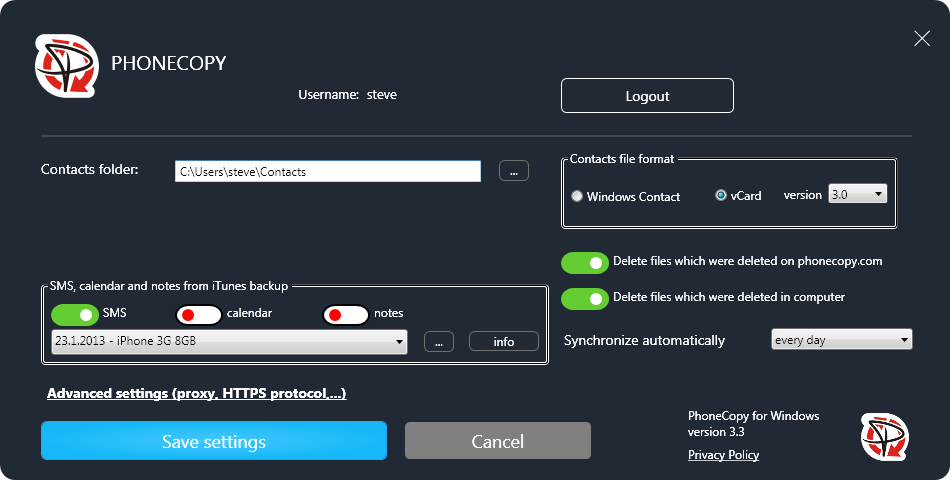
Start PhoneCopy for Windows. Fill your PhoneCopy username and password, then select the local directory where you stored your contacts, and choose VCARD format which will be used (we recommend to use 3.0 which is pre-selected - this is the right option when you are looking to import contacts from .vcf). Another option is to use native Windows Contacts format and synchronize directly from/to Contacts folder. Moreover, you can set your proxy on the same screen.
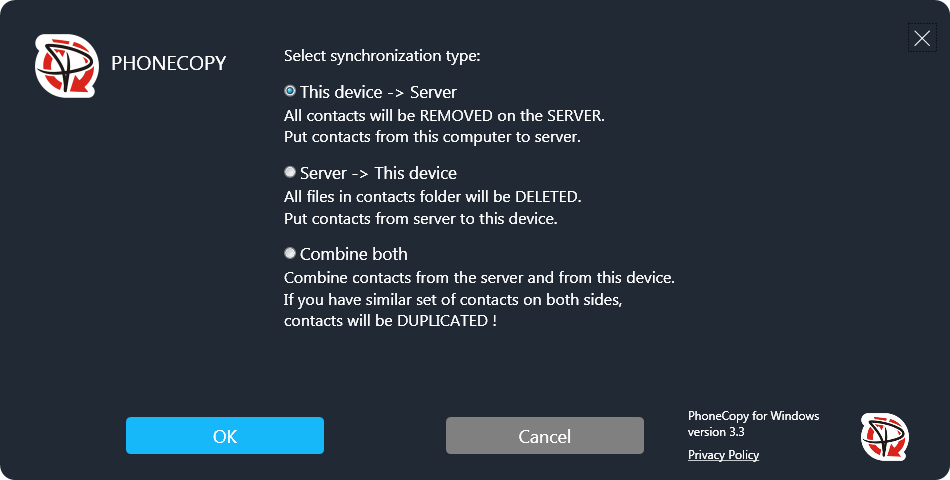
Now you can start the first synchronization on your Windows to transfer your contacts from/to PhoneCopy server. When synchronizing for the first time you can select synchronization direction. When you will add any VCARD contacts to selected directory you will see it synchronized to PhoneCopy after next sync. Status bar icon is animated during synchronization process.
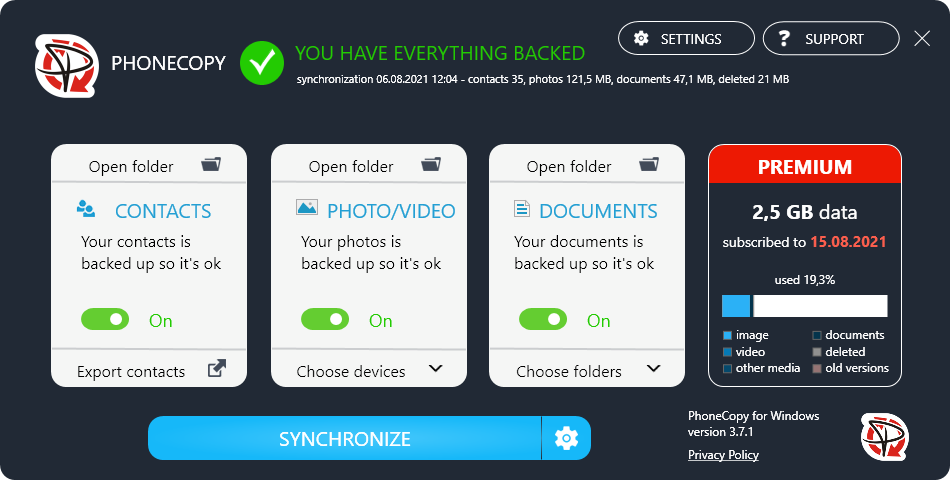
When synchronization finish you will get confirming message.
This guideline also works for similar devices like Microsoft Windows 2000, Microsoft Windows 2003, Microsoft Windows 2008, Microsoft Windows 7, Microsoft Windows 8.1, Microsoft Windows 98, Microsoft Windows ME, Microsoft Windows Vista, Microsoft Windows XP.
Well done — your contacts are now securely backed up in the cloud. Open your PhoneCopy account in any browser to review your data or make changes at any time.
You can set PhoneCopy to sync automatically at regular intervals, so your backup always stays up to date without you having to remember to do it manually.