
Would you like to transfer or synchronize data?
You can try FREE APPLICATION from online stores:



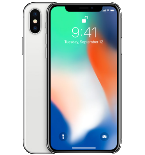
PhoneCopy.com is a reliable way to keep your contacts safe. Follow this guide to learn how to back up your Apple iPhone X data quickly and without any technical knowledge.
This guideline also works for similar devices like Apple iPad Air 2, Apple iPad mini 2, Apple iPad Pro 12,9" 2nd gen, Apple iPhone 8, Apple iPhone 8 Plus, Apple iPhone Xs, Apple iPhone Xs Max.
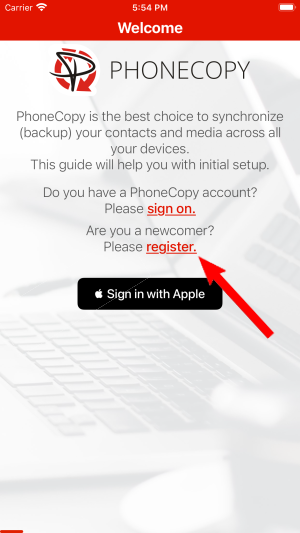
Run the app and create new account.
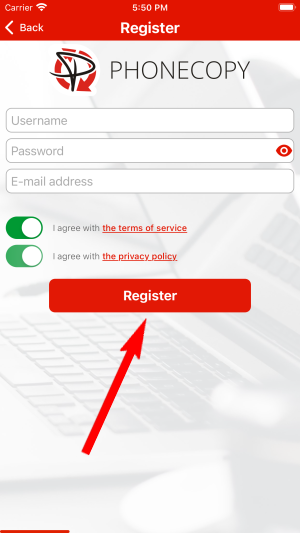
Then you need to allow PhoneCopy access to your contact list and select contacts which will be synchronized

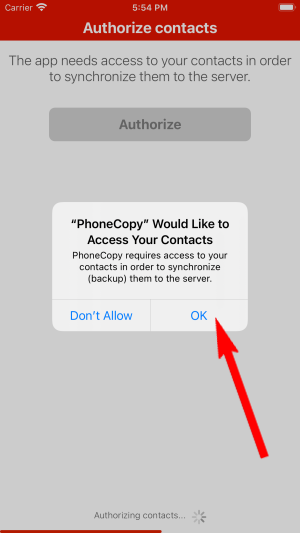
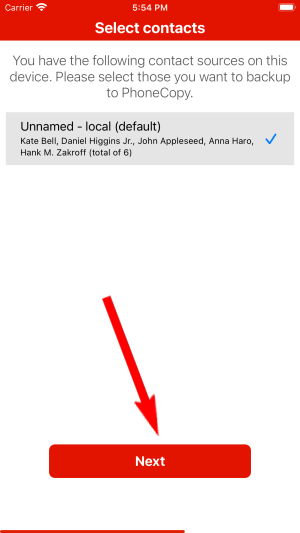
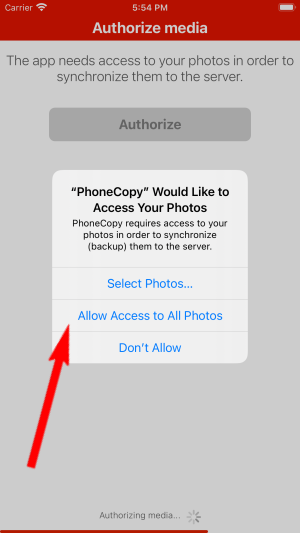
You can synchronize photos and videos too. Please note that the authorization of photos or videos is not required. If you will not grant it, PhoneCopy will only synchronize your contacts.

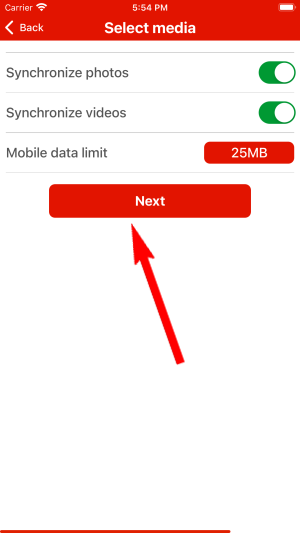
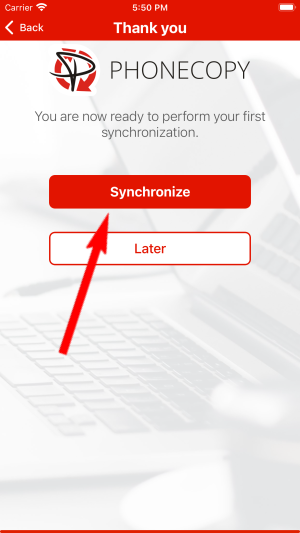
Let's synchronize!
This guideline also works for similar devices like AT&T Cingular Flex, AT&T Cingular Flip 3 (q28a), AT&T Cingular Flip IV.
Now you have all your contacts backed up on PhoneCopy and you can edit all your contacts in your online account. If you lose your phone or the stored data, or if you just run out of battery, you can see your contacts online.
If the sync does not complete, make sure your phone has a stable internet connection and that background data is enabled for the PhoneCopy app. A brief pause and retry usually resolves the issue.


