
Would you like to transfer or synchronize data?
You can try FREE APPLICATION from online stores:



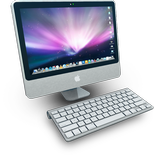
Whether you are switching phones or just want a safe copy of your data, PhoneCopy.com is a great solution. This guide covers how to back up contacts from your Apple Mac OS X quickly and easily.
This guideline also works for similar devices like Apple iMac, Apple MacBook, Apple MacBook Air, Apple MacBook Pro.
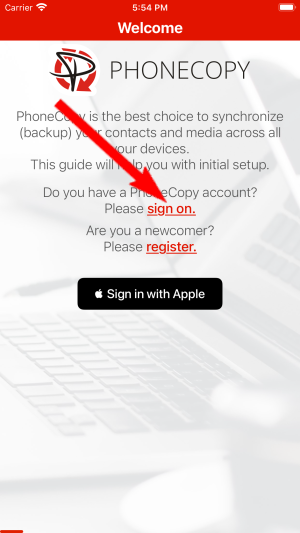
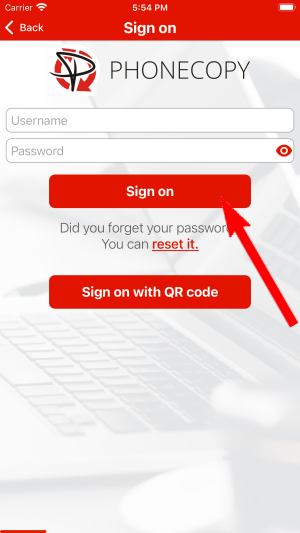
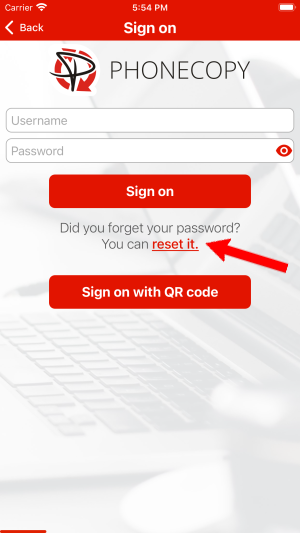
Run the app and select "Sign on" if you already have an account.
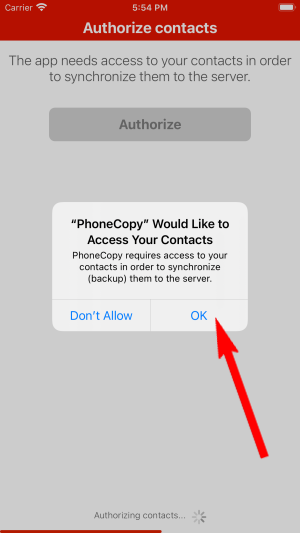
Then you need to allow PhoneCopy access to your contact list and select contacts which will be synchronized


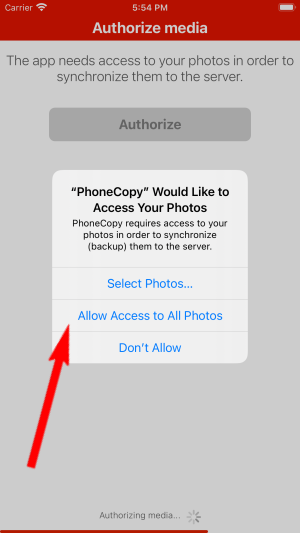
You can also sync photos and videos. Please note that the authorization of photos or videos is not required. If you will not grant it, PhoneCopy will only synchronize your contacts.


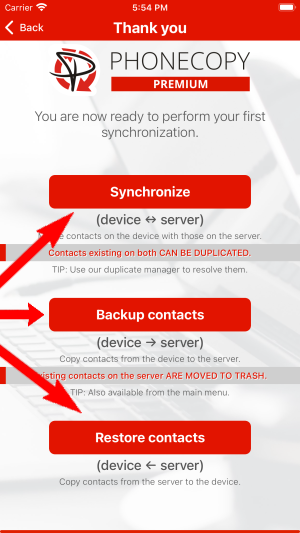
If you already have photos or videos in your PhoneCopy account you can choose from which phone(s) you want to transfer the backed up photos and videos to the new iPhone. Then let's synchronize!

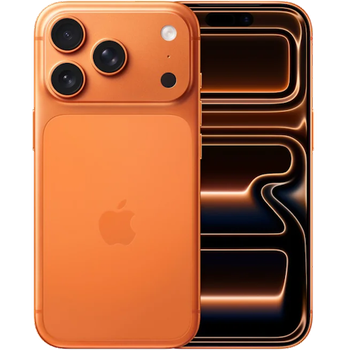
This guideline also works for similar devices like Apple iPhone 16, Apple iPhone 16 Plus, Apple iPhone 16 Pro, Apple iPhone 16e, Apple iPhone 17, Apple iPhone 17 Pro Max, Apple iPhone 17e, Apple iPhone 18 Pro, Apple iPhone Air, Apple iPhone Duo.
Your backup is now complete. Visit the PhoneCopy website to confirm that all your contacts were transferred correctly and to explore the other features your account offers.
It is a good idea to run a sync before any major change, such as a factory reset or an OS update. That way, your contacts are always protected before anything unexpected happens.


