
Would you like to transfer or synchronize data?
You can try FREE APPLICATION from online stores:




Losing your contacts can be frustrating. This guide shows you how to use PhoneCopy.com to keep a safe backup of all data from your Apple Mac OS X — it only takes a few minutes.
This guideline also works for similar devices like Apple iMac, Apple MacBook, Apple MacBook Air, Apple MacBook Pro.
Certain Outlook version do not offer similar functionality directly from the app so our guide will use Windows Control Panel widget. Depending on the Outlook version, the texts on the following screens may differ. Always aim towards setting up an email account via Exchange ActiveSync using custom settings.
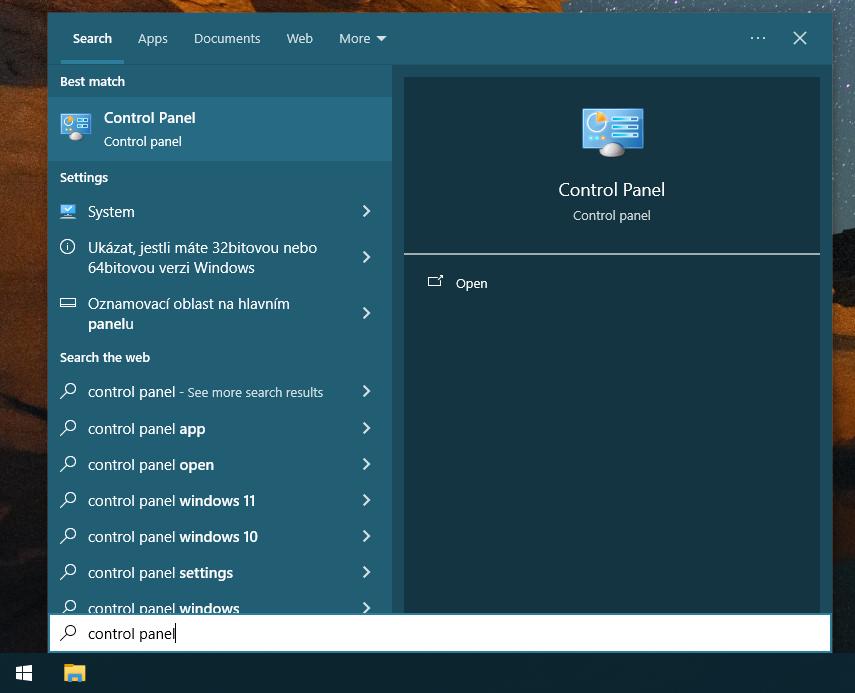
Press Windows Start button, search for Control panel, find and open Mail.
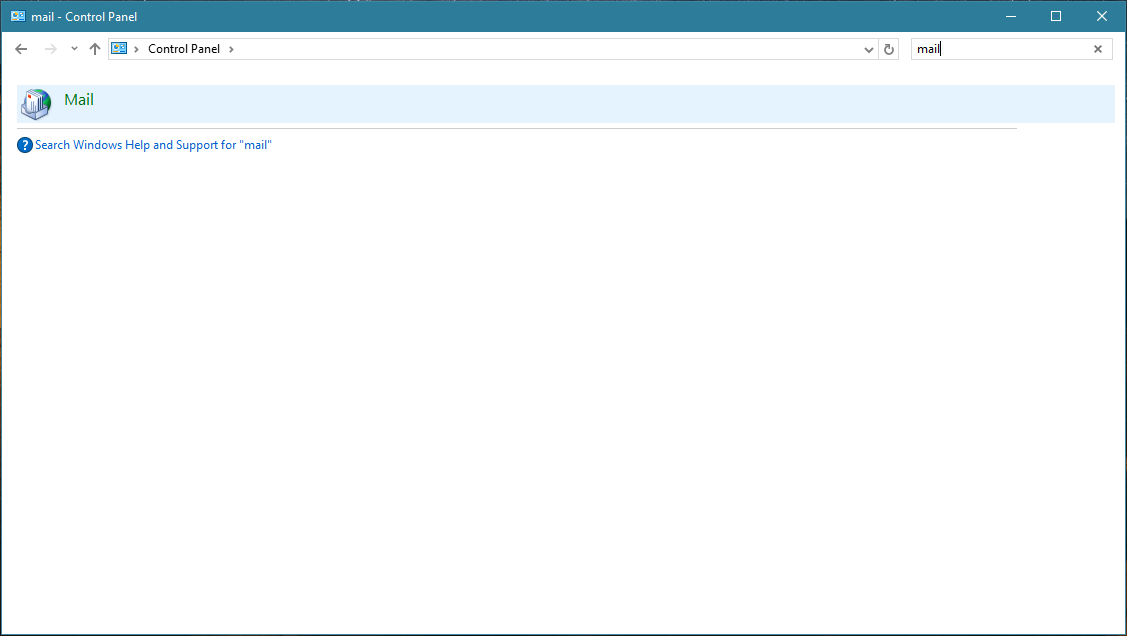
Press E-mail Accounts button.
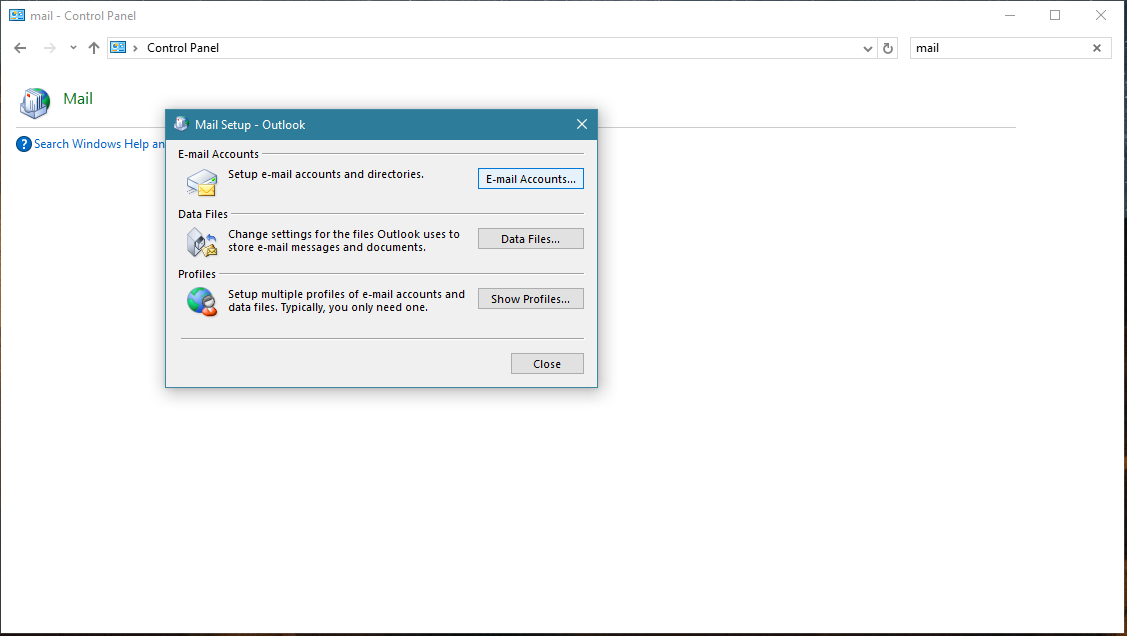
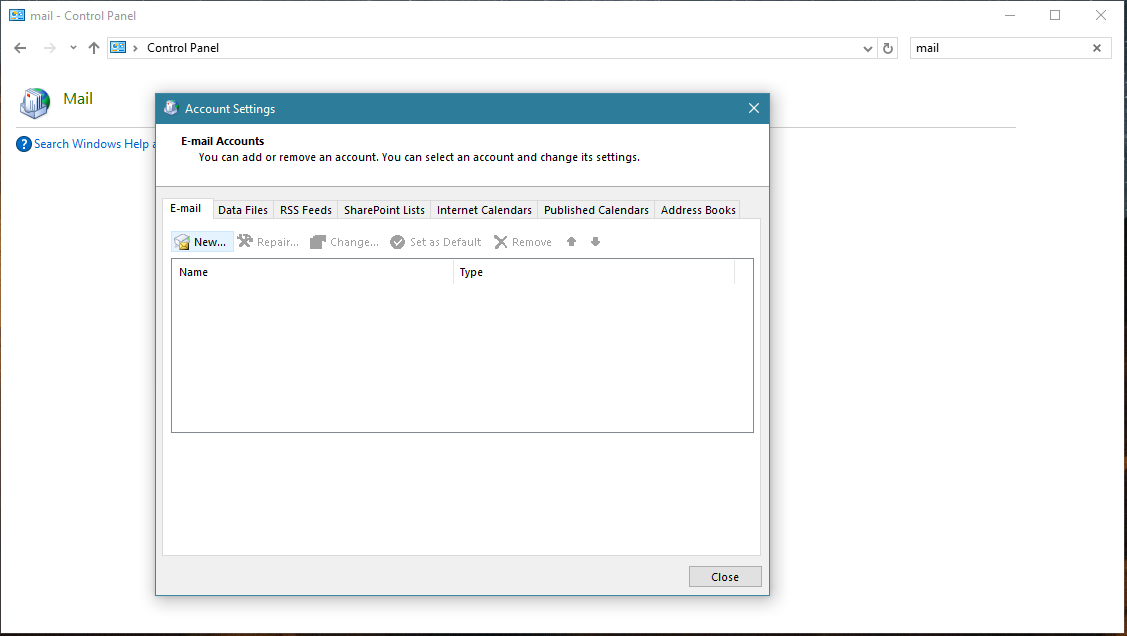
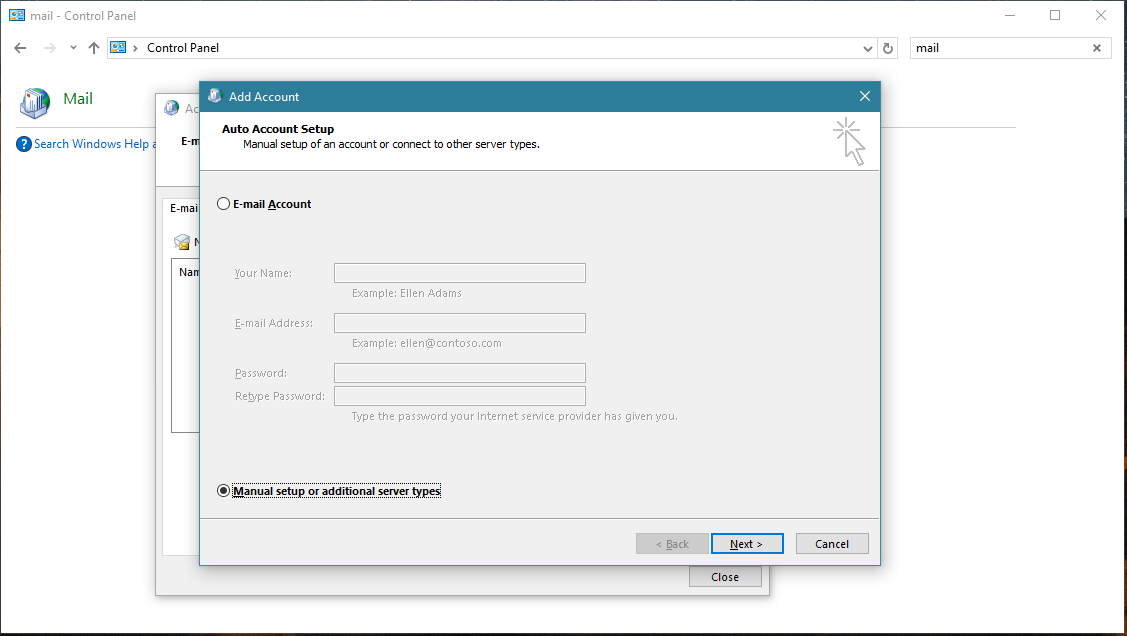
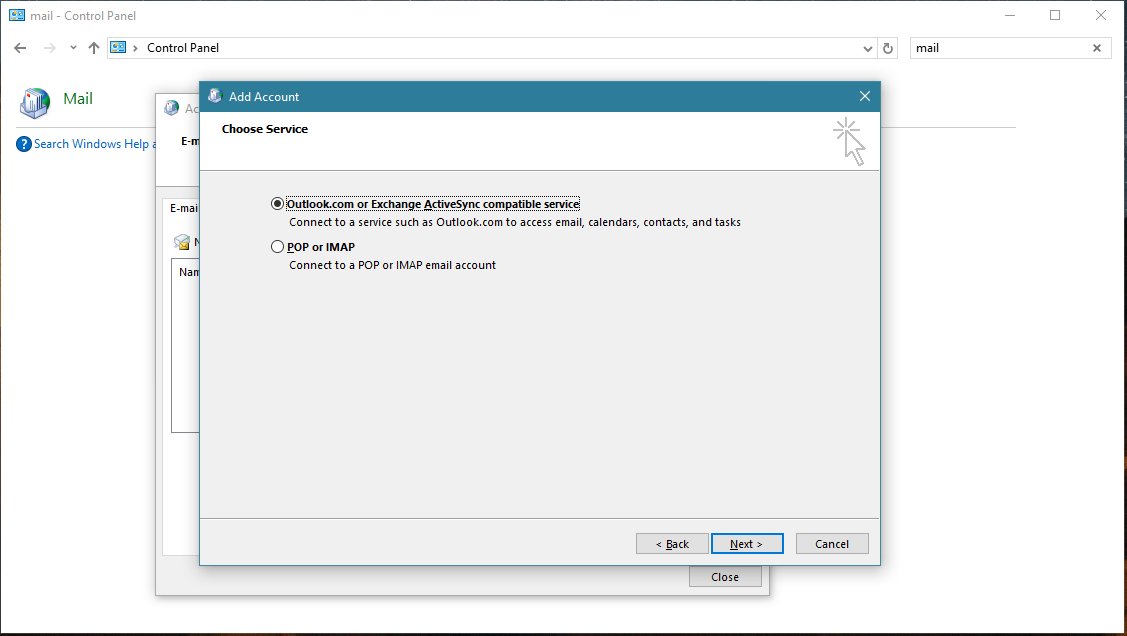
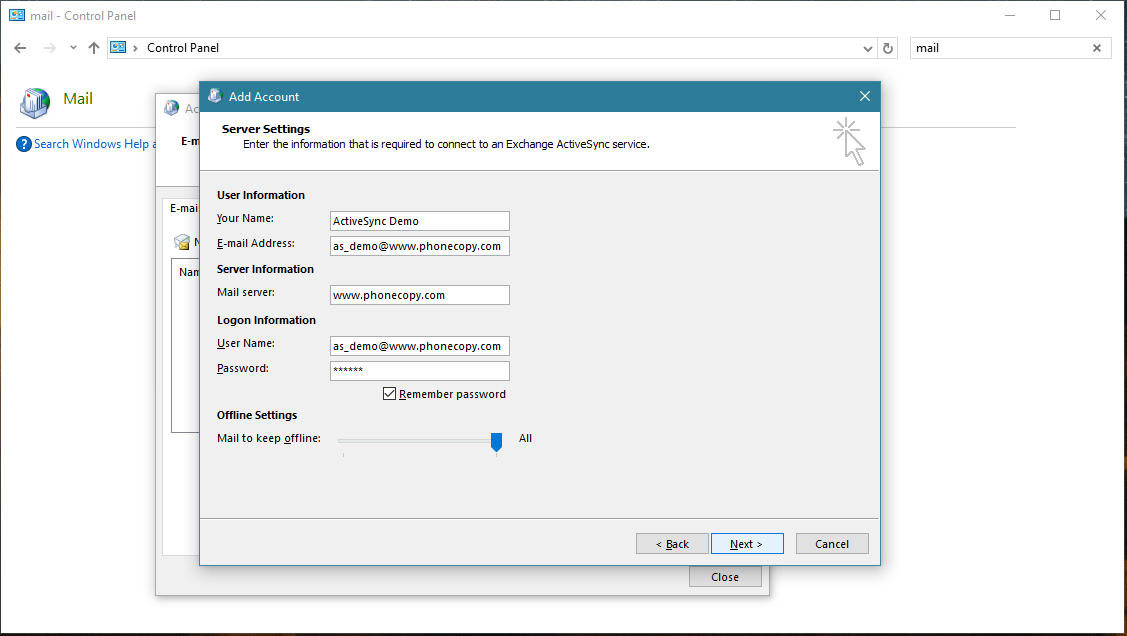
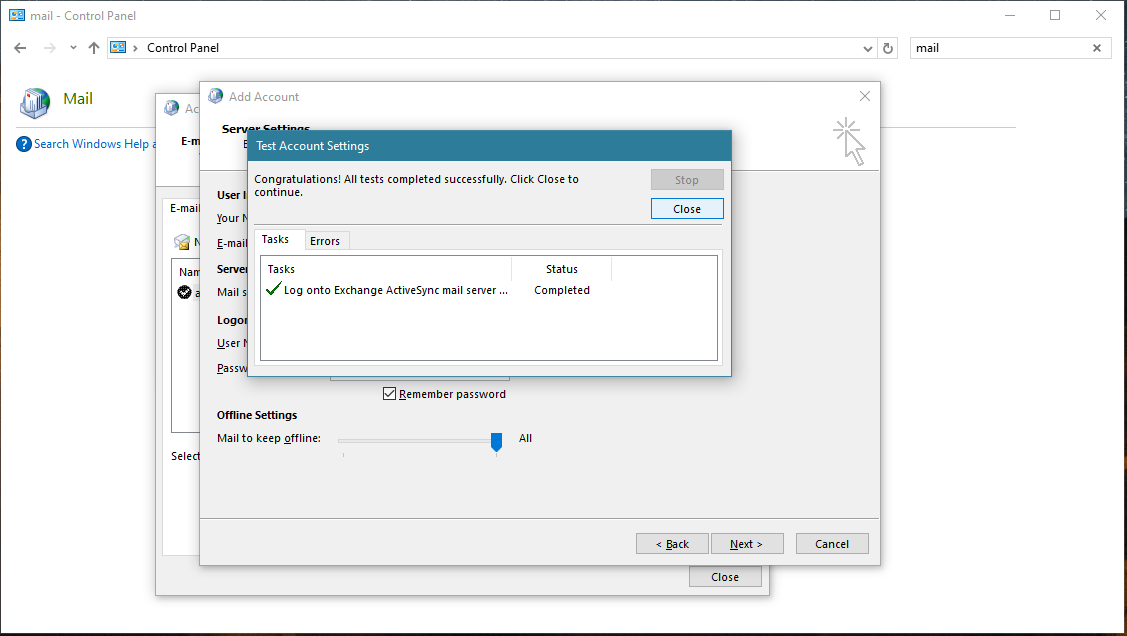
Account test should be performed. Press Close.
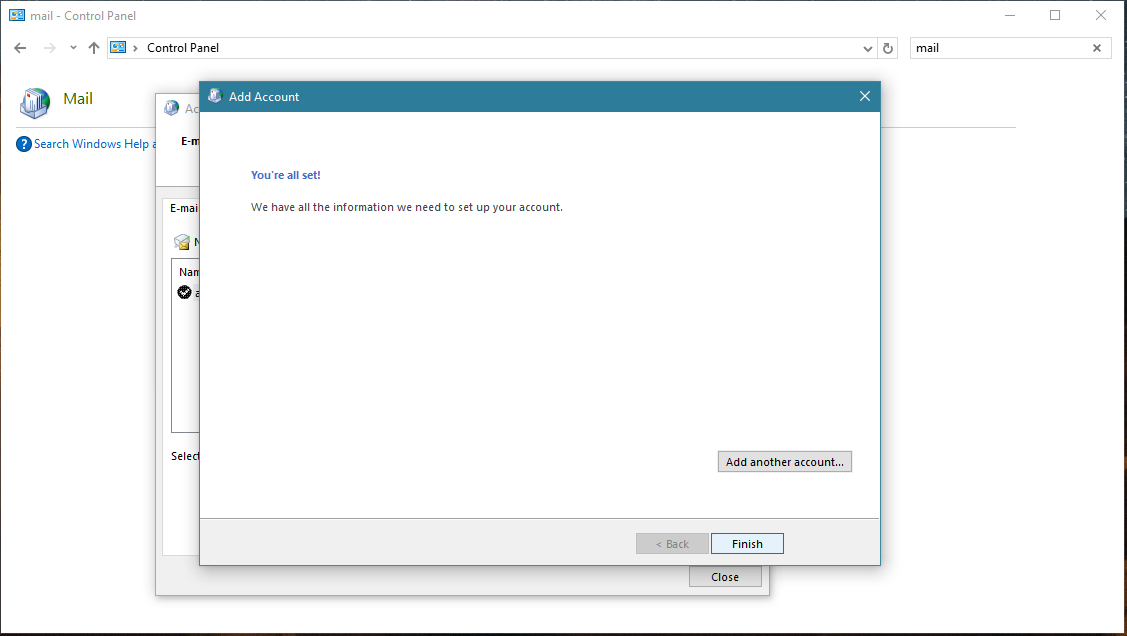
Press Finish. Now you can close all Control panel windows. Setup is complete.
Now you can run Outlook app. Your contacts, calendar and tasks should be synchronized automatically. Note that PhoneCopy items have their separate folder and calendar in Outlook app. Only these contact/task folders and calendar are synchronized with PhoneCopy.
This guideline also works for similar devices like Microsoft Outlook 2013, Microsoft Outlook 2016.
From now on, your contacts are protected. If anything happens to your Apple Mac OS X, simply log into PhoneCopy to access or restore your data instantly.
The free PhoneCopy plan allows you to store up to 500 contacts, which is more than enough for most users. A premium plan is available if you need to sync more data or use advanced features.


