
Would you like to transfer or synchronize data?
You can try FREE APPLICATION from online stores:



PhoneCopy.com makes it simple to back up your contacts from Apple Mac OS X to the cloud. In this guide, we will walk you through the entire process step by step.
This guideline also works for similar devices like Apple iMac, Apple MacBook, Apple MacBook Air, Apple MacBook Pro.
Download PhoneCopy for Huawei from Huawei AppGallery to your phone free of charge. After downloading and installation, go through the following steps.
Run the app, fill in your username and password. Here you can check where will be stored contacts from PhoneCopy. In case you are Premium user, you can upload SMS, photos and videos as well.
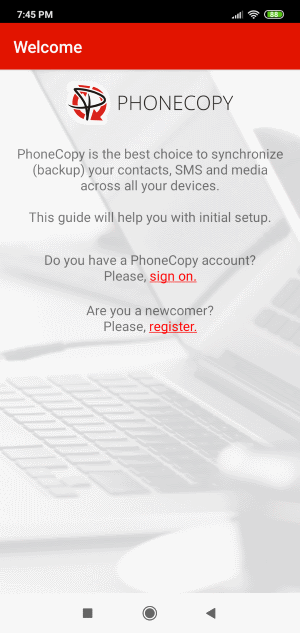
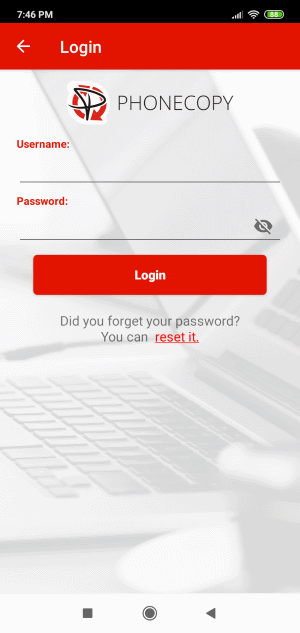
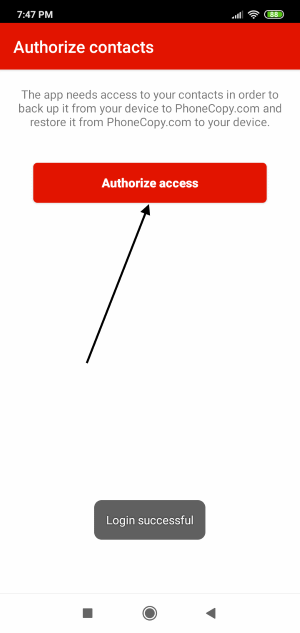
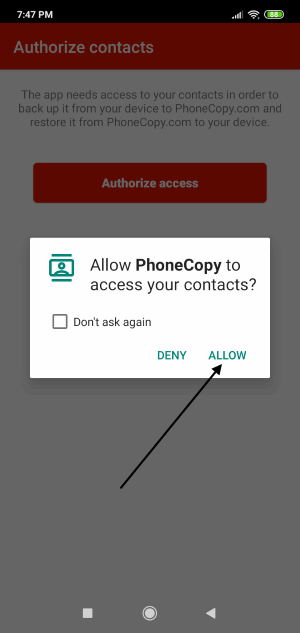
Log in to your existing account where you stored your data from the old phone. To allow correct functionality of PhoneCopy application we will kindly ask you to confirm access permissions for it.
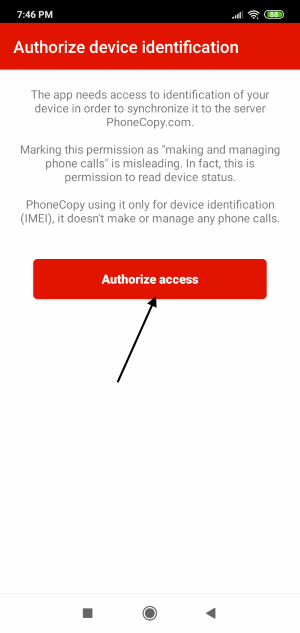
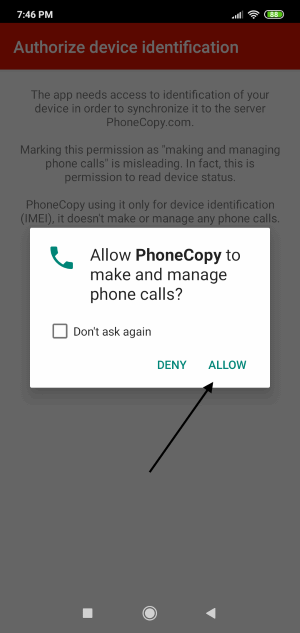
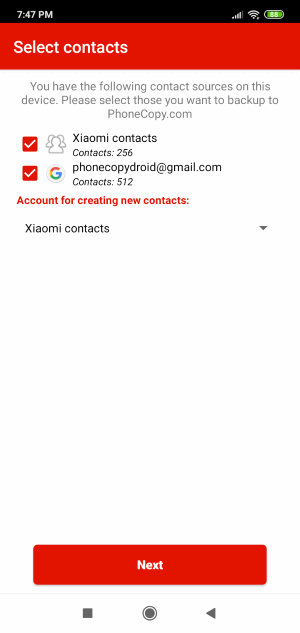
When you confirm access to contacts you can set which "contacts databases" you want to backup.
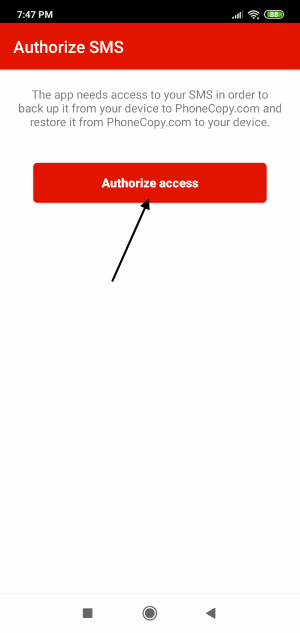
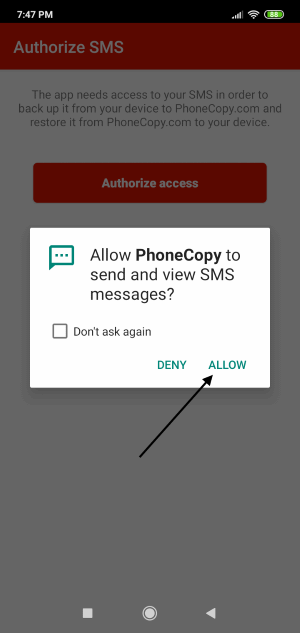
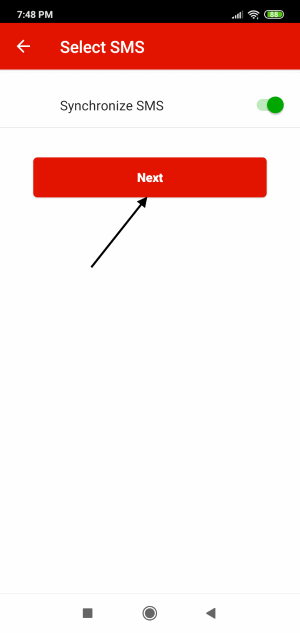
PhoneCopy allows to back up SMS too.
Then you can set up backup for media (photos and videos).
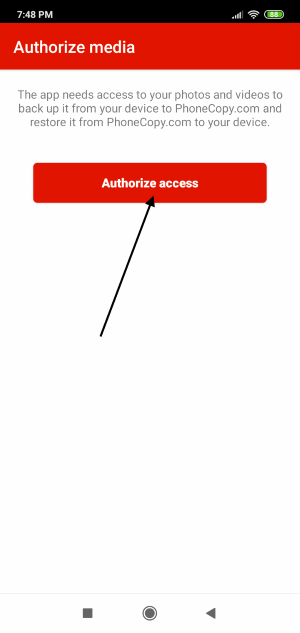
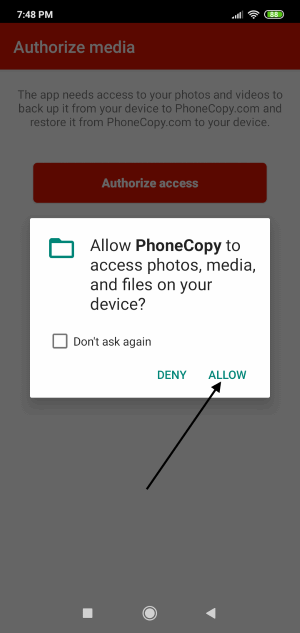
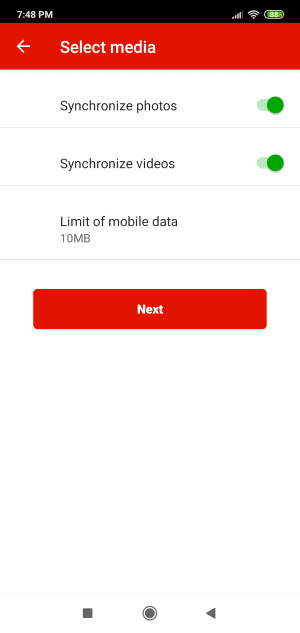
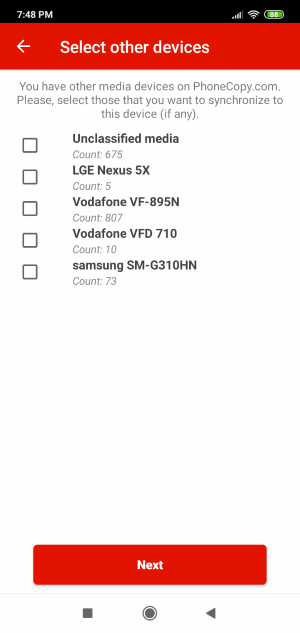
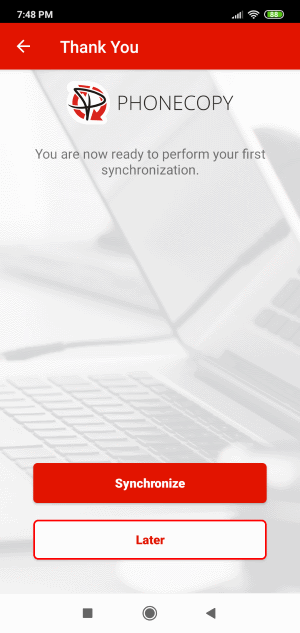
You can download photos and videos from old phone (which was synchronized to PhoneCopy.com before) you can choose it in the next step. Then you can synchronize.
This guideline also works for similar devices like Xiaomi Mix Fold 2 5G, Xiaomi Mix Fold 3 5G, Xiaomi Poco X5 5G, Xiaomi Redmi A1+, Xiaomi Redmi A2, Xiaomi Redmi A2 Plus, Xiaomi Redmi Note 10 JE, Xiaomi Redmi Note 11E Pro, Xiaomi Redmi Note 12 5G, Xiaomi Redmi Note 12s.
Well done — your contacts are now securely backed up in the cloud. Open your PhoneCopy account in any browser to review your data or make changes at any time.
You can easily remove duplicate items among your contact list or SMS messages. Just go to the Contacts (or SMS) section and choose More Actions -> Search for duplicates. Detailed wizard will help you to solve this kind of problem easily.


