
Would you like to transfer or synchronize data?
You can try FREE APPLICATION from online stores:



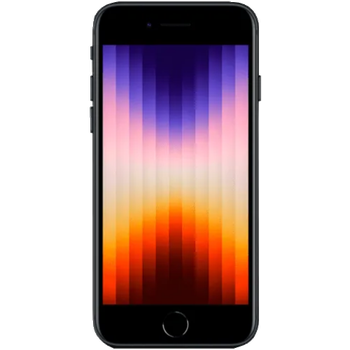
In this tutorial, we show you how to use PhoneCopy.com to safely back up the contacts stored on your Apple SE 3rd generation. The service is free for personal use and works directly from your phone.
This guideline also works for similar devices like Apple iPhone 14, Apple iPhone 14 Plus, Apple iPhone 14 Pro, Apple iPhone 14 Pro Max, Apple iPhone 15, Apple iPhone 15 Plus, Apple iPhone 15 Pro.
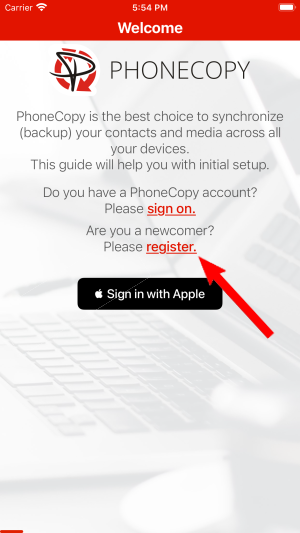
Run the app and create new account.
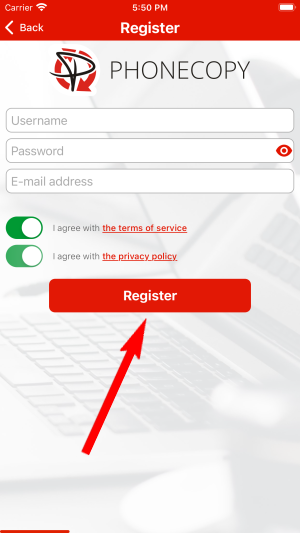
Then you need to allow PhoneCopy access to your contact list and select contacts which will be synchronized
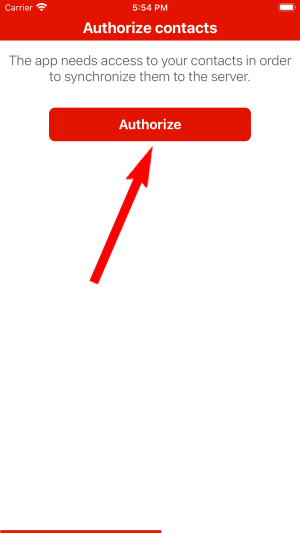
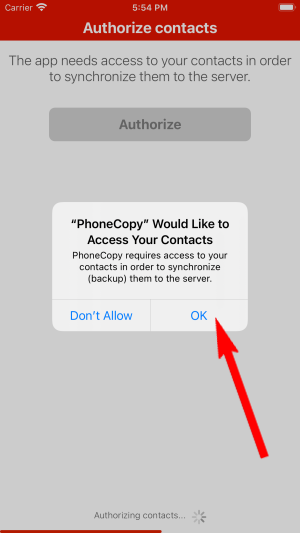
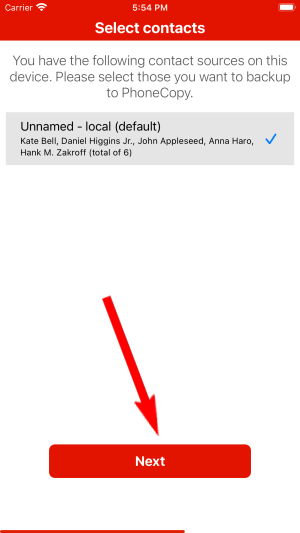
You can synchronize photos and videos too. Please note that the authorization of photos or videos is not required. If you will not grant it, PhoneCopy will only synchronize your contacts.

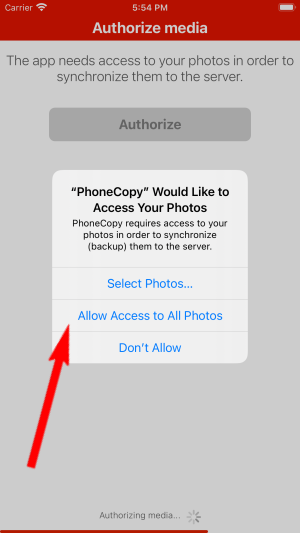

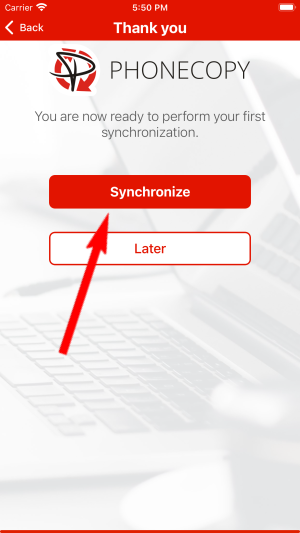
Let's synchronize!
This guideline also works for similar devices like Apple iMac, Apple Mac Mini, Apple Mac OS X, Apple Mac Pro, Apple Mac Studio, Apple MacBook, Apple MacBook Air.
From now on, your contacts are protected. If anything happens to your Apple SE 3rd generation, simply log into PhoneCopy to access or restore your data instantly.
The free PhoneCopy plan allows you to store up to 500 contacts, which is more than enough for most users. A premium plan is available if you need to sync more data or use advanced features.