
Would you like to transfer or synchronize data?
You can try FREE APPLICATION from online stores:



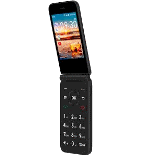
PhoneCopy.com supports hundreds of phone models, including AT&T Cingular Flip IV. This guide will show you how to use it to create a safe backup of your contacts in just a few minutes.
This guideline also works for similar devices like AT&T Cingular Flex, AT&T Cingular Flip 2 (4044O), AT&T Cingular Flip 3 (q28a).
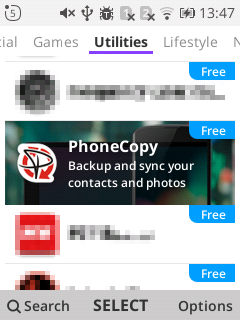
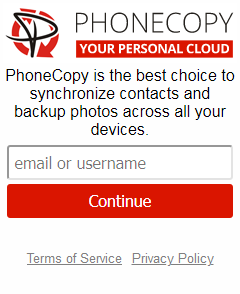
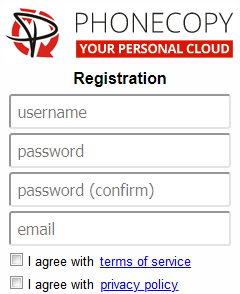
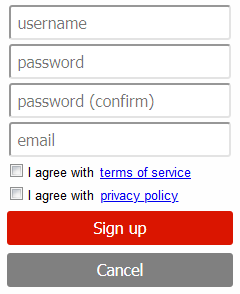
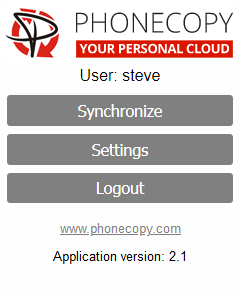
If you already have a PhoneCopy account, fill in your password. To export your contacts, press "Synchronize". Then select synchronization direction between three options: From your DEVICE to server, From SERVER to your device or Combine both. If you are not sure, use Combine both.
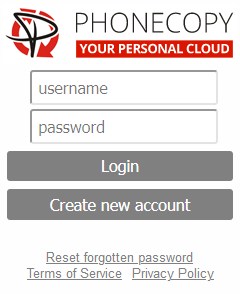
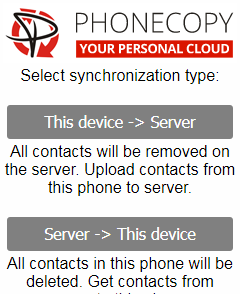
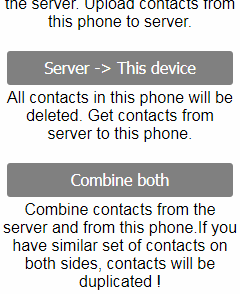
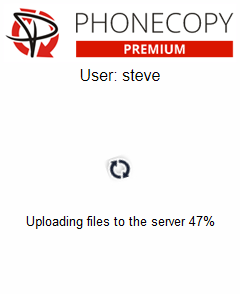
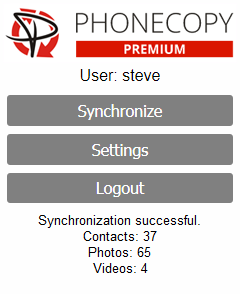
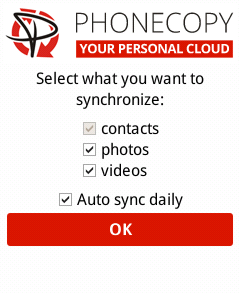
Select "contacts" and/or "photos" and press Synchronize. At the end of synchronization you will see status of synchronized items. In the Settings, you can set "auto sync daily".
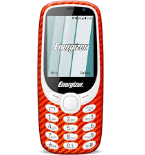
This guideline also works for similar devices like Energizer E282sc, Energizer Energy e241, Energizer Energy e241s, Energizer Hardcase H280s.
Well done — your contacts are now securely backed up in the cloud. Open your PhoneCopy account in any browser to review your data or make changes at any time.
If the sync does not complete, make sure your phone has a stable internet connection and that background data is enabled for the PhoneCopy app. A brief pause and retry usually resolves the issue.


