
Would you like to transfer or synchronize data?
You can try FREE APPLICATION from online stores:



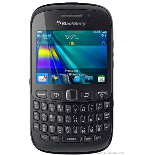

In this tutorial, we show you how to use PhoneCopy.com to safely back up the contacts stored on your BlackBerry Curve 9220. The service is free for personal use and works directly from your phone.
This guideline also works for similar devices like BlackBerry Bold 9790, BlackBerry Bold Touch 9900, BlackBerry Curve 3G 9300, BlackBerry Curve 3G 9330, BlackBerry Curve 9320, BlackBerry Curve 9350, BlackBerry Touch Touch 9930.
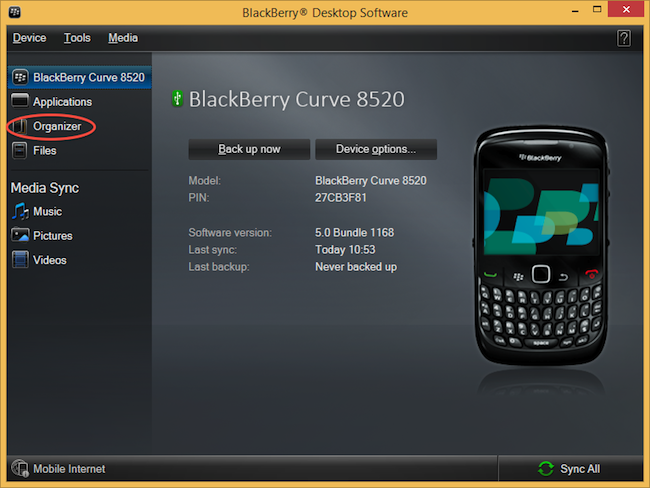
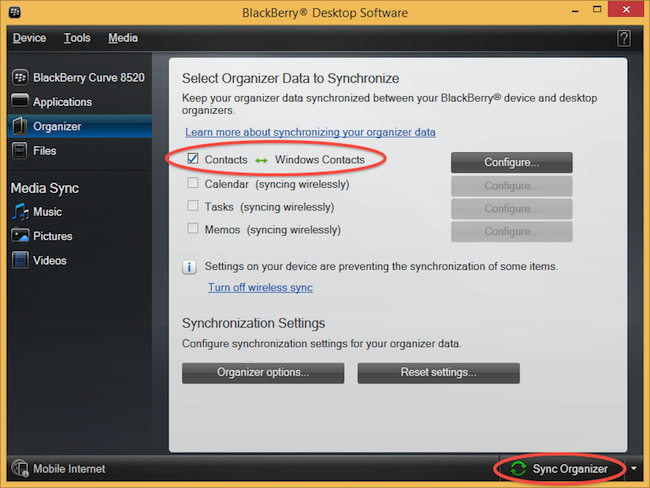
Select "Configure".
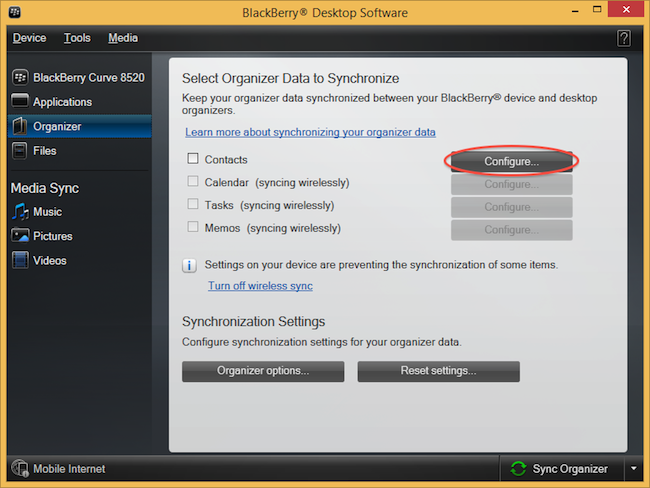
Open "Sync direction" menu and select "One way to your computer only". Open "Contacts account" menu, choose "Windows contacts" and press "OK".
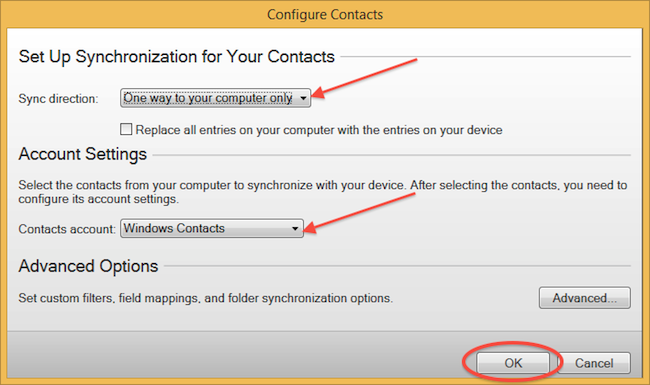
Mark "Contacts" and press "Sync Organizer".
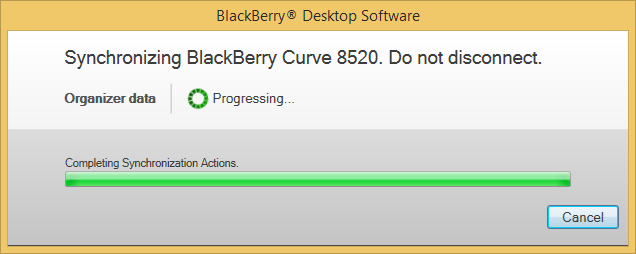
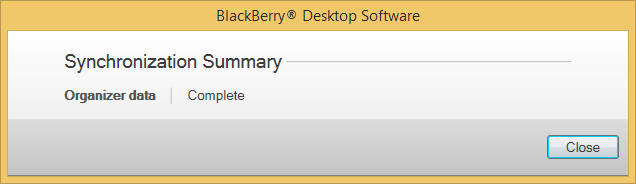
Transfer Windows contacts to PhoneCopy using our PhoneCopy for Windows aplication.
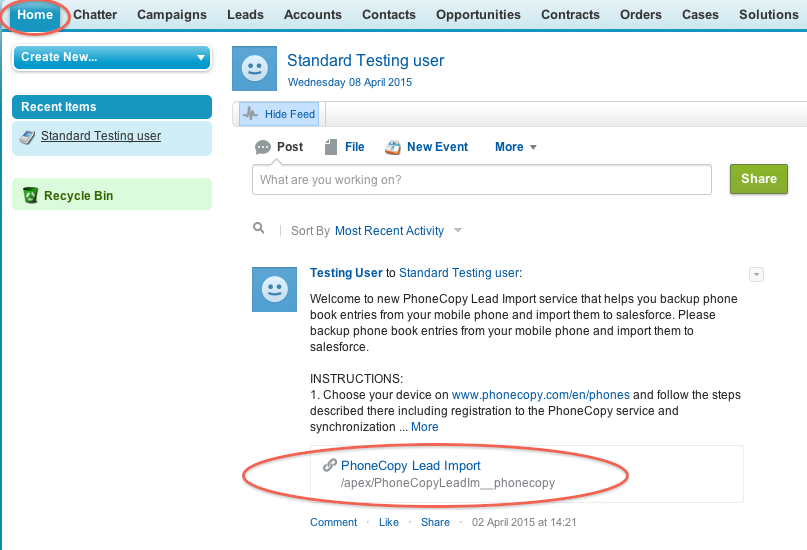
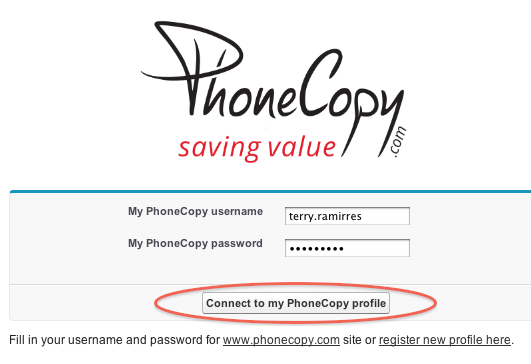
Fill in your PhoneCopy username and password and click at "Connect to my PhoneCopy profile".
Choose if you want to import your phone book data daily or just once and press "Start" button.

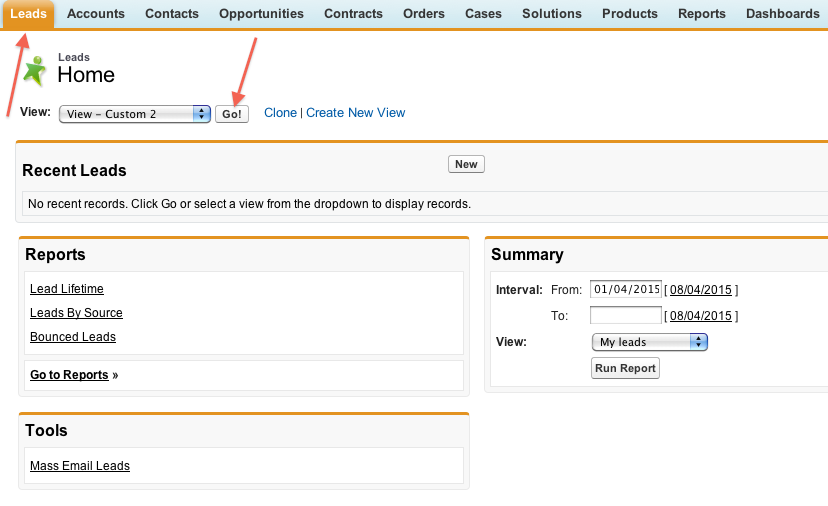
Your contacts from PhoneCopy will be imported in a few minutes as Leads to salesforce, to check it, open "Leads" and click to "Go!"
Imported data:
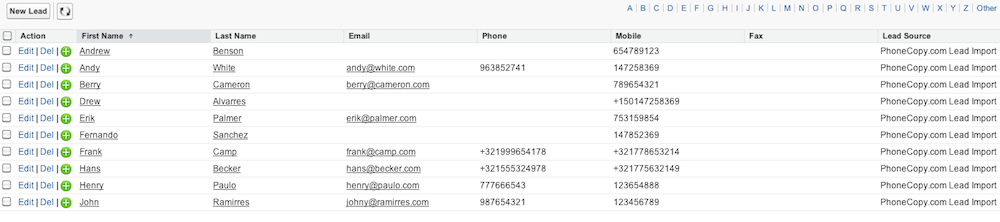
Once everything is done, check your data on the web. Login to PhoneCopy webpage and you will see brief review of all data transferred from your device. With another mouse click, you can review the change of each particular item.
It is a good idea to run a sync before any major change, such as a factory reset or an OS update. That way, your contacts are always protected before anything unexpected happens.