
Would you like to transfer or synchronize data?
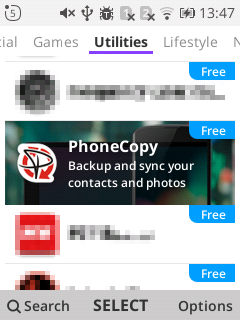
You can try FREE APPLICATION from online stores:



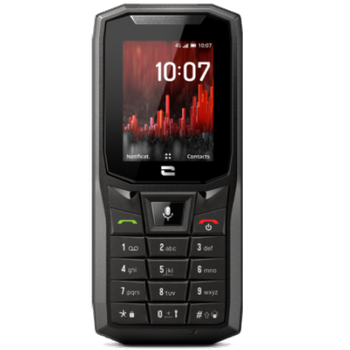
In this tutorial, we show you how to use PhoneCopy.com to safely back up the contacts stored on your Crosscall CORE-S4. The service is free for personal use and works directly from your phone.
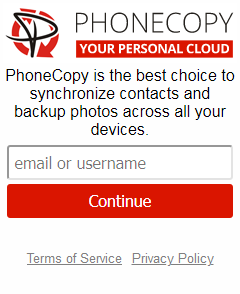
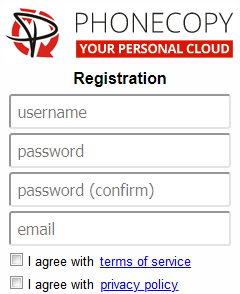
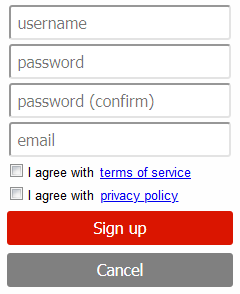
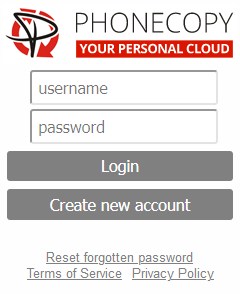
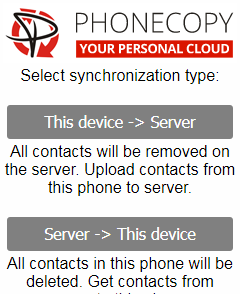
If you already have a PhoneCopy account, fill in your password. To export your contacts, press "Synchronize". Then select synchronization direction between three options: From your DEVICE to server, From SERVER to your device or Combine both. If you are not sure, use Combine both.
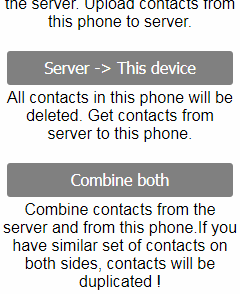
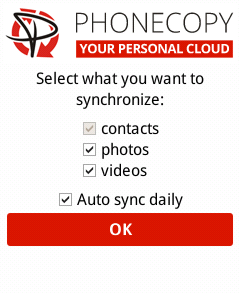
Select "contacts" and/or "photos" and press Synchronize. At the end of synchronization you will see status of synchronized items. In the Settings, you can set "auto sync daily".
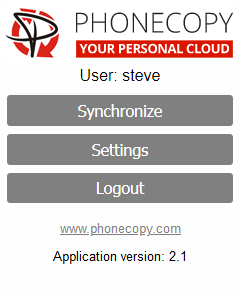
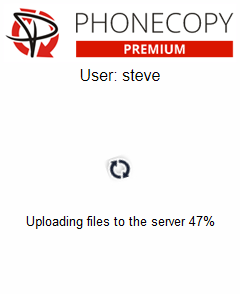
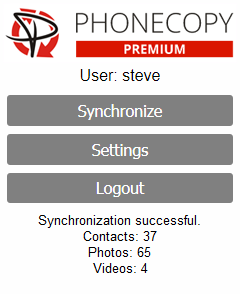
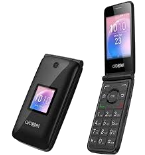
This guideline also works for similar devices like Alcatel 3088X, Alcatel 4052c, Alcatel 4052r, Alcatel 4052w, Alcatel MyFlip A405DL.
From now on, your contacts are protected. If anything happens to your Crosscall CORE-S4, simply log into PhoneCopy to access or restore your data instantly.
It is a good idea to run a sync before any major change, such as a factory reset or an OS update. That way, your contacts are always protected before anything unexpected happens.