
Would you like to transfer or synchronize data?
You can try FREE APPLICATION from online stores:





In this tutorial, we show you how to use PhoneCopy.com to safely back up the contacts stored on your Crosscall CORE-S4. The service is free for personal use and works directly from your phone.
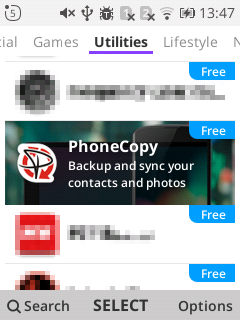
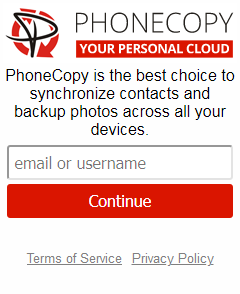
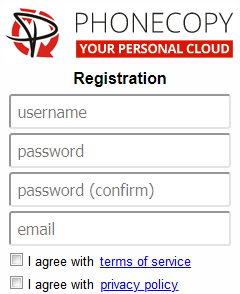
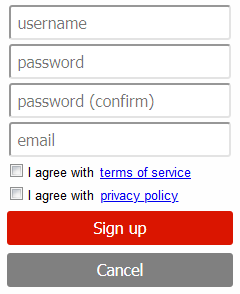
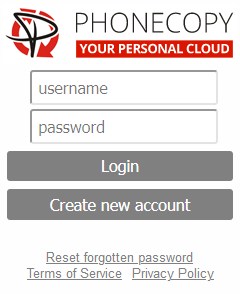
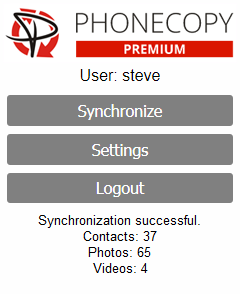
If you already have a PhoneCopy account, fill in your password. To export your contacts, press "Synchronize". Then select synchronization direction between three options: From your DEVICE to server, From SERVER to your device or Combine both. If you are not sure, use Combine both.
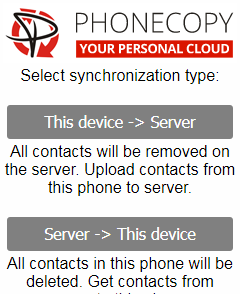
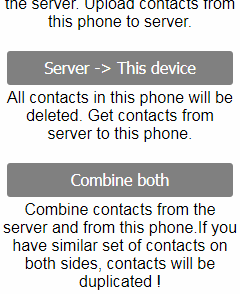
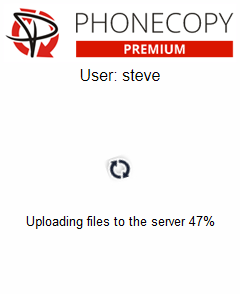
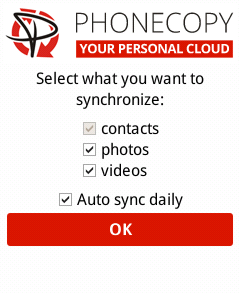
Select "contacts" and/or "photos" and press Synchronize. At the end of synchronization you will see status of synchronized items. In the Settings, you can set "auto sync daily".
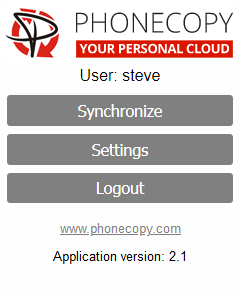
Well done — your contacts are now securely backed up in the cloud. Open your PhoneCopy account in any browser to review your data or make changes at any time.
It is a good idea to run a sync before any major change, such as a factory reset or an OS update. That way, your contacts are always protected before anything unexpected happens.