Would you like to transfer or synchronize data?
You can try FREE APPLICATION from online stores:




This step-by-step guide will help you back up your contacts from HTC Evo 4G A9292 using PhoneCopy.com. The service works in the background and the whole process takes just a few minutes.
This guideline also works for similar devices like HTC ADR 6325, HTC Aria A6366, HTC Bravo, HTC ChaCha a810e, HTC DROID Incredible 2, HTC Legend A6363, HTC Salsa c510e.
Download PhoneCopy for Android to your Android phone, which you can download free of charge. After downloading and installation, go through following steps.
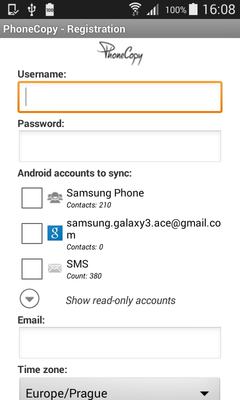
Run the app and create new account. You can check which contact databases you want to backup and synchronize. You can do multiple choice.
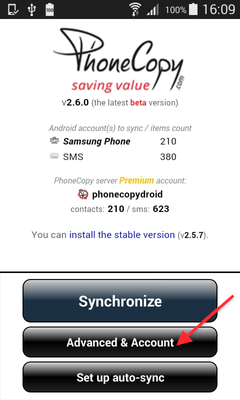
After successful login, press "Advanced & Account". Select "One-way sync" and after choose "This device >> server".
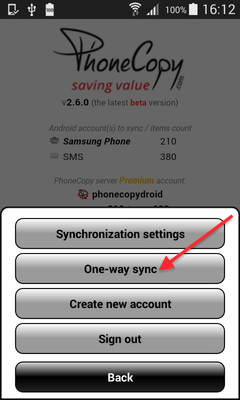
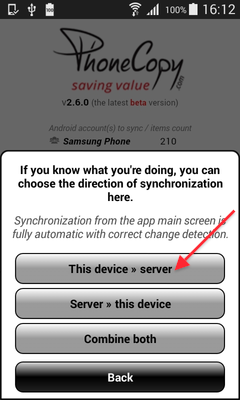
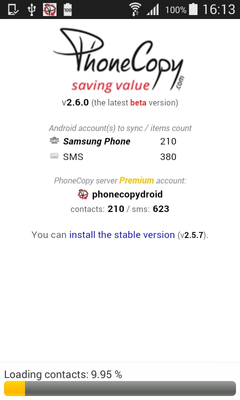
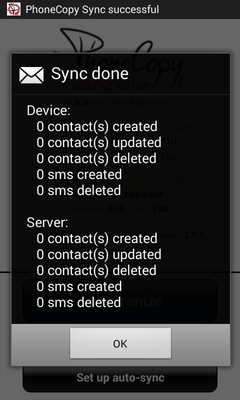
Contacts from your Android phone will be copied to PhoneCopy.com server in few seconds.
This guideline also works for similar devices like Apple iMac, Apple Mac Mini, Apple Mac OS X, Apple Mac Pro, Apple Mac Studio, Apple MacBook, Apple MacBook Air.
Once everything is done, check your data on the web. Login to PhoneCopy webpage and you will see brief review of all data transferred from your device. With another mouse click, you can review the change of each particular item.
You can set PhoneCopy to sync automatically at regular intervals, so your backup always stays up to date without you having to remember to do it manually.


