Would you like to transfer or synchronize data?
You can try FREE APPLICATION from online stores:



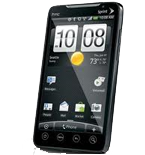

Losing your contacts can be frustrating. This guide shows you how to use PhoneCopy.com to keep a safe backup of all data from your HTC Wildfire A3333 — it only takes a few minutes.
This guideline also works for similar devices like HTC Bravo, HTC Gratia A6380, HTC Hero 200, HTC Hero A6277 (Sprint), HTC Incredible S, HTC Inspire 4G, HTC Vivo.
Download PhoneCopy for Android to your Android phone, which you can download free of charge. After downloading and installation, go through following steps.
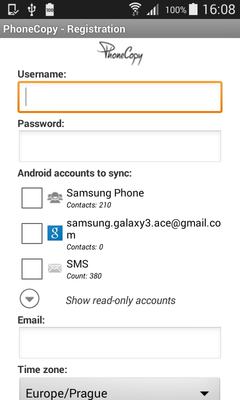
Run the app and create new account. You can check which contact databases you want to backup and synchronize. You can do multiple choice.
After successful login, press "Advanced & Account". Select "One-way sync" and after choose "This device >> server".
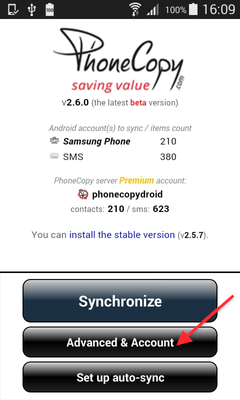
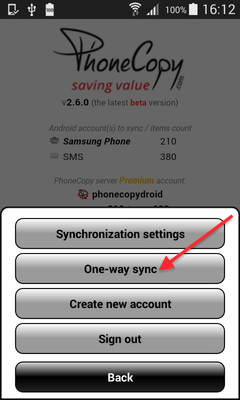
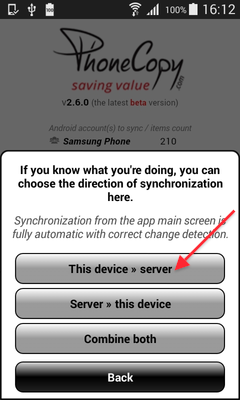
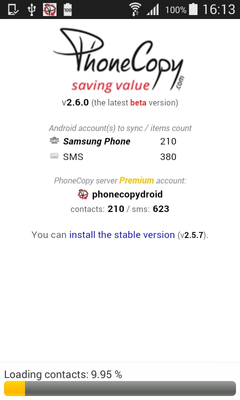
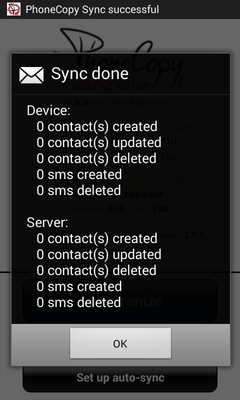
Contacts from your Android phone will be copied to PhoneCopy.com server in few seconds.
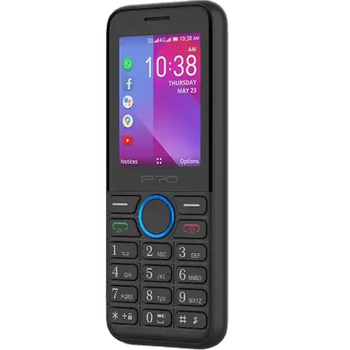
This guideline also works for similar devices like iPro i324f.
From now on, your contacts are protected. If anything happens to your HTC Wildfire A3333, simply log into PhoneCopy to access or restore your data instantly.
PhoneCopy also supports syncing notes, calendar events, and SMS messages on many devices, not just contacts. Check the PhoneCopy website to see the full list of supported data types for your phone.