
Would you like to transfer or synchronize data?
You can try FREE APPLICATION from online stores:



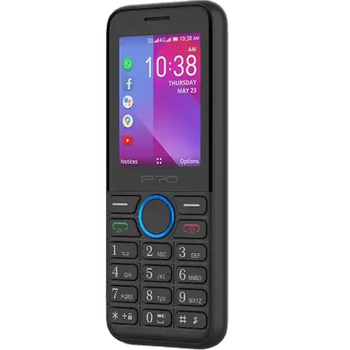
This step-by-step guide will help you back up your contacts from iPro K2 3G using PhoneCopy.com. The service works in the background and the whole process takes just a few minutes.
This guideline also works for similar devices like iPro i324f.
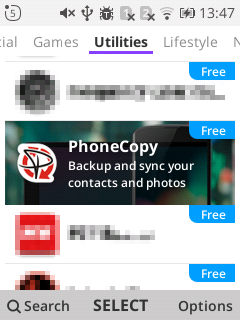
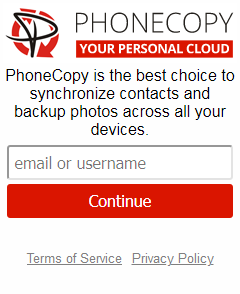
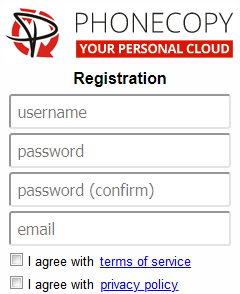
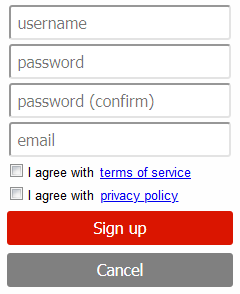
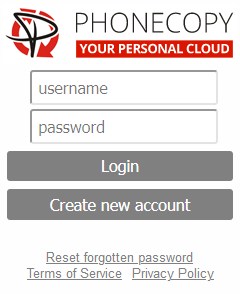
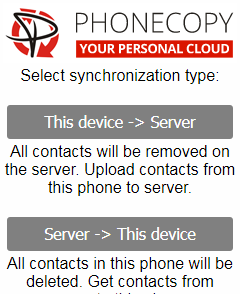
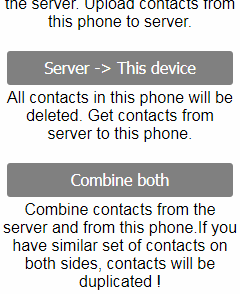
If you already have a PhoneCopy account, fill in your password. To export your contacts, press "Synchronize". Then select synchronization direction between three options: From your DEVICE to server, From SERVER to your device or Combine both. If you are not sure, use Combine both.
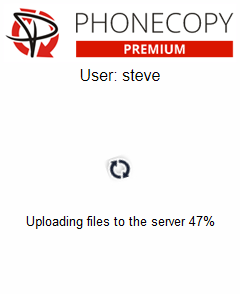
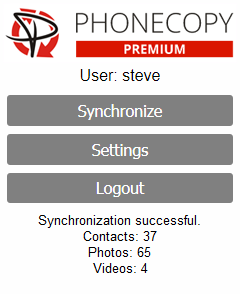
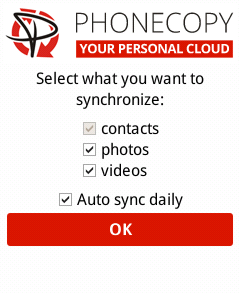
Select "contacts" and/or "photos" and press Synchronize. At the end of synchronization you will see status of synchronized items. In the Settings, you can set "auto sync daily".
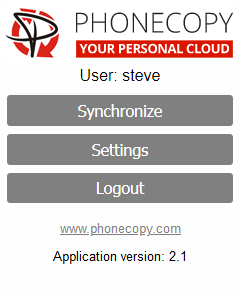
Download PhoneCopy for Huawei from Huawei AppGallery to your phone free of charge. After downloading and installation, go through the following steps.
Run the app, fill in your username and password. Here you can check where will be stored contacts from PhoneCopy. In case you are Premium user, you can upload SMS, photos and videos as well.
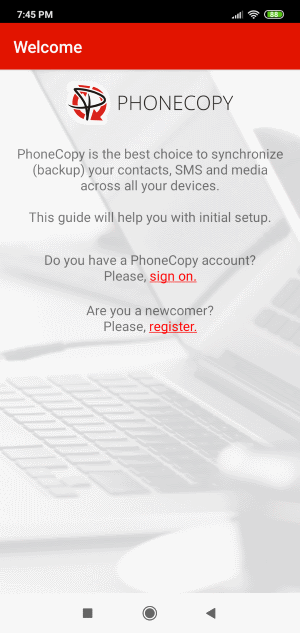
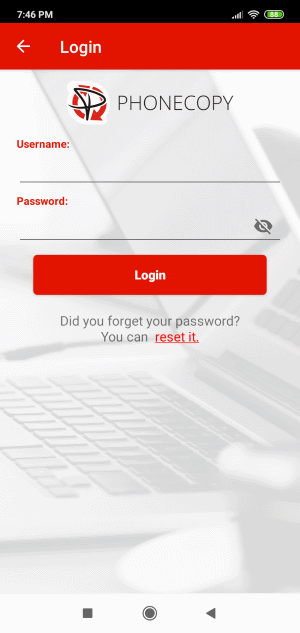
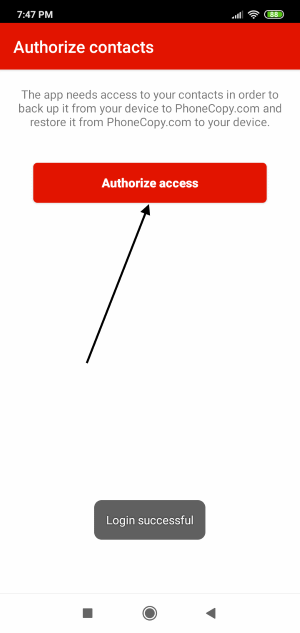
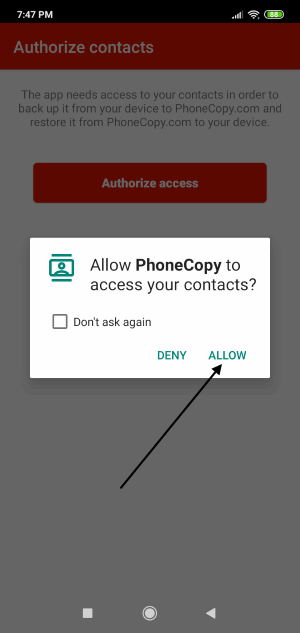
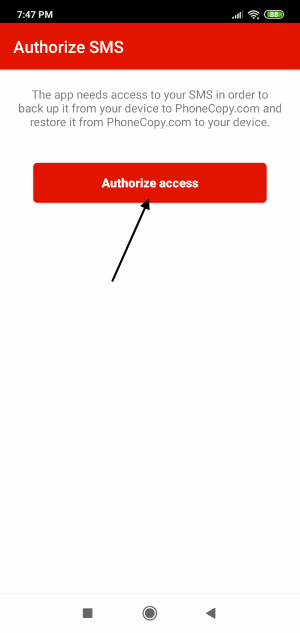
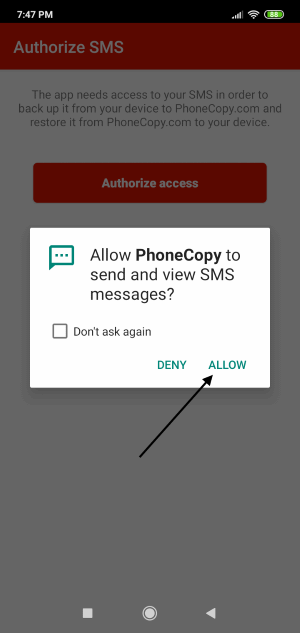
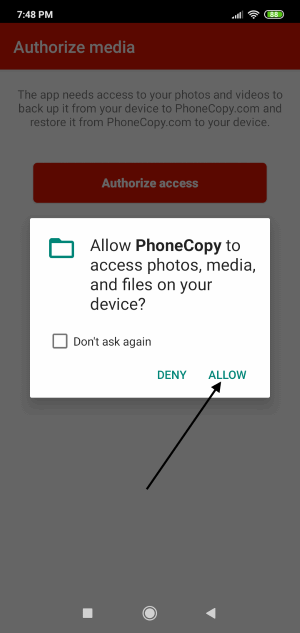
Log in to your existing account where you stored your data from the old phone. To allow correct functionality of PhoneCopy application we will kindly ask you to confirm access permissions for it.
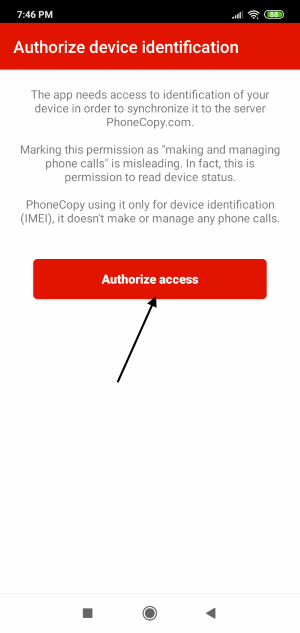
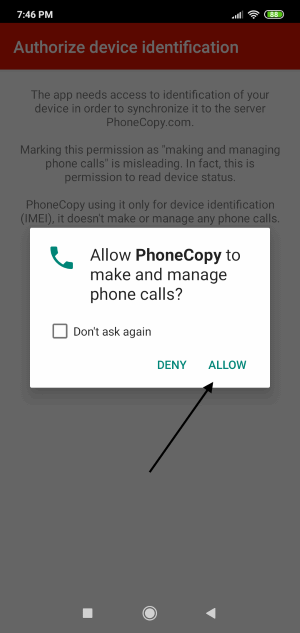
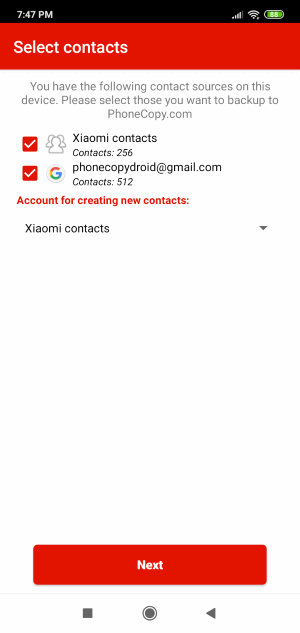
When you confirm access to contacts you can set which "contacts databases" you want to backup.
PhoneCopy allows to back up SMS too.
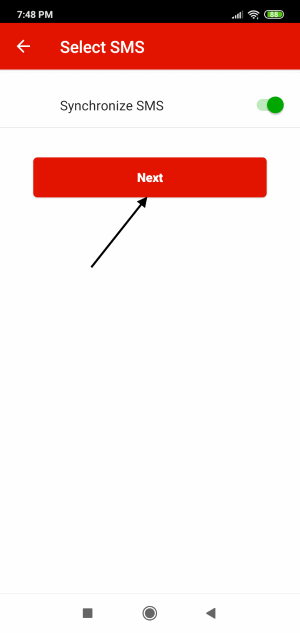
Then you can set up backup for media (photos and videos).
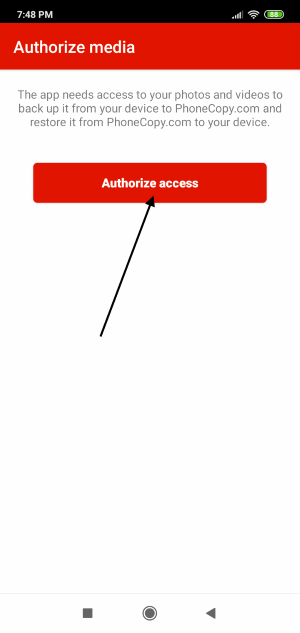
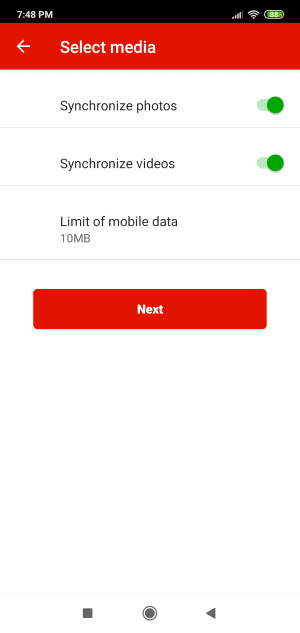
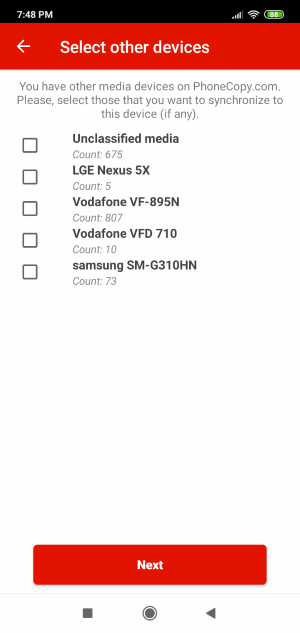
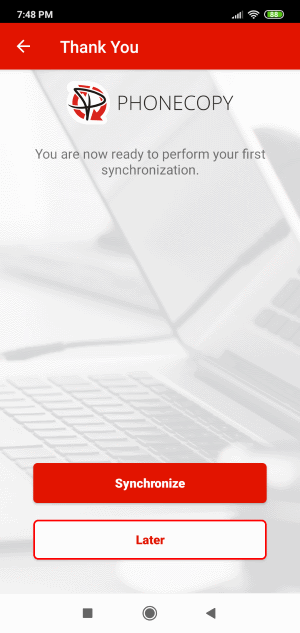
You can download photos and videos from old phone (which was synchronized to PhoneCopy.com before) you can choose it in the next step. Then you can synchronize.
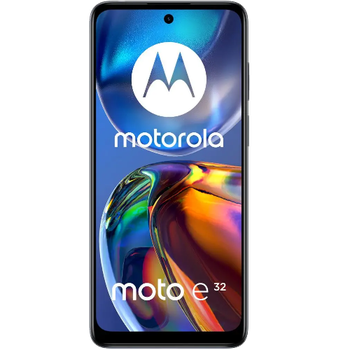
This guideline also works for similar devices like Motorola Edge 30, Motorola Edge 30 Pro, Motorola Moto E30, Motorola Moto G Stylus 5G (2022), Motorola Moto G200 5G, Motorola Moto G31, Motorola Moto G52, Motorola Moto G62 5G, Motorola Moto G71 5G, Motorola Moto G82 5G.
Now you can easily edit your contacts and other resources online in your PhoneCopy profile. You have access to your contact even if you forget your phone at home.
PhoneCopy keeps a detailed sync history for your account. If you accidentally delete a contact, you can recover it from an earlier backup without losing any other data.