
Would you like to transfer or synchronize data?
You can try FREE APPLICATION from online stores:



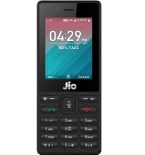
This step-by-step guide will help you back up your contacts from Jio JioPhone using PhoneCopy.com. The service works in the background and the whole process takes just a few minutes.
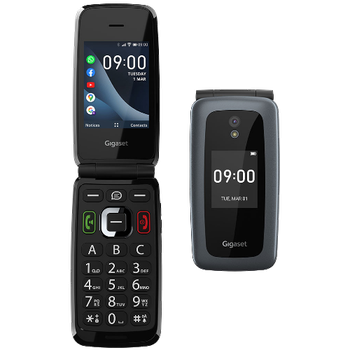
This guideline also works for similar devices like Jio JioPhone 2, Jio Jiophone F101K, Jio Jiophone F120B, Jio JioPhone F30C.
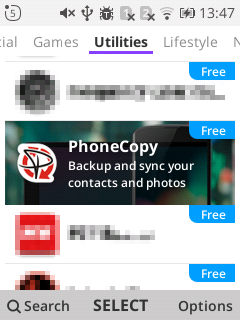
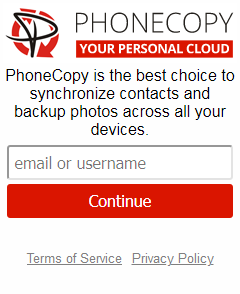
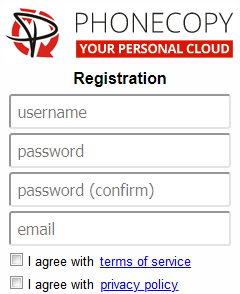
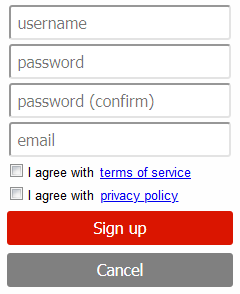
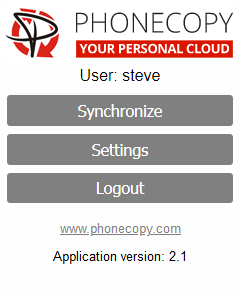
If you already have a PhoneCopy account, fill in your password. To export your contacts, press "Synchronize". Then select synchronization direction between three options: From your DEVICE to server, From SERVER to your device or Combine both. If you are not sure, use Combine both.
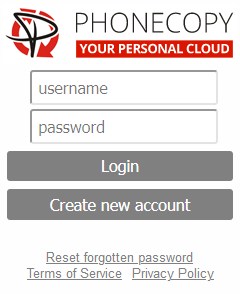
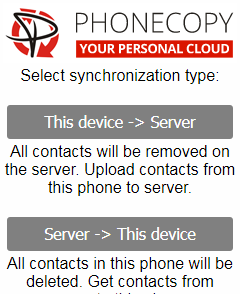
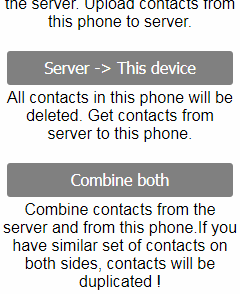
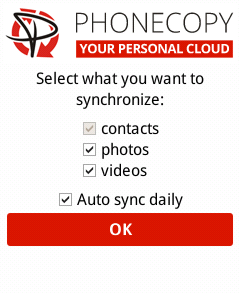
Select "contacts" and/or "photos" and press Synchronize. At the end of synchronization you will see status of synchronized items. In the Settings, you can set "auto sync daily".
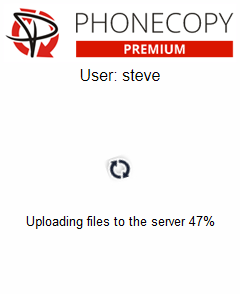
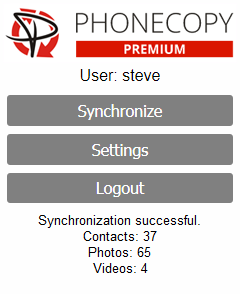
Your data is now safe on PhoneCopy. The service stores a full copy of your contacts online, so you can access them from any device or restore them whenever needed.
Just as a reminder, the contacts are transferred via your mobile phone service provider, so you need to have data plan activated for the service to work. If you don't have a special data scheme, your carrier will charge you additional fees.


