Would you like to transfer or synchronize data?
You can try FREE APPLICATION from online stores:



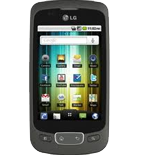


PhoneCopy.com makes it simple to back up your contacts from LG Optimus One P500 to the cloud. In this guide, we will walk you through the entire process step by step.
This guideline also works for similar devices like LG Optimus One KU3700, LG Optimus One LU3700, LG Optimus One SU370, LG Optimus S LS670, LG Optimus T P509.
Download PhoneCopy for Android to your Android phone, which you can download free of charge. After downloading and installation, go through following steps.
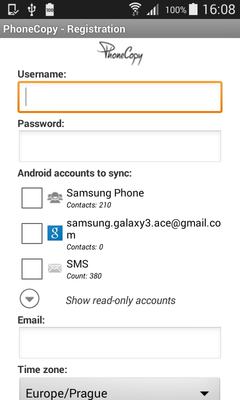
Run the app and create new account. You can check which contact databases you want to backup and synchronize. You can do multiple choice.
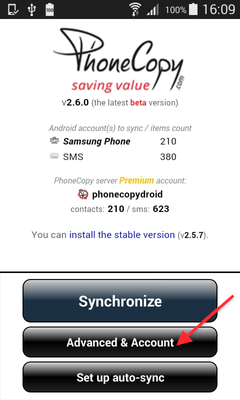
After successful login, press "Advanced & Account". Select "One-way sync" and after choose "This device >> server".
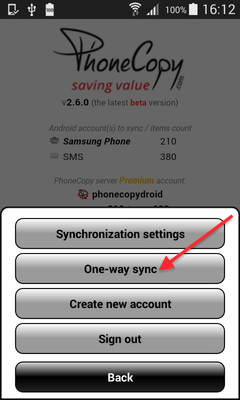
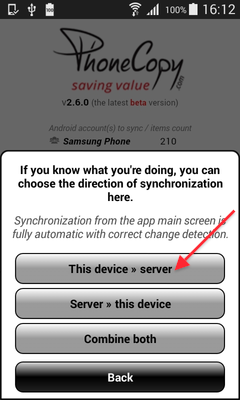
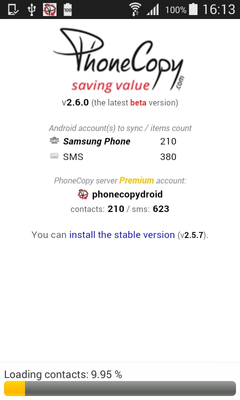
Contacts from your Android phone will be copied to PhoneCopy.com server in few seconds.
This guideline also works for similar devices like Apple Mac Mini, Apple Mac OS X, Apple Mac Pro, Apple Mac Studio, Apple MacBook, Apple MacBook Air, Apple MacBook Neo, Apple MacBook Pro.
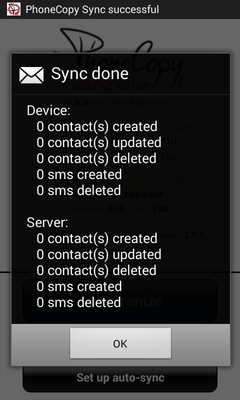
Your backup is now complete. Visit the PhoneCopy website to confirm that all your contacts were transferred correctly and to explore the other features your account offers.
PhoneCopy also supports syncing notes, calendar events, and SMS messages on many devices, not just contacts. Check the PhoneCopy website to see the full list of supported data types for your phone.


