
Would you like to transfer or synchronize data?
You can try FREE APPLICATION from online stores:



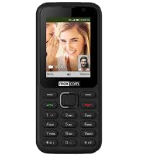

This step-by-step guide will help you back up your contacts from LYF Jio F250Y using PhoneCopy.com. The service works in the background and the whole process takes just a few minutes.
This guideline also works for similar devices like LYF Jio F41T, LYF Jio F50Y, LYF Jio F81E, LYF Jio F90M, LYF LF-2401, LYF LF-2402, LYF LF-2403N.
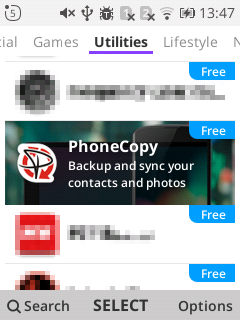
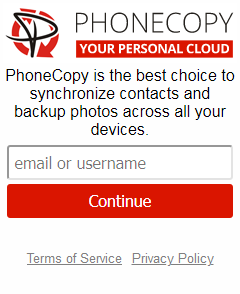
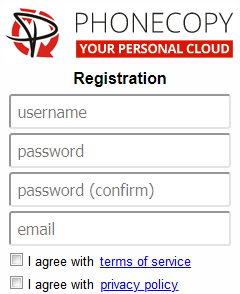
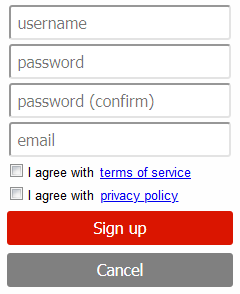
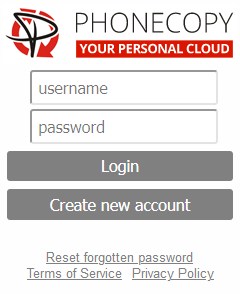
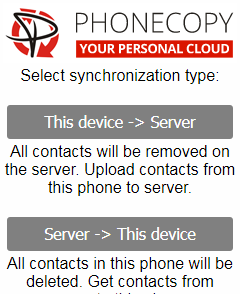
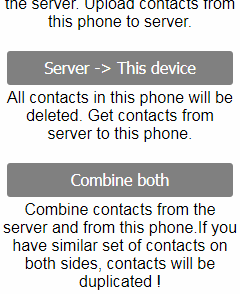
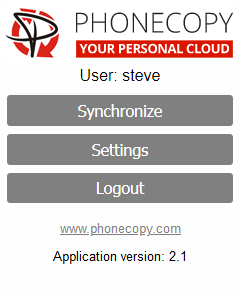
If you already have a PhoneCopy account, fill in your password. To export your contacts, press "Synchronize". Then select synchronization direction between three options: From your DEVICE to server, From SERVER to your device or Combine both. If you are not sure, use Combine both.
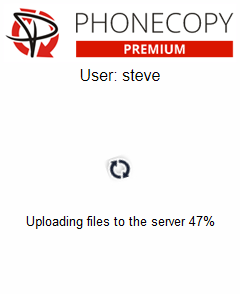
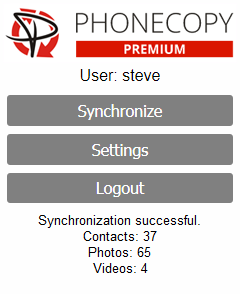
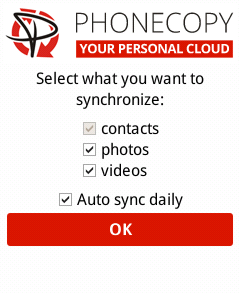
Select "contacts" and/or "photos" and press Synchronize. At the end of synchronization you will see status of synchronized items. In the Settings, you can set "auto sync daily".
This guideline also works for similar devices like Nokia 2720 Flip, Nokia 6300 4G, Nokia 800 Though, Nokia 8000 4G.
Your backup is now complete. Visit the PhoneCopy website to confirm that all your contacts were transferred correctly and to explore the other features your account offers.
Contacts can be then transferred to another device (eq. iPhone, other Nokia, SonyEricsson, Samsung, LG etc). You can always edit your contacts in your online account. Also, you will see full history of your contacts, as well as the data that you have deleted between two synchronizations.