
Would you like to transfer or synchronize data?
You can try FREE APPLICATION from online stores:



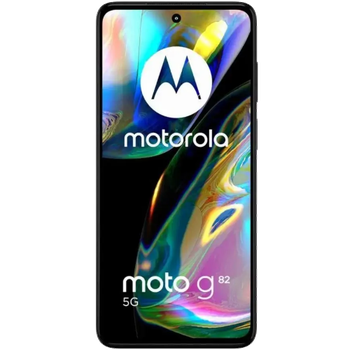
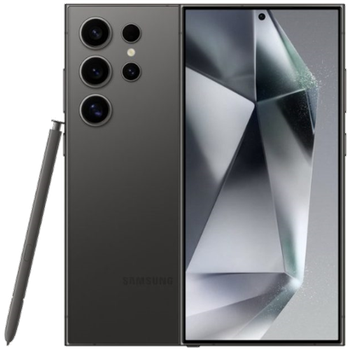
This step-by-step guide will help you back up your contacts from Motorola Moto G82 5G using PhoneCopy.com. The service works in the background and the whole process takes just a few minutes.
This guideline also works for similar devices like Motorola Edge 30 Neo, Motorola Moto E30, Motorola Moto E32, Motorola Moto G Stylus 5G (2022), Motorola Moto G31, Motorola Moto G32, Motorola Moto G62 5G.
Download PhoneCopy for Huawei from Huawei AppGallery to your Huawei phone, which you can download free of charge. After downloading and installation, go through the following steps.
Run the app and create new account. If you already have an account choose "sign on".
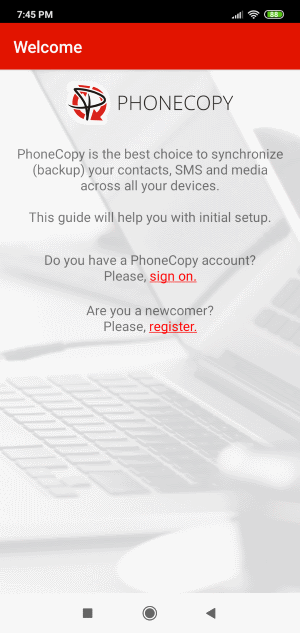
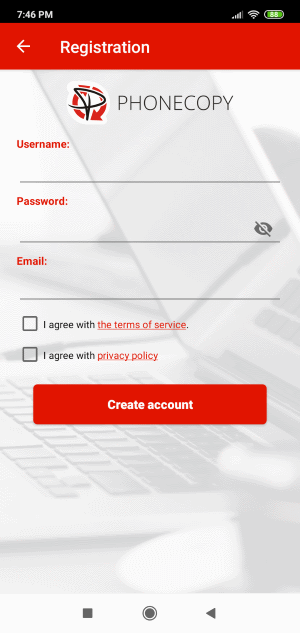
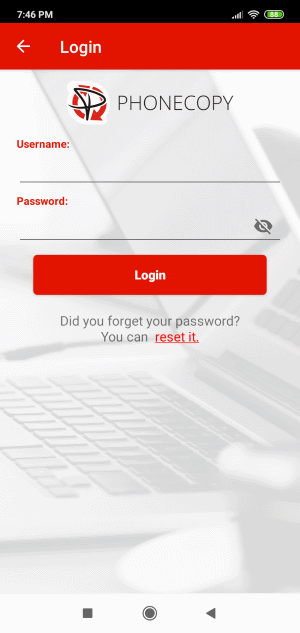
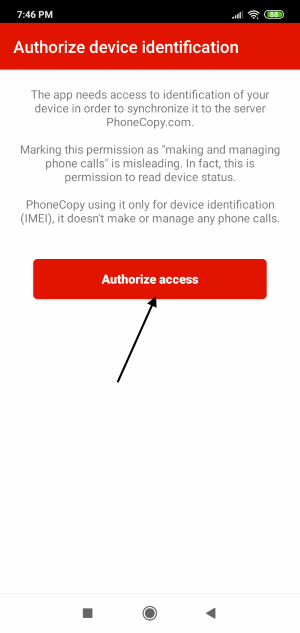
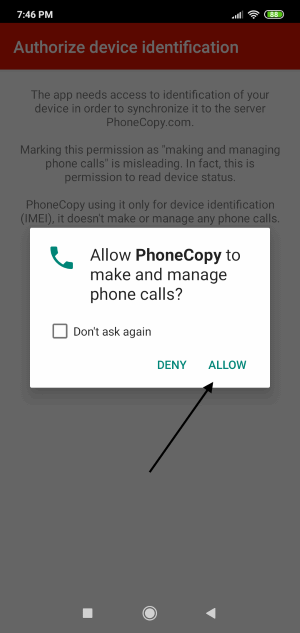
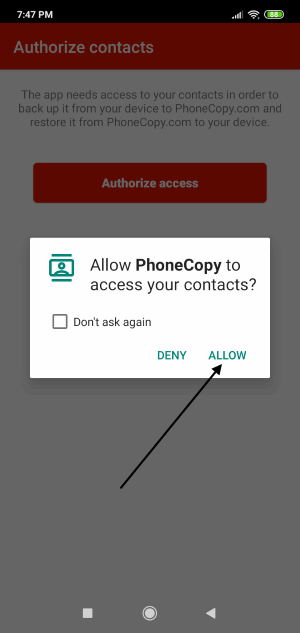
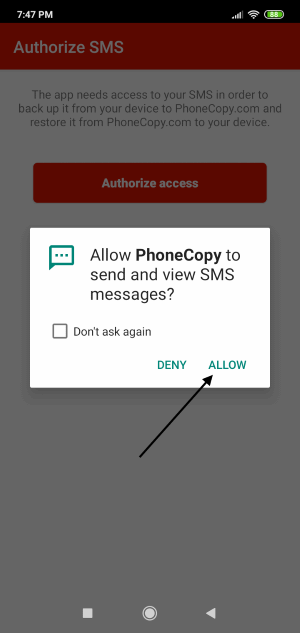
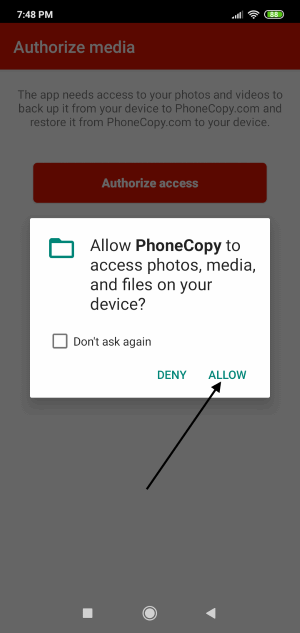
To allow correct functionality of PhoneCopy application we will kindly ask you to confirm access permissions for it.
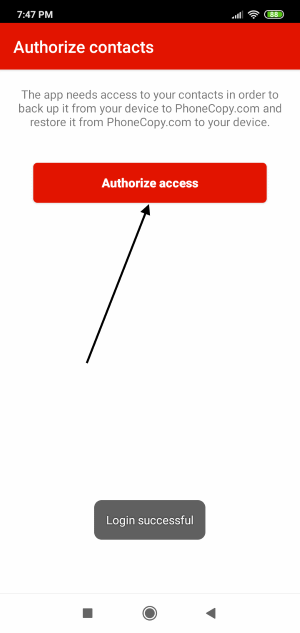
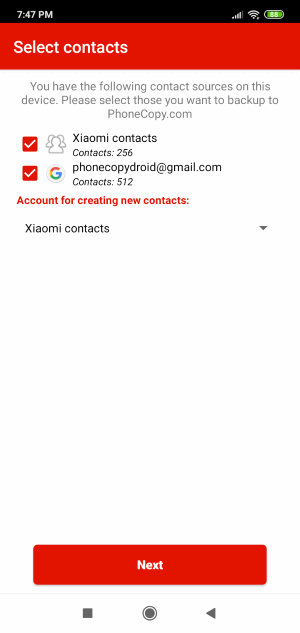
When you confirm access to contacts you can set which "contacts databases" you want to backup.
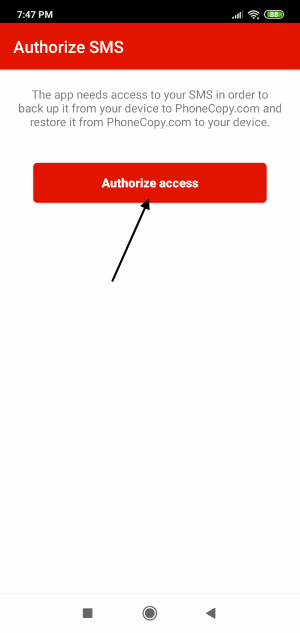
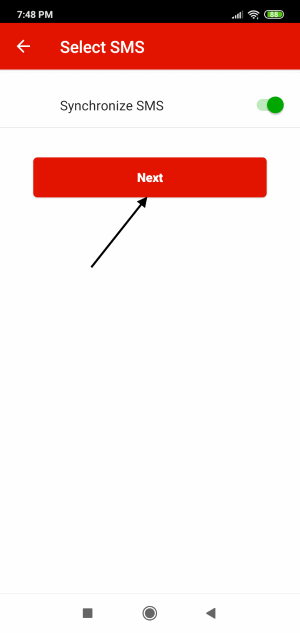
PhoneCopy allows to back up SMS too.
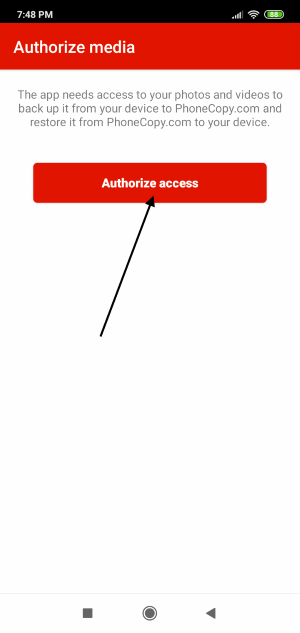
Then you can set up backup for media (photos and videos).
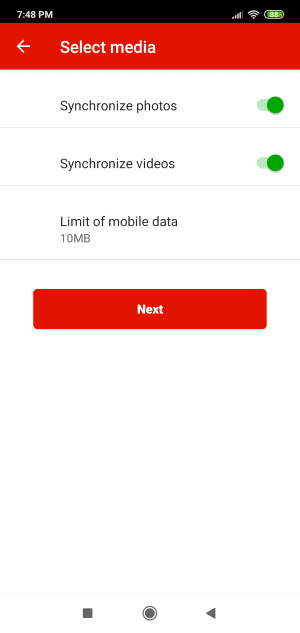
If you want download photos and videos from old phone (which was synchronized to PhoneCopy.com before) you can choose it in the next step. Then you can synchronize.
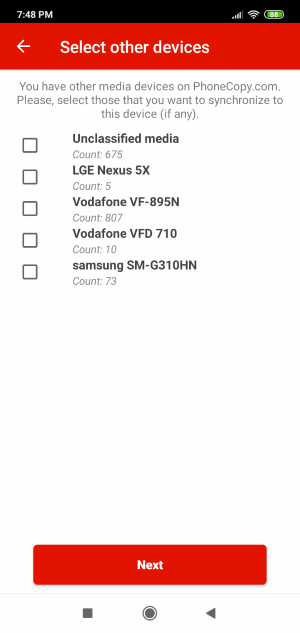
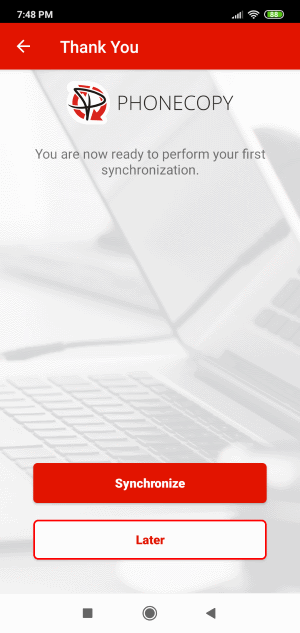
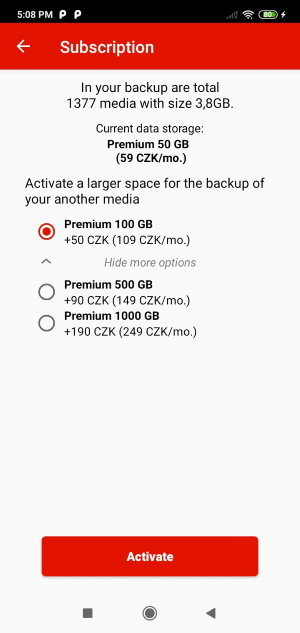
You can access all settings later by bottom menu of the application or by main menu. In case you exceed limits for a free account we recommend you to buy Premium
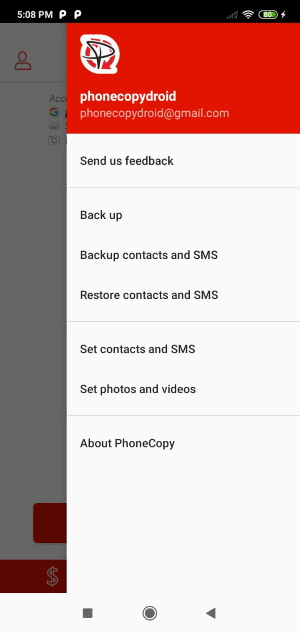
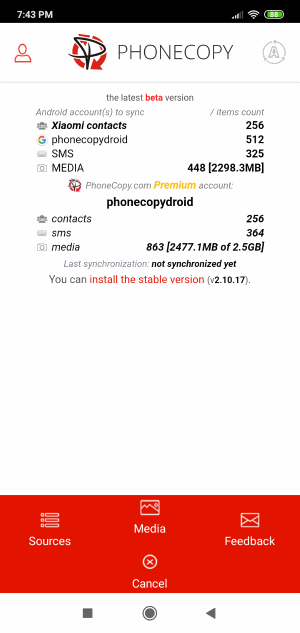
Download PhoneCopy for Huawei from Huawei AppGallery to your phone free of charge. After downloading and installation, go through the following steps.
Run the app, fill in your username and password. Here you can check where will be stored contacts from PhoneCopy. In case you are Premium user, you can upload SMS, photos and videos as well.
Log in to your existing account where you stored your data from the old phone. To allow correct functionality of PhoneCopy application we will kindly ask you to confirm access permissions for it.
When you confirm access to contacts you can set which "contacts databases" you want to backup.
PhoneCopy allows to back up SMS too.
Then you can set up backup for media (photos and videos).
You can download photos and videos from old phone (which was synchronized to PhoneCopy.com before) you can choose it in the next step. Then you can synchronize.
This guideline also works for similar devices like Samsung Galaxy A05s (SM-A057f), Samsung Galaxy A05s (SM-A057g), Samsung Galaxy A12 (SM-A125m), Samsung Galaxy M02 sm-m022f, Samsung Galaxy M04 5G sm-m045f, Samsung Galaxy S24 5G sm-s921b, Samsung Galaxy S24 Ultra 5G sm-s928u, Samsung Galaxy S24+ 5G sm-s926b, Samsung Galaxy Tab S5e 10,5" (SM-T727), Samsung Galaxy Z Flip 4 (sm-f7210).
That is all there is to it. Your contacts are now backed up on PhoneCopy and you can access them from any browser whenever you need them.
You can easily remove duplicate items among your contact list or SMS messages. Just go to the Contacts (or SMS) section and choose More Actions -> Search for duplicates. Detailed wizard will help you to solve this kind of problem easily.