
Would you like to transfer or synchronize data?
You can try FREE APPLICATION from online stores:



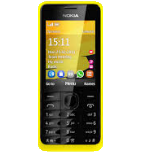
This step-by-step guide will help you back up your contacts from Nokia 301 using PhoneCopy.com. The service works in the background and the whole process takes just a few minutes.
This guideline also works for similar devices like Nokia 207, Nokia 208, Nokia 515, Nokia 515 Dual SIM, Nokia Asha 300, Nokia C3-01, Nokia X3-02.
To have your contacts saved you have to synchronize the Nokia with PhoneCopy. For better illustration, we've made some screenshots. The first step is create of synchronization account.
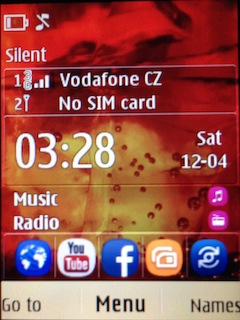
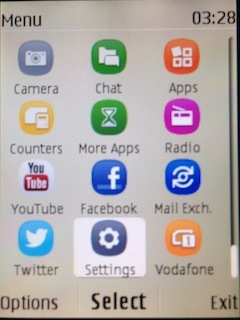
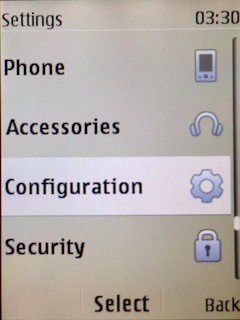
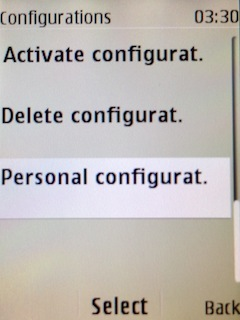
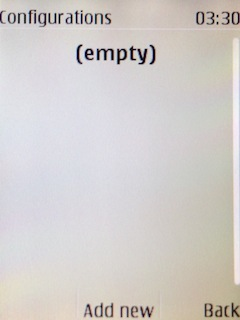
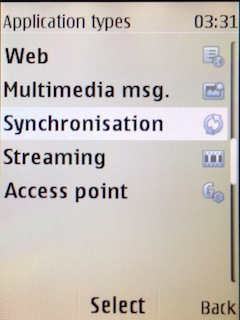
Fill in "Account name" (write PhoneCopy) and "Server address" (http://www.phonecopy.com/sync)
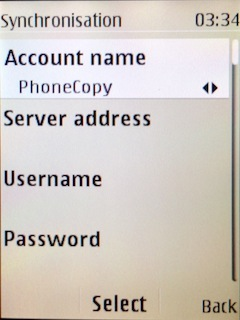
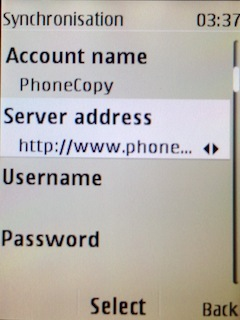
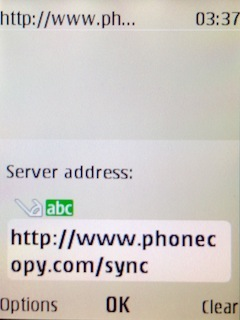
Now you need to fill in your "Username" and "Password".
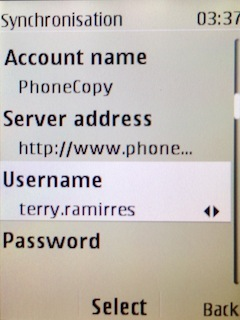
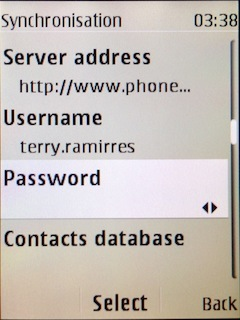
Select "Contacts database" and to "Database address" write contacts.
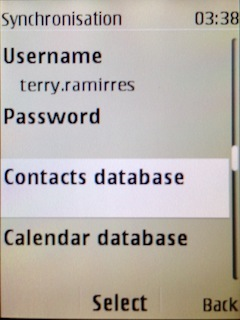
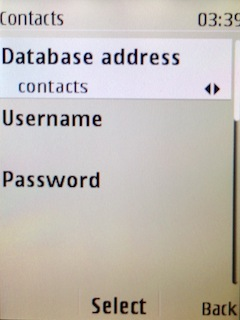
Select "Calendar database" and to "Database address" write calendar.
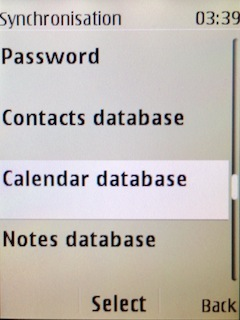
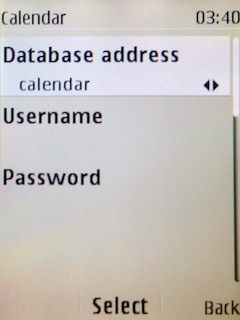
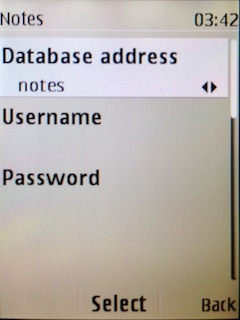
Select "Notes database" and to "Database address" write notes.
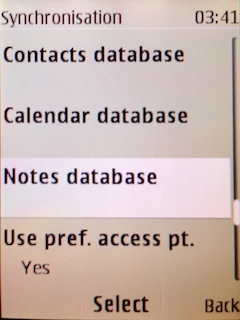
Choose, if you want to "Use pref. acces pt." and press 3x "Back".
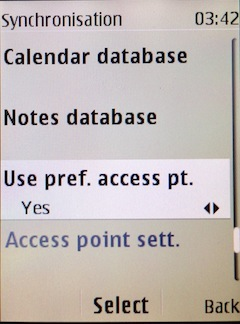
Now you need to select "Sync settings".
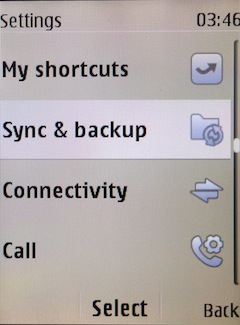
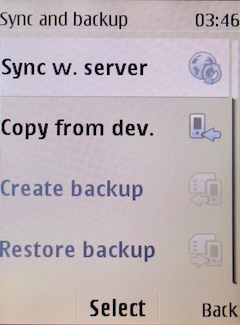
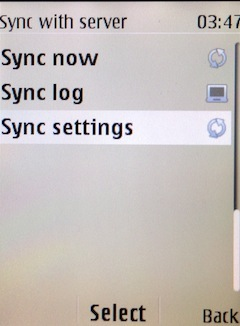
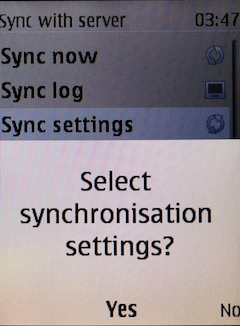
If you have Nokia 515 Dual sim, select "SIM" for synchronisation, choose "PhoneCopy" account and press 2x Back.
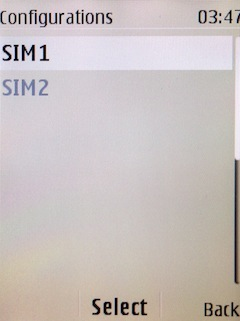
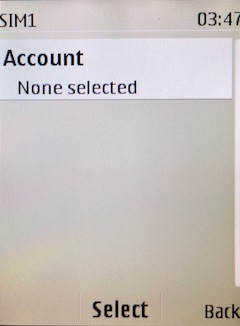
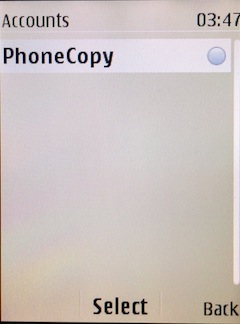
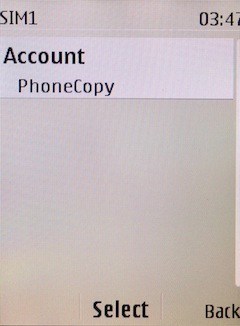
Select "Synchronised data", mark "Contacts" and press "Done".
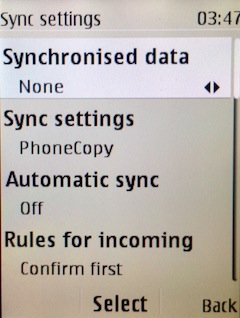
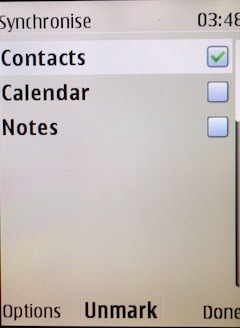
Choose, if you want to use "Automatic sync" and press "Back".
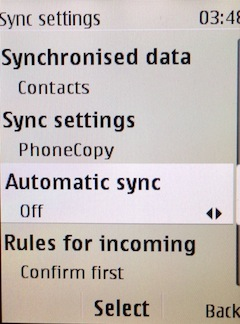
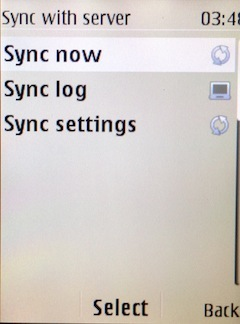
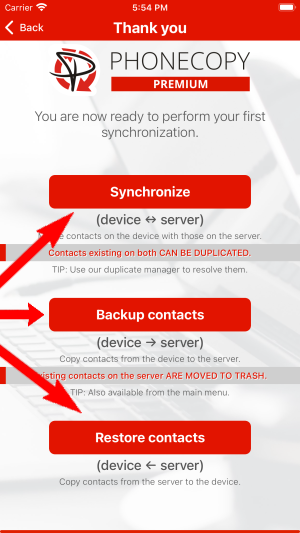
Now you can start synchronisation.
Run the app and select "Sign on" if you already have an account.
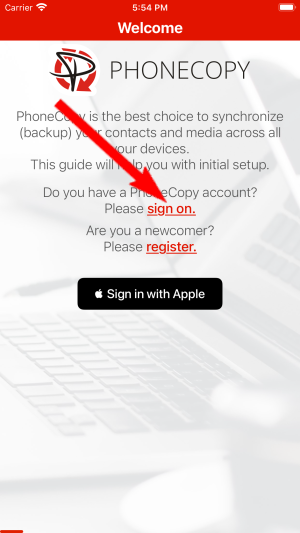
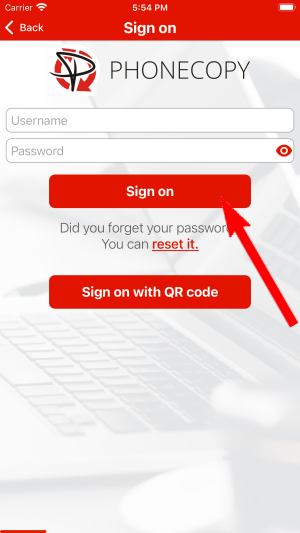
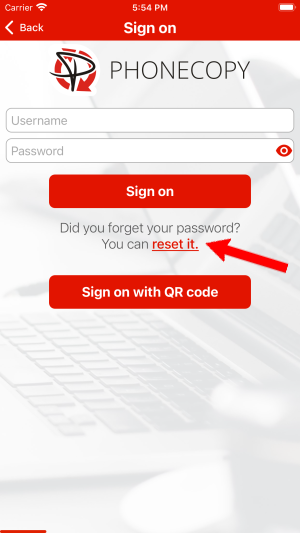
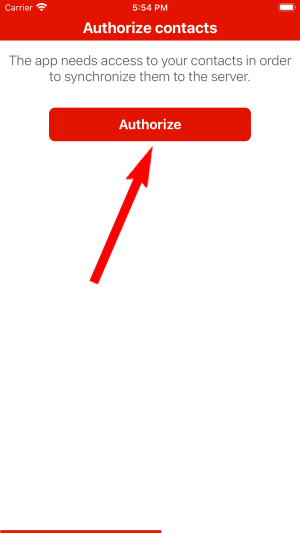
Then you need to allow PhoneCopy access to your contact list and select contacts which will be synchronized
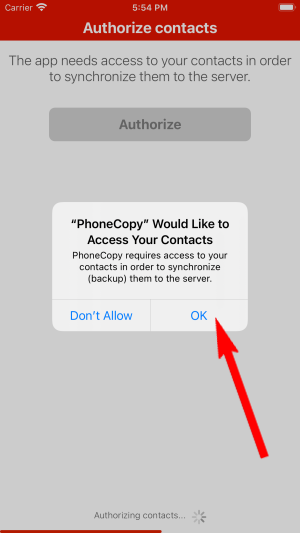
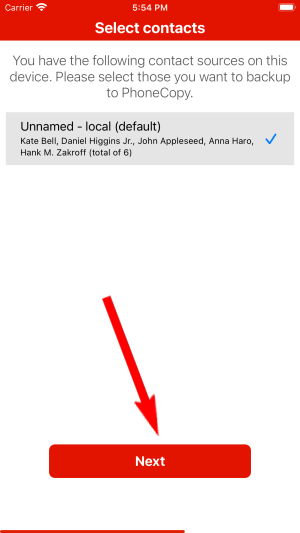
You can also sync photos and videos. Please note that the authorization of photos or videos is not required. If you will not grant it, PhoneCopy will only synchronize your contacts.
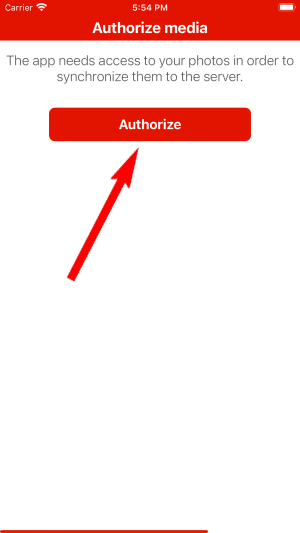
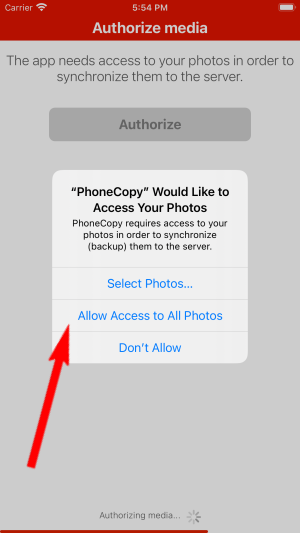
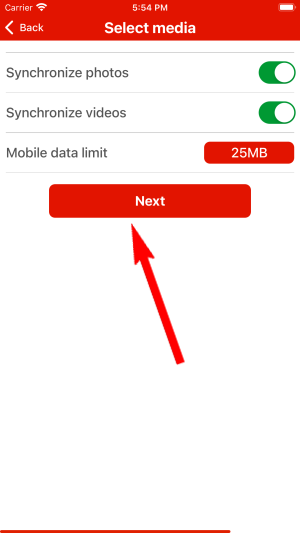
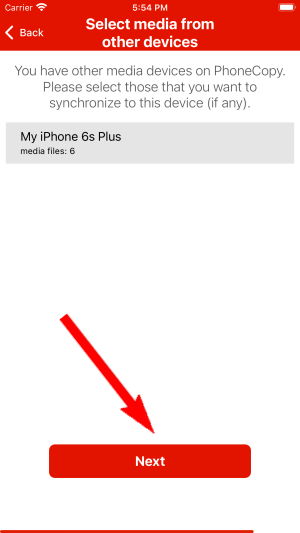
If you already have photos or videos in your PhoneCopy account you can choose from which phone(s) you want to transfer the backed up photos and videos to the new iPhone. Then let's synchronize!
This guideline also works for similar devices like Apple iPhone 14 Plus, Apple iPhone 15, Apple iPhone 15 Plus, Apple iPhone 15 Pro, Apple iPhone 16, Apple iPhone 16 Plus, Apple iPhone 16 Pro, Apple iPhone 16 Pro Max, Apple iPhone 16e, Apple SE 3rd generation.
Well done — your contacts are now securely backed up in the cloud. Open your PhoneCopy account in any browser to review your data or make changes at any time.
PhoneCopy keeps a detailed sync history for your account. If you accidentally delete a contact, you can recover it from an earlier backup without losing any other data.


