
Would you like to transfer or synchronize data?
You can try FREE APPLICATION from online stores:



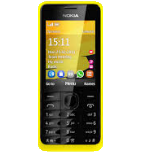
Whether you are switching phones or just want a safe copy of your data, PhoneCopy.com is a great solution. This guide covers how to back up contacts from your Nokia 301 quickly and easily.
This guideline also works for similar devices like Nokia 207, Nokia 208, Nokia 515, Nokia 515 Dual SIM, Nokia Asha 300, Nokia C3-01, Nokia X3-02.
To have your contacts saved you have to synchronize the Nokia with PhoneCopy. For better illustration, we've made some screenshots. The first step is create of synchronization account.
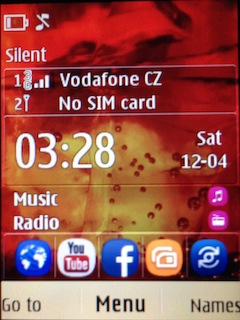
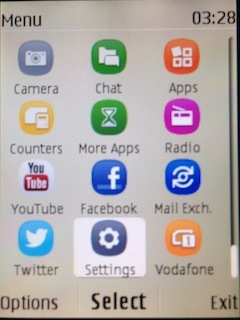
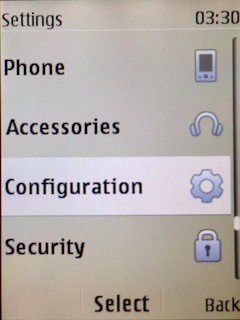
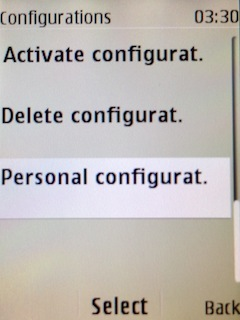
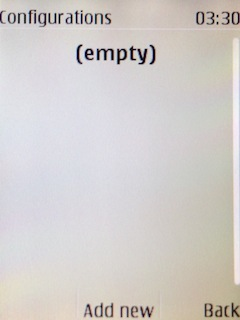
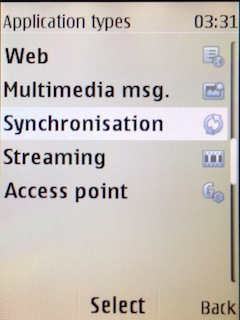
Fill in "Account name" (write PhoneCopy) and "Server address" (http://www.phonecopy.com/sync)
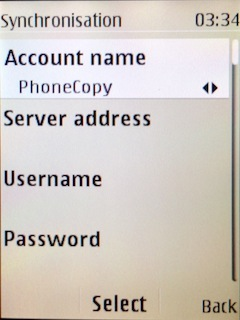
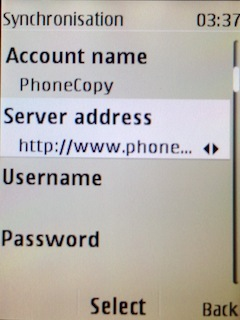
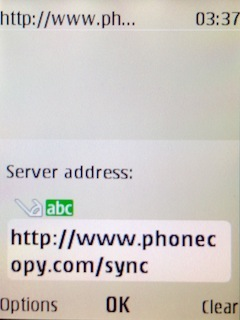
Now you need to fill in your "Username" and "Password".
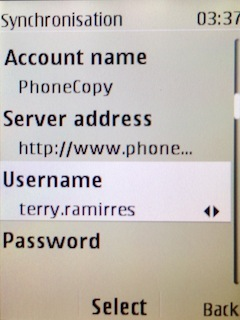
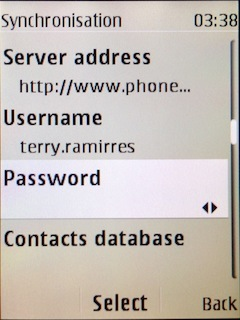
Select "Contacts database" and to "Database address" write contacts.
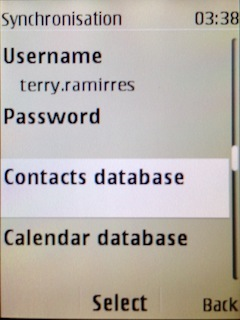
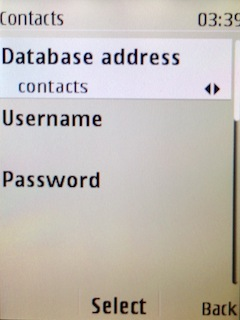
Select "Calendar database" and to "Database address" write calendar.
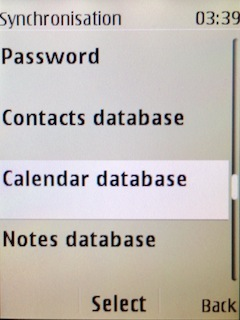
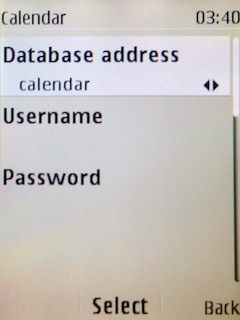
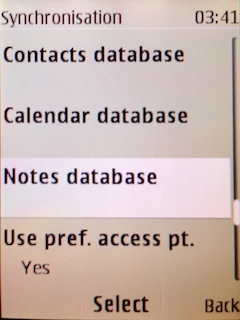
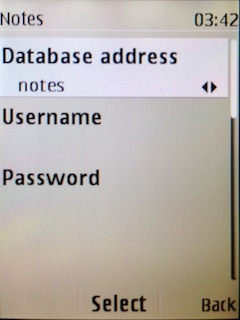
Select "Notes database" and to "Database address" write notes.
Choose, if you want to "Use pref. acces pt." and press 3x "Back".
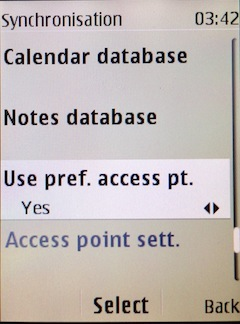
Now you need to select "Sync settings".
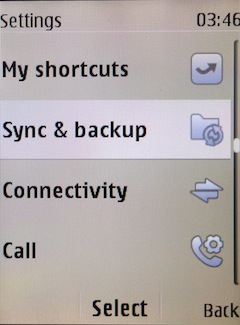
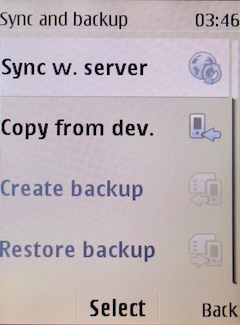
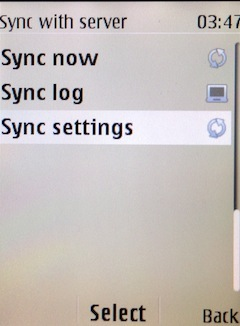
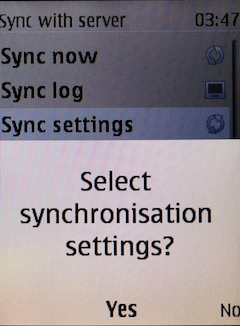
If you have Nokia 515 Dual sim, select "SIM" for synchronisation, choose "PhoneCopy" account and press 2x Back.
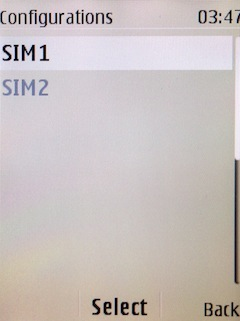
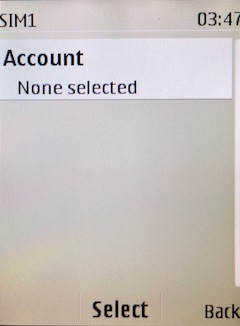
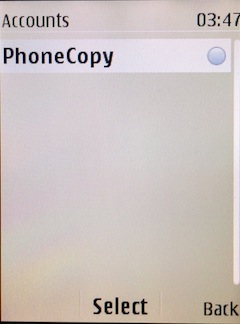
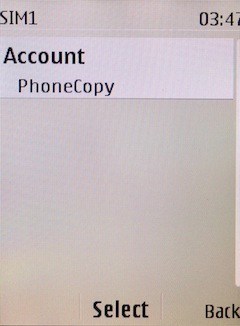
Select "Synchronised data", mark "Contacts" and press "Done".
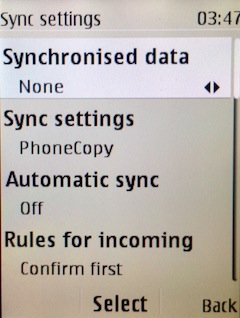
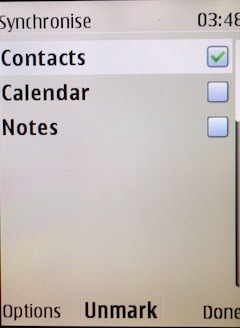
Choose, if you want to use "Automatic sync" and press "Back".
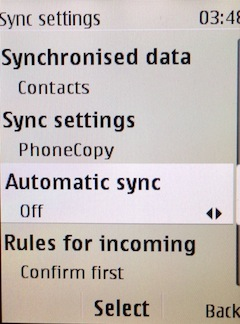
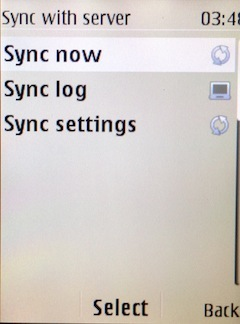
Now you can start synchronisation.
Run the app and select "Sign on" if you already have an account.
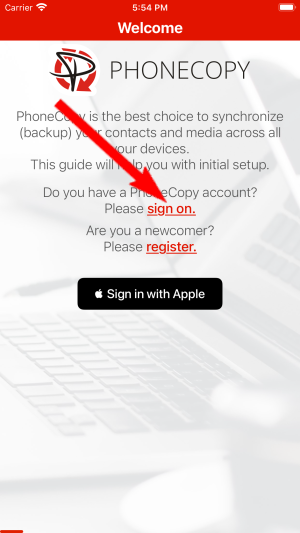
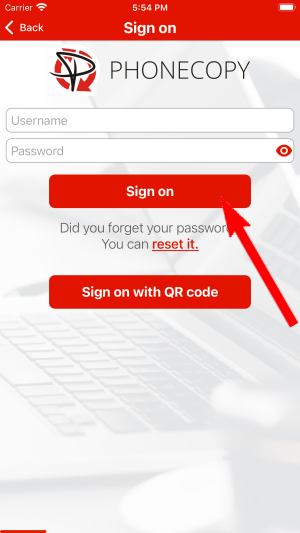
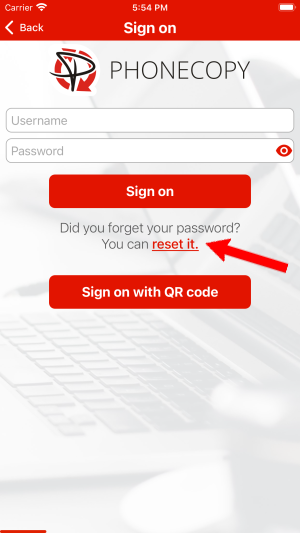
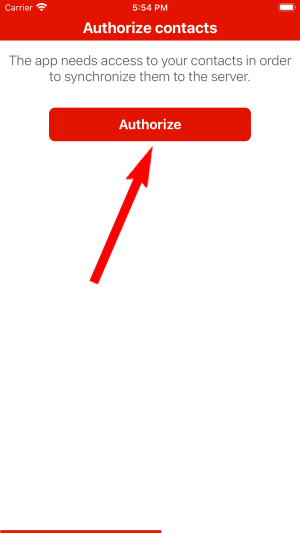
Then you need to allow PhoneCopy access to your contact list and select contacts which will be synchronized
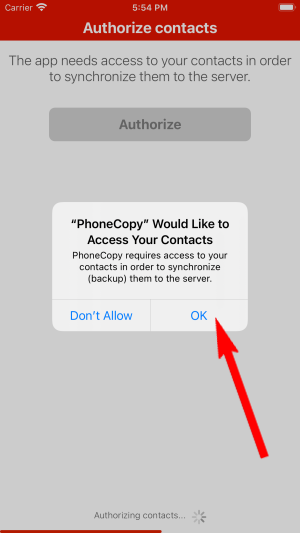
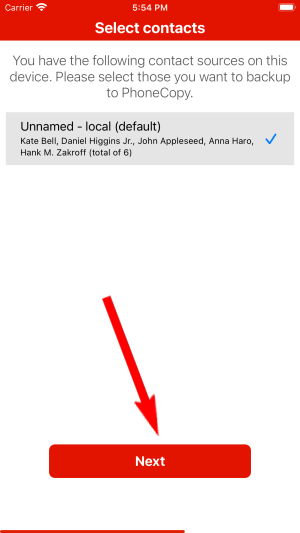
You can also sync photos and videos. Please note that the authorization of photos or videos is not required. If you will not grant it, PhoneCopy will only synchronize your contacts.
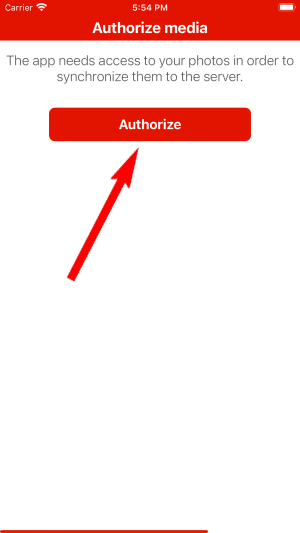
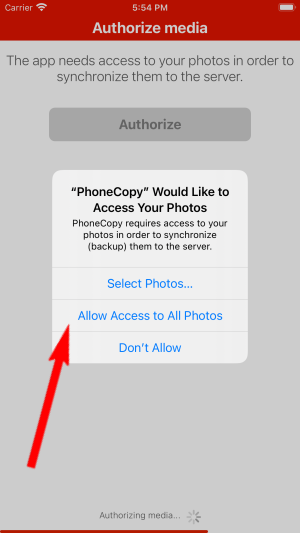
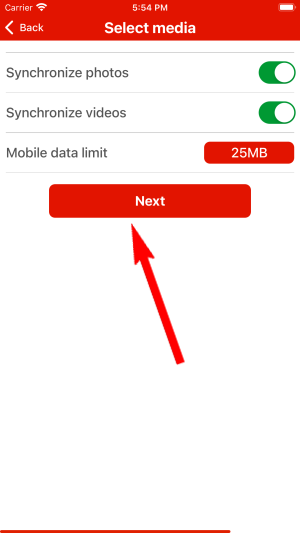
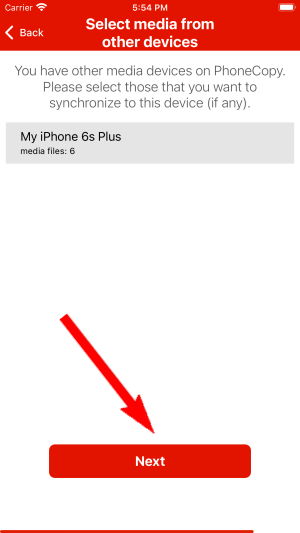
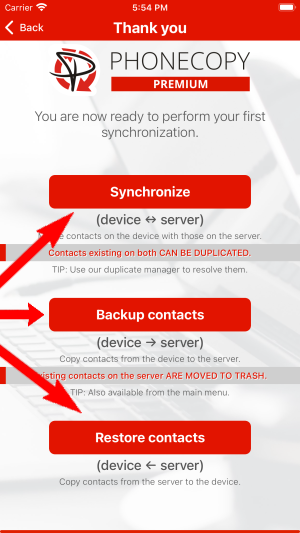
If you already have photos or videos in your PhoneCopy account you can choose from which phone(s) you want to transfer the backed up photos and videos to the new iPhone. Then let's synchronize!
This guideline also works for similar devices like Apple iPhone 16, Apple iPhone 16 Plus, Apple iPhone 16e, Apple iPhone 17, Apple iPhone 17 Pro, Apple iPhone 17e, Apple iPhone 18 Pro, Apple iPhone 18 Pro Max, Apple iPhone Air, Apple iPhone Duo.
From now on, your contacts are protected. If anything happens to your Nokia 301, simply log into PhoneCopy to access or restore your data instantly.
If the sync does not complete, make sure your phone has a stable internet connection and that background data is enabled for the PhoneCopy app. A brief pause and retry usually resolves the issue.


