Would you like to transfer or synchronize data?
You can try FREE APPLICATION from online stores:



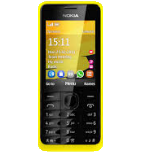

PhoneCopy.com makes it simple to back up your contacts from Nokia 301 to the cloud. In this guide, we will walk you through the entire process step by step.
This guideline also works for similar devices like Nokia 207, Nokia 208, Nokia 515, Nokia 515 Dual SIM, Nokia Asha 300, Nokia C3-01, Nokia X3-02.
To have your contacts saved you have to synchronize the Nokia with PhoneCopy. For better illustration, we've made some screenshots. The first step is create of synchronization account.
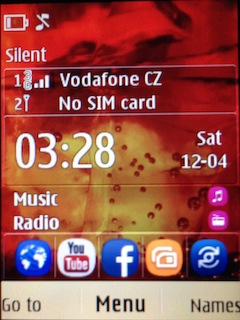
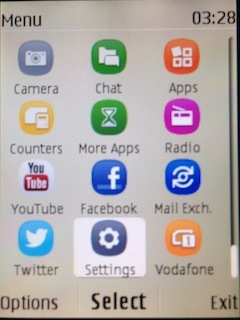
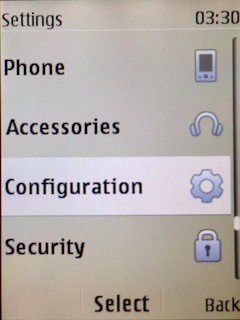
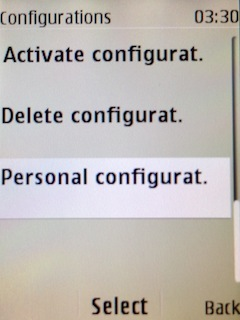
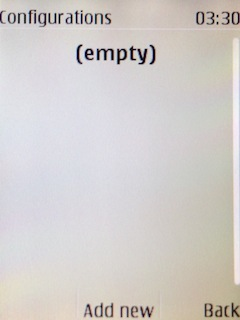
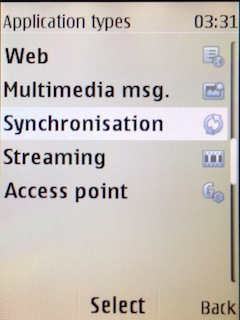
Fill in "Account name" (write PhoneCopy) and "Server address" (http://www.phonecopy.com/sync)
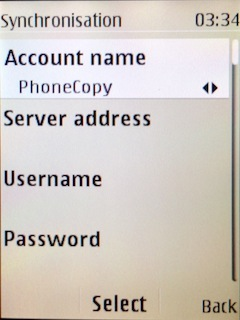
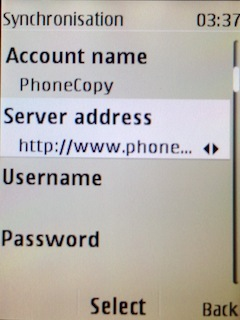
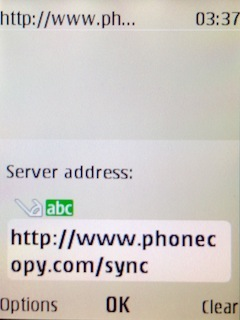
Now you need to fill in your "Username" and "Password".
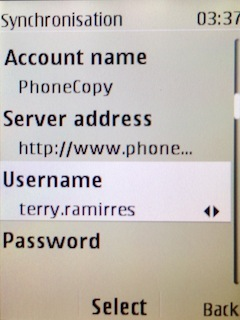
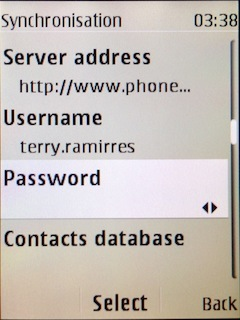
Select "Contacts database" and to "Database address" write contacts.
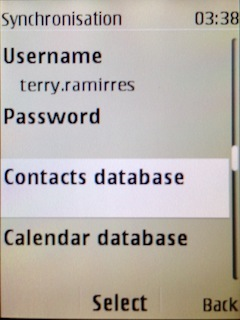
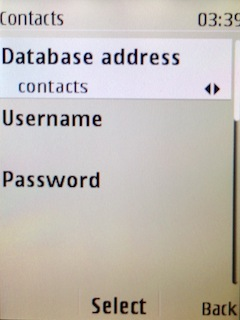
Select "Calendar database" and to "Database address" write calendar.
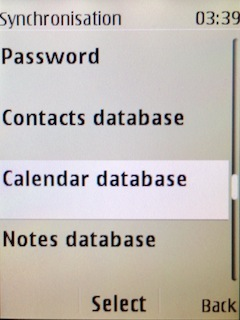
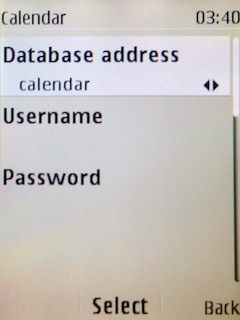
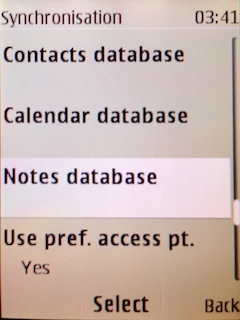
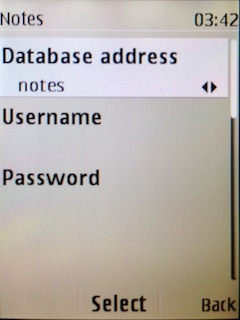
Select "Notes database" and to "Database address" write notes.
Choose, if you want to "Use pref. acces pt." and press 3x "Back".
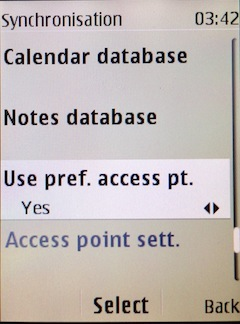
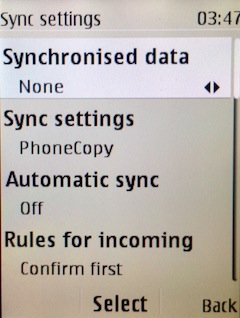
Now you need to select "Sync settings".
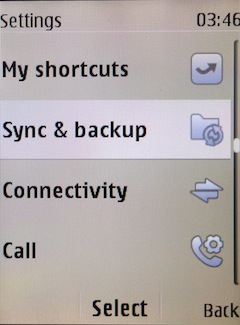
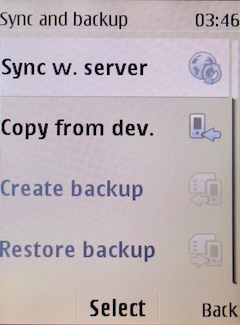
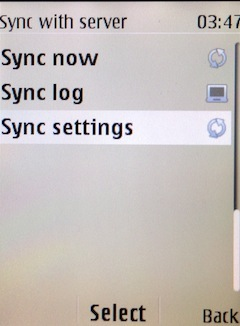
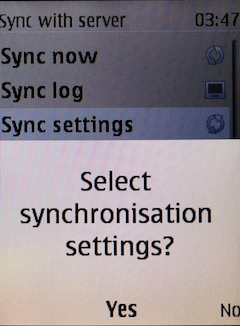
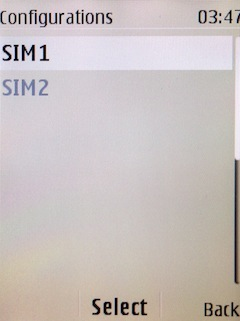
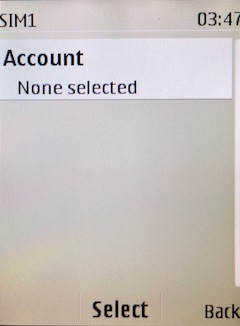
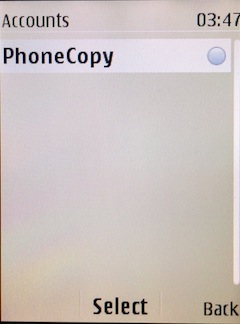
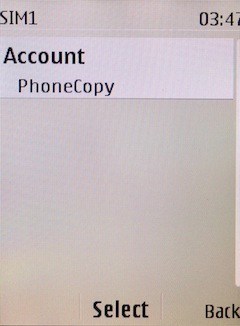
If you have Nokia 515 Dual sim, select "SIM" for synchronisation, choose "PhoneCopy" account and press 2x Back.
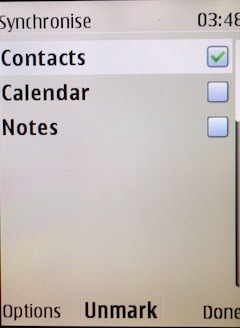
Select "Synchronised data", mark "Contacts" and press "Done".
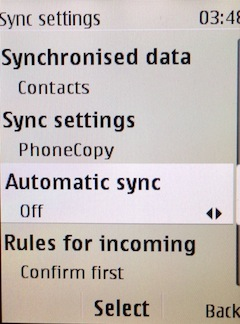
Choose, if you want to use "Automatic sync" and press "Back".
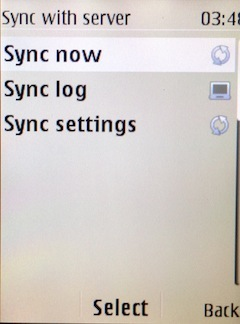
Now you can start synchronisation.
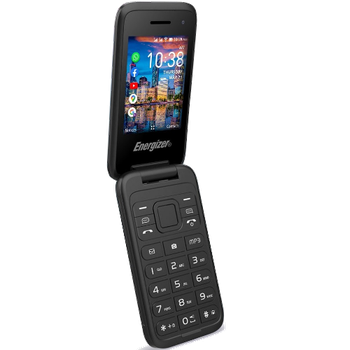
This guideline also works for similar devices like Energizer Energy e241, Energizer Energy e241s, Energizer Energy E242s 4G, Energizer Hardcase H280s.
Your backup is now complete. Visit the PhoneCopy website to confirm that all your contacts were transferred correctly and to explore the other features your account offers.
On your online account, you will see full history of your contacts, as well as the data that you've deleted in between the synchronizations. You can find them in an archive from where you can restore them. And if this is still not enough of a backup for you, you can download a CSV file, that you can store in your computer.


