
Would you like to transfer or synchronize data?
You can try FREE APPLICATION from online stores:



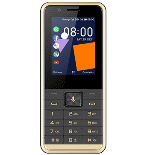
PhoneCopy.com is a reliable way to keep your contacts safe. Follow this guide to learn how to back up your Orange Sanza 2 data quickly and without any technical knowledge.
This guideline also works for similar devices like Orange Neva Link, Orange Sanza, Orange Sanza XL, Orange W6 3G, Orange W6 4G.
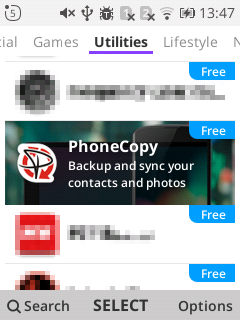
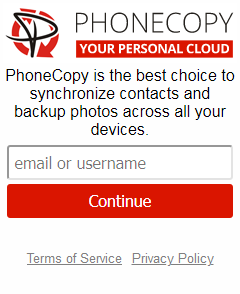
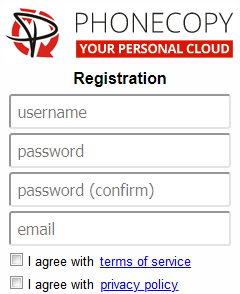
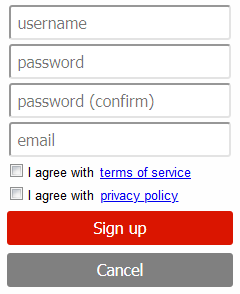
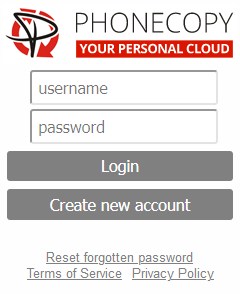
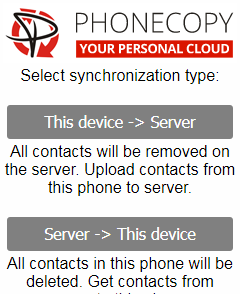
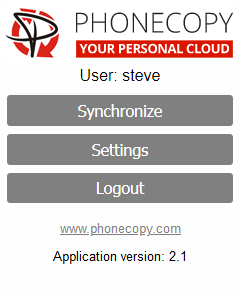
If you already have a PhoneCopy account, fill in your password. To export your contacts, press "Synchronize". Then select synchronization direction between three options: From your DEVICE to server, From SERVER to your device or Combine both. If you are not sure, use Combine both.
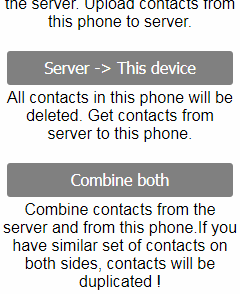
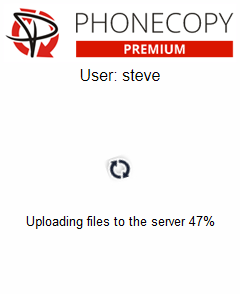
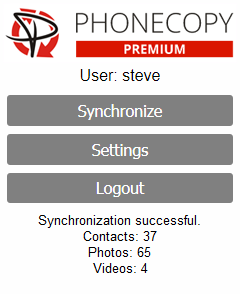
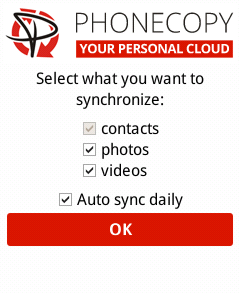
Select "contacts" and/or "photos" and press Synchronize. At the end of synchronization you will see status of synchronized items. In the Settings, you can set "auto sync daily".
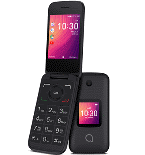
This guideline also works for similar devices like AT&T Cingular Flex, AT&T Cingular Flip 2 (4044O), AT&T Cingular Flip IV.
Now you have all your contacts backed up on PhoneCopy and you can edit all your contacts in your online account. If you lose your phone or the stored data, or if you just run out of battery, you can see your contacts online.
You can set PhoneCopy to sync automatically at regular intervals, so your backup always stays up to date without you having to remember to do it manually.