
Would you like to transfer or synchronize data?
You can try FREE APPLICATION from online stores:



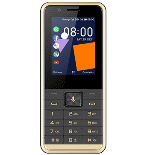
Losing your contacts can be frustrating. This guide shows you how to use PhoneCopy.com to keep a safe backup of all data from your Orange Sanza 2 — it only takes a few minutes.
This guideline also works for similar devices like Orange Neva Link, Orange Sanza, Orange Sanza XL, Orange W6 3G, Orange W6 4G.
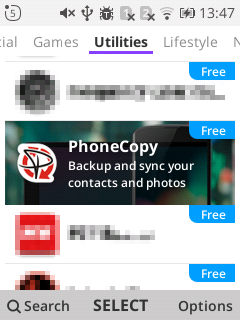
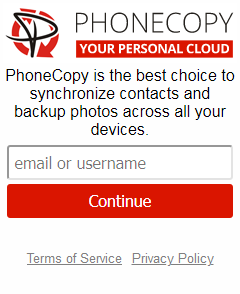
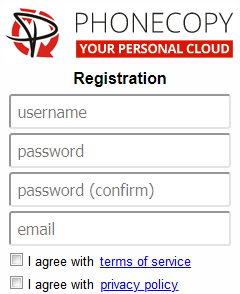
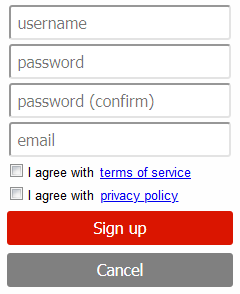
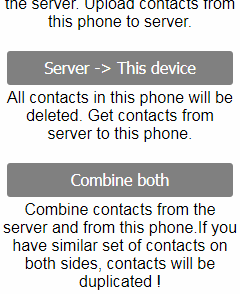
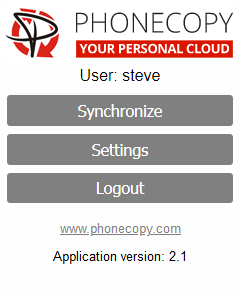
If you already have a PhoneCopy account, fill in your password. To export your contacts, press "Synchronize". Then select synchronization direction between three options: From your DEVICE to server, From SERVER to your device or Combine both. If you are not sure, use Combine both.
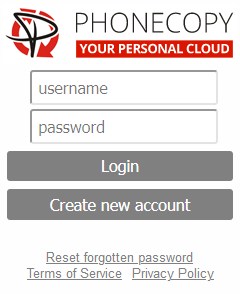
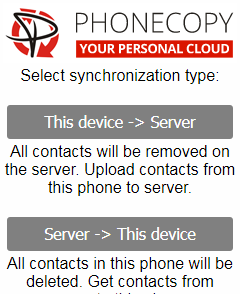
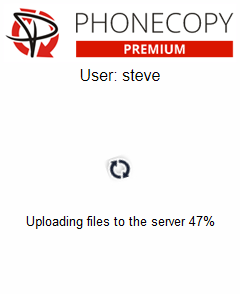
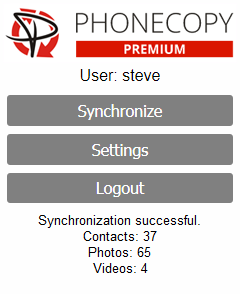
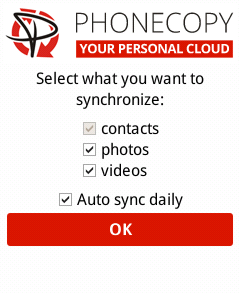
Select "contacts" and/or "photos" and press Synchronize. At the end of synchronization you will see status of synchronized items. In the Settings, you can set "auto sync daily".
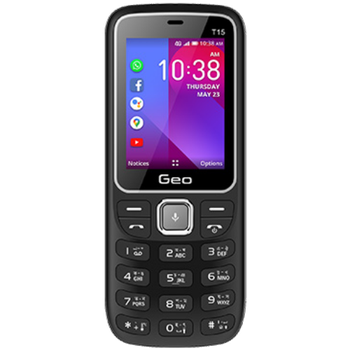
This guideline also works for similar devices like Geo Phone T19 4G, Geo Phone T19i 4G.
Now you can easily edit your contacts and other resources online in your PhoneCopy profile. You have access to your contact even if you forget your phone at home.
PhoneCopy also supports syncing notes, calendar events, and SMS messages on many devices, not just contacts. Check the PhoneCopy website to see the full list of supported data types for your phone.