Would you like to transfer or synchronize data?
You can try FREE APPLICATION from online stores:



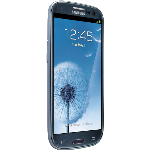

PhoneCopy.com makes it simple to back up your contacts from Samsung Galaxy S3 (SCL21) to the cloud. In this guide, we will walk you through the entire process step by step.
This guideline also works for similar devices like Samsung Galaxy Core (gt-i8580), Samsung Galaxy Core Plus Duos (SM-G3502l), Samsung Galaxy Fame Lite Duos S6792, Samsung Galaxy Grand Neo (gt-i9168i), Samsung Galaxy Trend 2 (gt-s7898i) , Samsung Galaxy Trend Plus (GT-S7583), Samsung Galaxy Young Plus (gt-s6293t).
Download PhoneCopy for Android to your Android phone, which you can download free of charge. After downloading and installation, go through following steps.
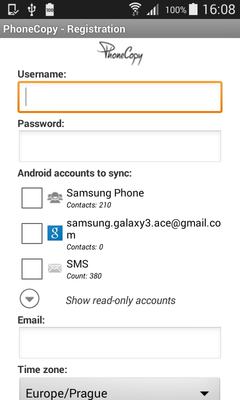
Run the app and create new account. You can check which contact databases you want to backup and synchronize. You can do multiple choice.
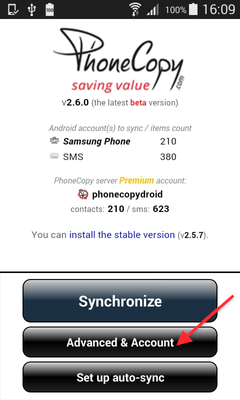
After successful login, press "Advanced & Account". Select "One-way sync" and after choose "This device >> server".
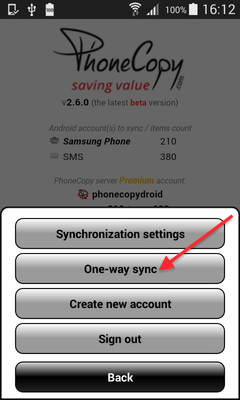
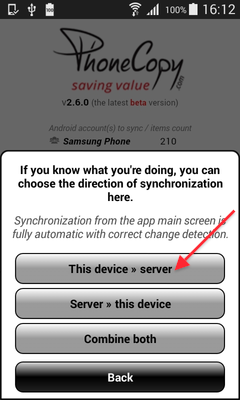
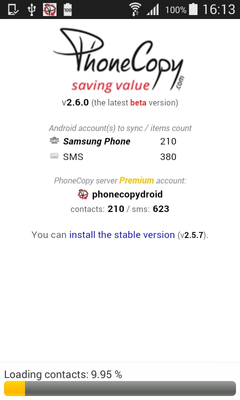
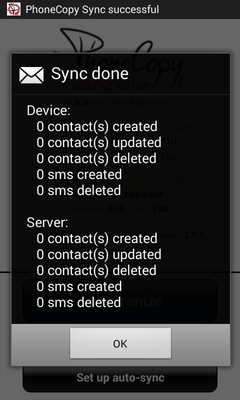
Contacts from your Android phone will be copied to PhoneCopy.com server in few seconds.
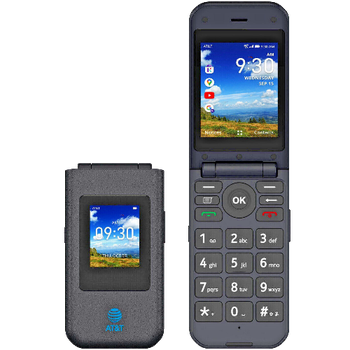
This guideline also works for similar devices like AT&T Cingular Flip 2 (4044O), AT&T Cingular Flip 3 (q28a), AT&T Cingular Flip IV.
With your contacts safely backed up, you can rest easy knowing your data is secure. Log into your PhoneCopy account at any time to view, edit, or restore your contacts.
Contacts can be then transferred to another device (eq. iPhone, other Nokia, SonyEricsson, Samsung, LG etc). You can always edit your contacts in your online account. Also, you will see full history of your contacts, as well as the data that you have deleted between two synchronizations.


