Would you like to transfer or synchronize data?
You can try FREE APPLICATION from online stores:





Whether you are switching phones or just want a safe copy of your data, PhoneCopy.com is a great solution. This guide covers how to back up contacts from your Sony Ericsson Xperia Arc LT15i quickly and easily.
This guideline also works for similar devices like Sony Ericsson Xperia mini pro SK17a, Sony Ericsson Xperia X10, Sony Ericsson Xperia X10 mini (E10i), Sony Ericsson Xperia X10i (Rachael).
Download PhoneCopy for Android to your Android phone, which you can download free of charge. After downloading and installation, go through following steps.
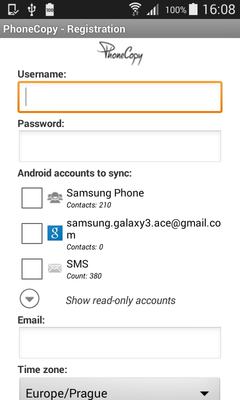
Run the app and create new account. You can check which contact databases you want to backup and synchronize. You can do multiple choice.
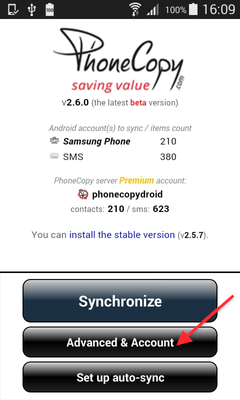
After successful login, press "Advanced & Account". Select "One-way sync" and after choose "This device >> server".
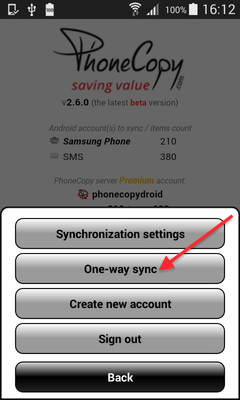
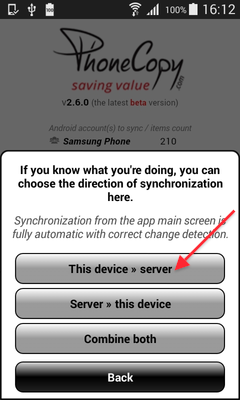
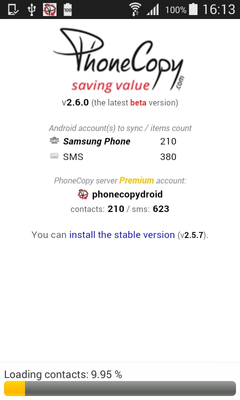
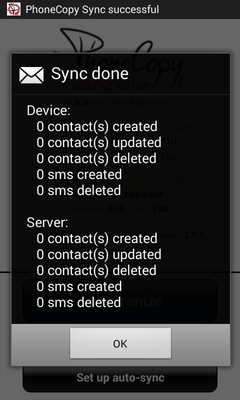
Contacts from your Android phone will be copied to PhoneCopy.com server in few seconds.
This guideline also works for similar devices like Apple iMac, Apple Mac Mini, Apple Mac OS X, Apple Mac Studio, Apple MacBook, Apple MacBook Pro.
With your contacts safely backed up, you can rest easy knowing your data is secure. Log into your PhoneCopy account at any time to view, edit, or restore your contacts.
If the sync does not complete, make sure your phone has a stable internet connection and that background data is enabled for the PhoneCopy app. A brief pause and retry usually resolves the issue.