Would you like to transfer or synchronize data?
You can try FREE APPLICATION from online stores:



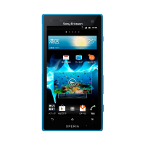

PhoneCopy.com makes it simple to back up your contacts from Sony Xperia acro HD IS12s to the cloud. In this guide, we will walk you through the entire process step by step.
This guideline also works for similar devices like Sony GX LT29, Sony Tablet P (Tablet S2), Sony Xperia acro S LT26w, Sony Xperia advance ST27s, Sony Xperia GX SO-04D, Sony Xperia Ion LT28, Sony Xperia SX SO-05D.
Download PhoneCopy for Android to your Android phone, which you can download free of charge. After downloading and installation, go through following steps.
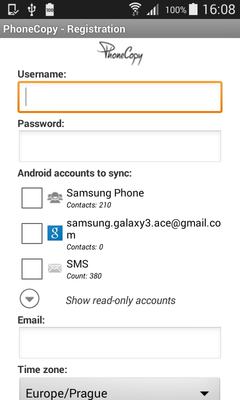
Run the app and create new account. You can check which contact databases you want to backup and synchronize. You can do multiple choice.
After successful login, press "Advanced & Account". Select "One-way sync" and after choose "This device >> server".
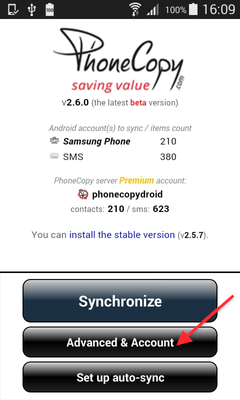
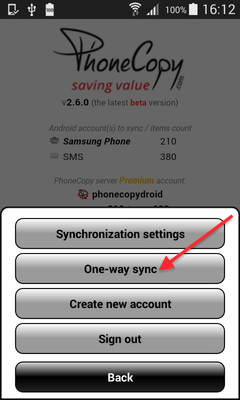
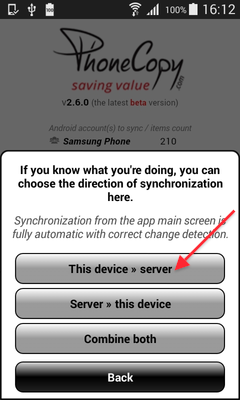
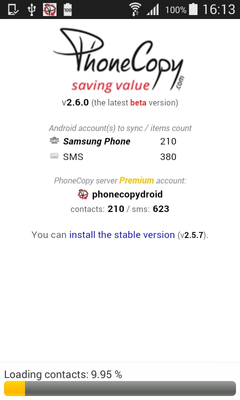
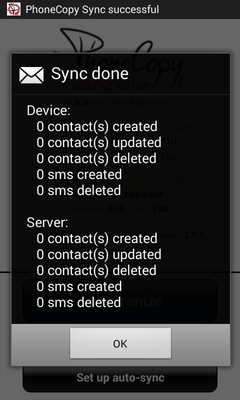
Contacts from your Android phone will be copied to PhoneCopy.com server in few seconds.
This guideline also works for similar devices like Apple iMac, Apple Mac Mini, Apple Mac OS X, Apple Mac Pro, Apple Mac Studio, Apple MacBook, Apple MacBook Air.
Your contacts are now safely stored in your PhoneCopy account. You can view and manage them online at any time, even if your phone is lost, damaged, or simply out of reach.
PhoneCopy also supports syncing notes, calendar events, and SMS messages on many devices, not just contacts. Check the PhoneCopy website to see the full list of supported data types for your phone.