Would you like to transfer or synchronize data?
You can try FREE APPLICATION from online stores:




PhoneCopy.com makes it simple to back up your contacts from Windows to the cloud. In this guide, we will walk you through the entire process step by step.
This guideline also works for similar devices like Microsoft Windows 2000, Microsoft Windows 2003, Microsoft Windows 2008, Microsoft Windows 7, Microsoft Windows 8.1, Microsoft Windows 98, Microsoft Windows ME.
Download PhoneCopy for Windows to your Windows, which you can download free of charge. After downloading and installation PhoneCopy icon will appear on your desktop.

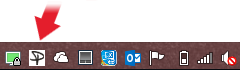
Start the application and small PhoneCopy icon will appear on right bottom corner of your screen on status bar. When you will press this icon at first time you will be asked to fill your username and password. Any next icon click will start synchronization.
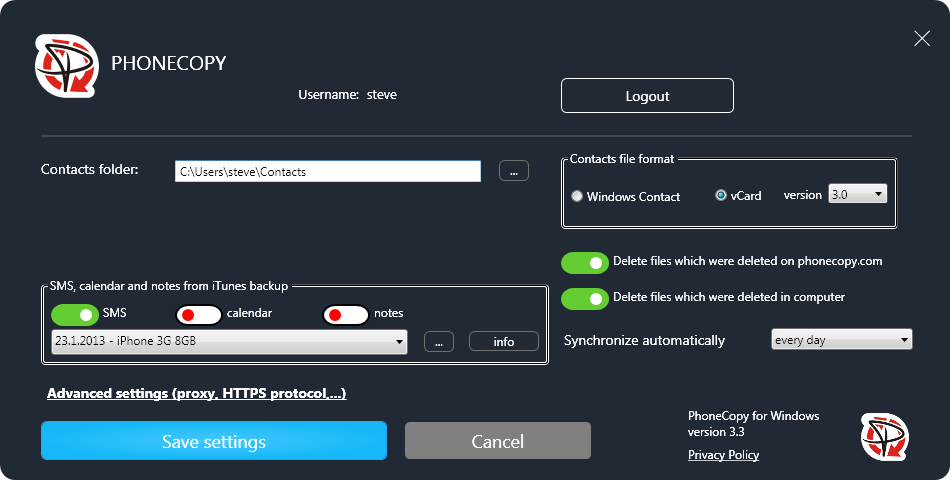
Start PhoneCopy for Windows. Fill your PhoneCopy username and password, select local directory to store contacts, and choose VCARD format which will be used (we recommend to use 3.0 which is pre-selected). Another option is to use native Windows Contacts format and synchronize directly to Contacts folder. Also you can set your proxy.
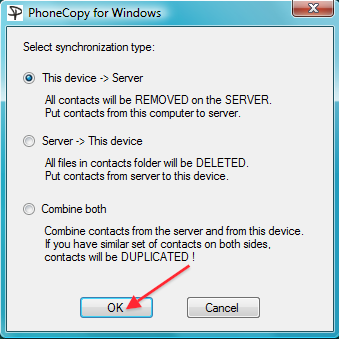
Now you can start the first synchronization on your Windows to transfer your contacts from/to PhoneCopy server. Also you have some contacts at PhoneCopy.com server, they will be copied to selected directory. Status bar icon is animated during synchronization process.
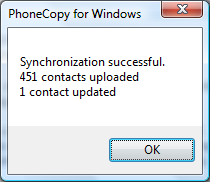
When synchronization finish you will get confirming message.
This guideline also works for similar devices like Multilaser P70S, Multilaser ZAPP.
That is all there is to it. Your contacts are now backed up on PhoneCopy and you can access them from any browser whenever you need them.
You can set PhoneCopy to sync automatically at regular intervals, so your backup always stays up to date without you having to remember to do it manually.


