
Would you like to transfer or synchronize data?
You can try FREE APPLICATION from online stores:





This step-by-step guide will help you back up your contacts from Xiaomi Redmi Note 11S using PhoneCopy.com. The service works in the background and the whole process takes just a few minutes.
This guideline also works for similar devices like Xiaomi 12 5G, Xiaomi Mi 11i 5G, Xiaomi Mi 8 Explorer Edition, Xiaomi Redmi 10 Prime, Xiaomi Redmi 10c, Xiaomi Redmi Note 11 Pro 4G, Xiaomi Redmi Note 11 Pro 5G.
Download PhoneCopy for Huawei from Huawei AppGallery to your Huawei phone, which you can download free of charge. After downloading and installation, go through the following steps.
Run the app and create new account. If you already have an account choose "sign on".
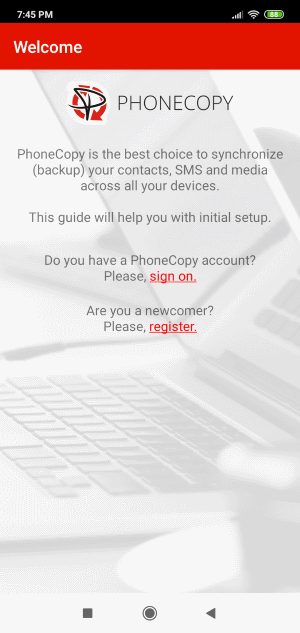
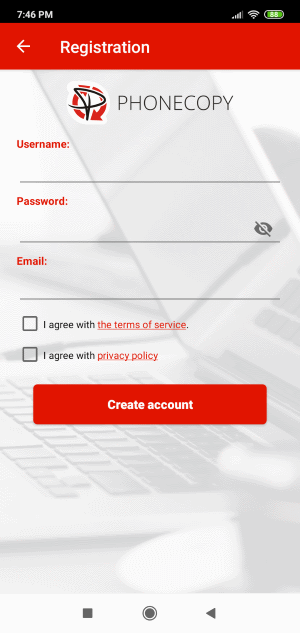
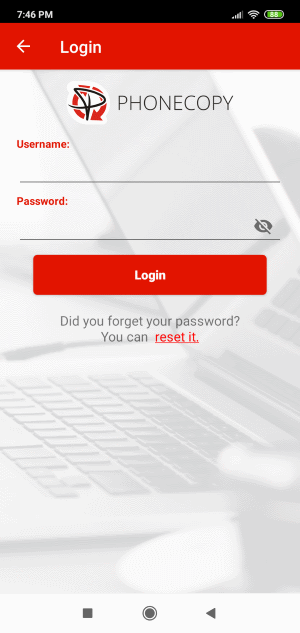
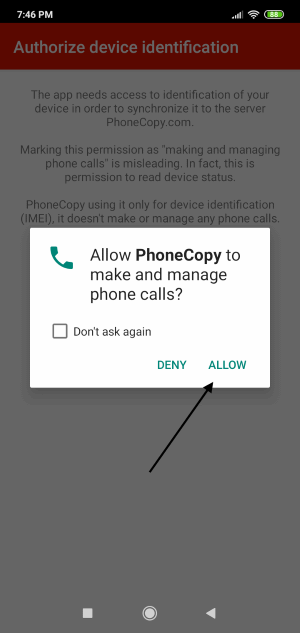
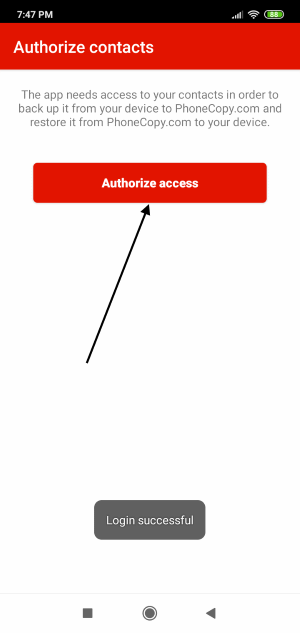
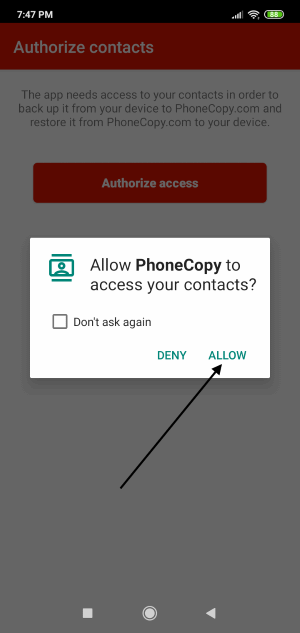
To allow correct functionality of PhoneCopy application we will kindly ask you to confirm access permissions for it.
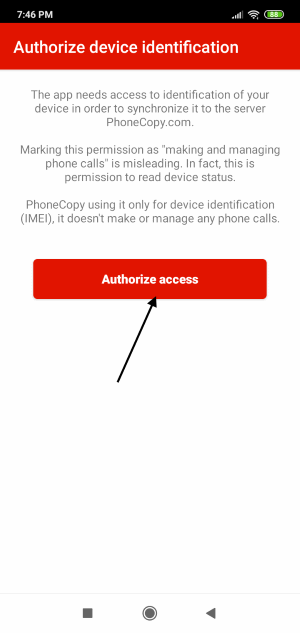
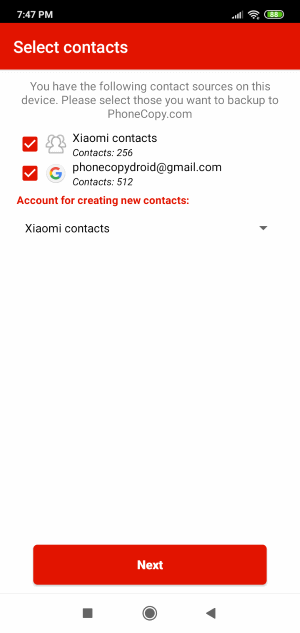
When you confirm access to contacts you can set which "contacts databases" you want to backup.
PhoneCopy allows to back up SMS too.
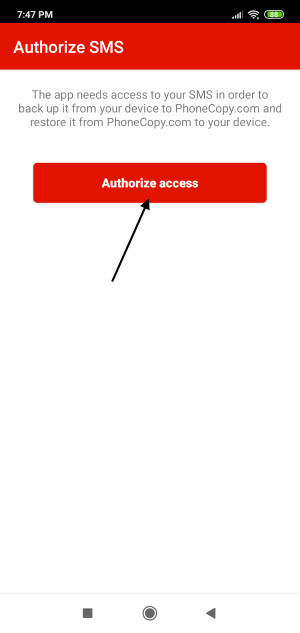
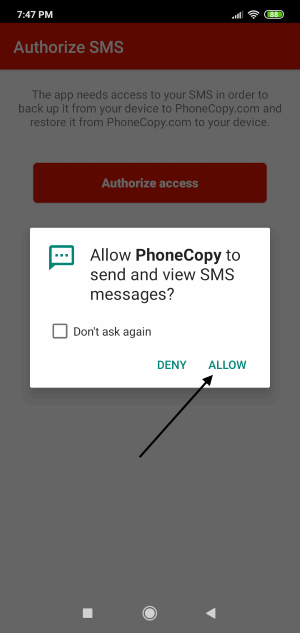
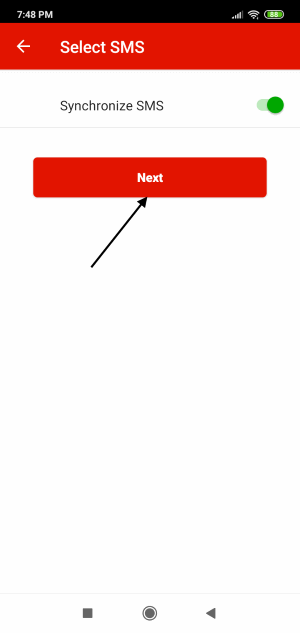
Then you can set up backup for media (photos and videos).
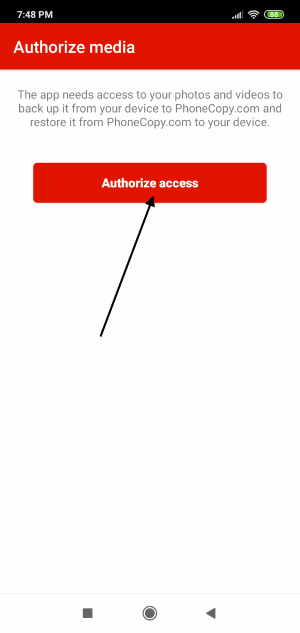
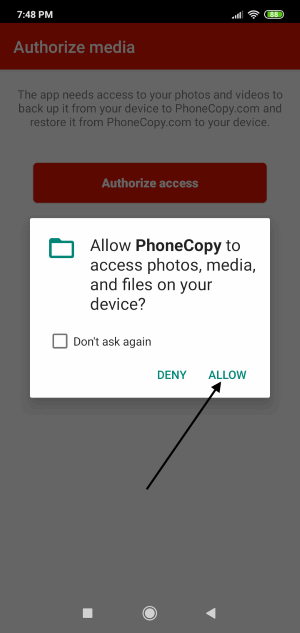
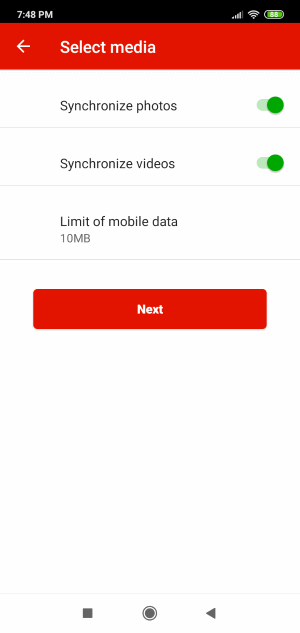
If you want download photos and videos from old phone (which was synchronized to PhoneCopy.com before) you can choose it in the next step. Then you can synchronize.
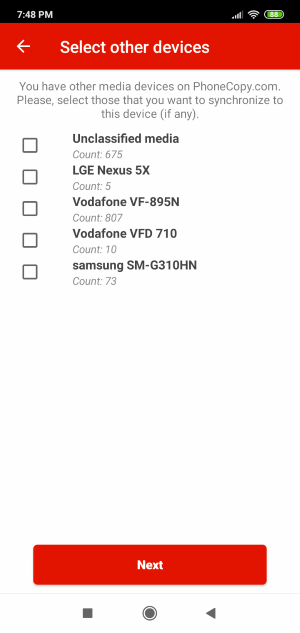
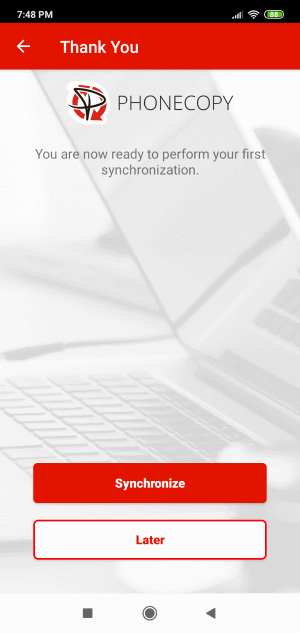
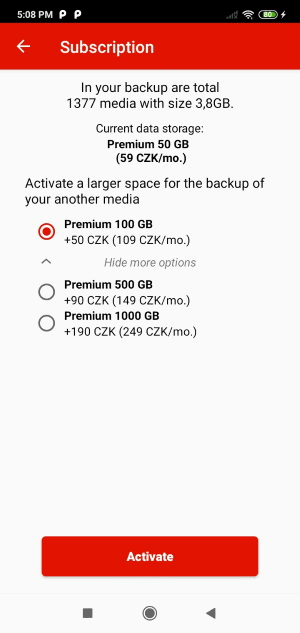
You can access all settings later by bottom menu of the application or by main menu. In case you exceed limits for a free account we recommend you to buy Premium
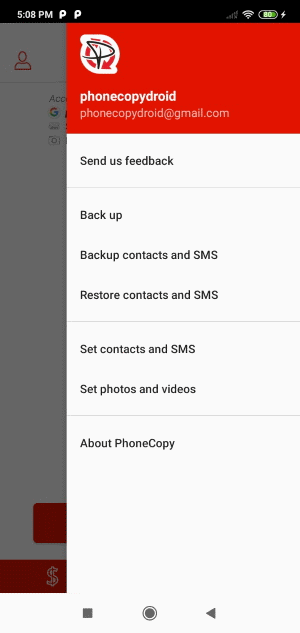
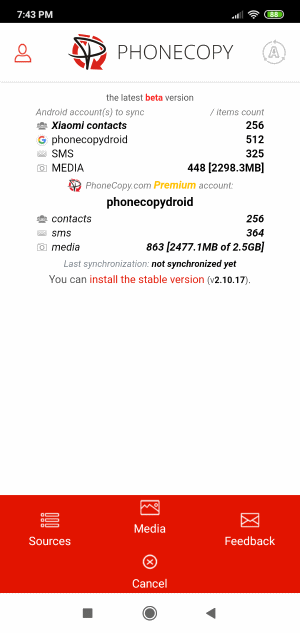
Download PhoneCopy for Huawei from Huawei AppGallery to your phone free of charge. After downloading and installation, go through the following steps.
Run the app, fill in your username and password. Here you can check where will be stored contacts from PhoneCopy. In case you are Premium user, you can upload SMS, photos and videos as well.
Log in to your existing account where you stored your data from the old phone. To allow correct functionality of PhoneCopy application we will kindly ask you to confirm access permissions for it.
When you confirm access to contacts you can set which "contacts databases" you want to backup.
PhoneCopy allows to back up SMS too.
Then you can set up backup for media (photos and videos).
You can download photos and videos from old phone (which was synchronized to PhoneCopy.com before) you can choose it in the next step. Then you can synchronize.
This guideline also works for similar devices like Xiaomi 14 5G, Xiaomi Poco F5 Pro 5G, Xiaomi Poco M3 5G, Xiaomi POCO M5s 5G, Xiaomi Poco X6 5G, Xiaomi Redmi 13C 5G, Xiaomi Redmi Note 12 Turbo 5G, Xiaomi Redmi Note 13 5G, Xiaomi Redmi Note 13 Pro 5G, Xiaomi Redmi Note 13 Pro+ 5G.
That is all there is to it. Your contacts are now backed up on PhoneCopy and you can access them from any browser whenever you need them.
On your online account, you will see full history of your contacts, as well as the data that you've deleted in between the synchronizations. You can find them in an archive from where you can restore them. And if this is still not enough of a backup for you, you can download a CSV file, that you can store in your computer.